Give River Mobile App
Give River is available as a mobile app for iPhone and Android. It works the same way as Give River on the web: everything you can do there — sending drops, viewing the feed, completing River Runs, chatting with teammates — is available on mobile.
Downloading the App
| Platform | Where to Get It |
|---|---|
| iPhone (iOS) | App Store — search "Give River" |
| Android | Google Play Store — search "Give River" |
Get the App from Your Phone's Browser
If you open Give River in your phone's web browser, a small banner at the top suggests the mobile app. Tap Get the app to open the App Store (iPhone) or Google Play (Android). If you close the banner, it stays hidden for a couple of weeks.
Signing In
The app signs you in the same way as the web, with no password:
- Open the app and enter your email address or phone number.
- Check your email or text messages for a 4-digit verification code.
- Enter the code in the app to sign in.
On iPhone, you can also sign in with Apple ID or Google. On Android, Google Sign-In is available.
Push Notifications
The mobile app supports push notifications so you know when:
- Someone sends you a drop
- A teammate comments on or reacts to your post
- You earn drops from recognition
Your phone asks whether Give River may send you notifications. If you said no, go to your device's Settings → Give River → Notifications to turn them on. To choose which notifications you get, see Push Notifications.
Getting Around on a Phone
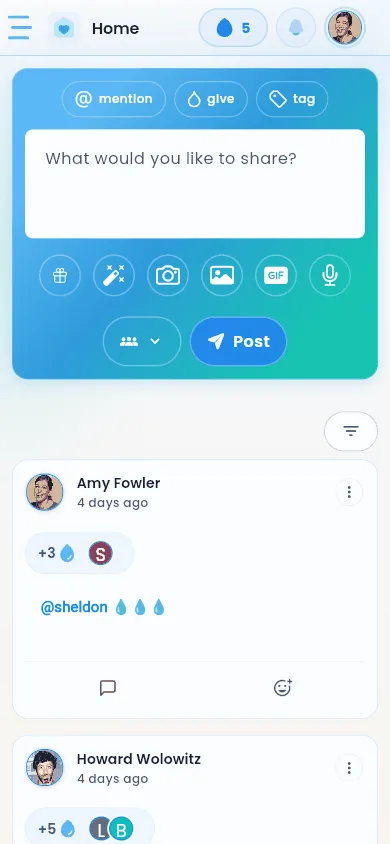
On a phone — in the app or in your phone's web browser — Give River works the same way:
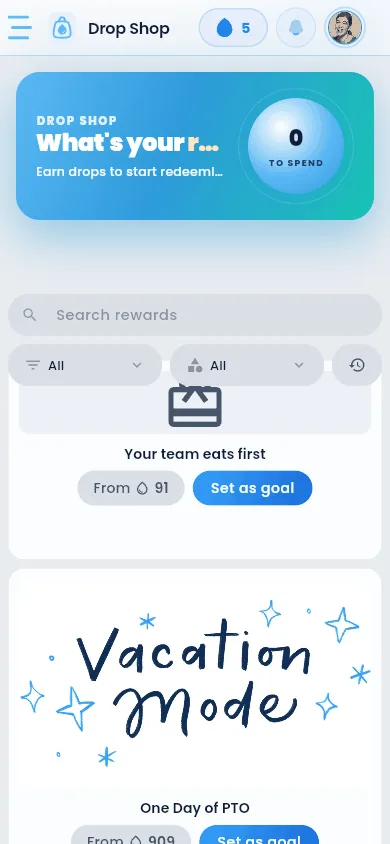
- The bottom bar holds your team's everyday pages. Most teams see Home, Team Hub, River Runs, Drop Shop and My River, but your admin can choose 3 to 5 tabs and their order, so yours may differ. Pages your team doesn't use never appear there.
- The menu (☰) at the top left of the screen has everything else, for example Wellspring or River Rankings. At its bottom are your photo (your profile), your notifications and the Settings menu (the gear), which holds Theme, Language, the Help Center and more.
- The header hides as you scroll down so you can read more of the page, and comes back as soon as you scroll up a little. Scroll up to reach the menu, notifications and your profile.
- Today on Home — under My Drops, a strip of cards shows your season, upcoming events, team charities and celebrations. Swipe it sideways to see them all; the feed starts right below.
To give recognition, tap Give a Drop on the My Drops card at the top of Home.
Mobile-Specific Features
A few features work differently on mobile:
- Downloading reports — When you export CSV data from the admin Insights dashboard on mobile, files are saved to your device's Documents or Downloads folder (rather than triggering a browser download as on web).
- Location — The app can use your device's location if you allow it. You can change this anytime in your device settings.
Keeping the App Updated
Give River updates are delivered through the App Store and Google Play. Enable automatic updates in your device settings, or check the store periodically for new versions.
When your version of the app is too old to keep working with Give River, the app opens on an Update Give River page instead. Tap Update now to go to the App Store or Google Play, install the update, then open Give River again. If you've already updated and the page is still there, tap Check again.
Rating the App
Enjoying Give River? Leave a rating and review on the App Store or Google Play anytime.
After you've used the app for a while, Give River may also ask you once in a while to rate it using your phone's built-in rating prompt. Your phone decides whether the prompt appears, and it never shows up more than a few times a year. You can dismiss it at any time.
Troubleshooting
- Didn't receive your login code? Tap Resend code on the verification screen, or check your spam folder if using email.
- Need help? Tap Need help? on the login screen to email support@giveriver.com.
- Notifications not arriving? Check that notifications are enabled for Give River in your device Settings app.
Did this article help?
Related articles.
See the platform in action.
Free for up to 25 members, or try Core or Growth free for 30 days. A card is required; Free is never charged, and a trial bills when it ends unless you cancel.