Email Notification Preferences
Give River can send you emails to keep you updated on your activity and account. The Email Preferences screen lets you choose exactly which emails you want to receive, with a separate toggle for each type.
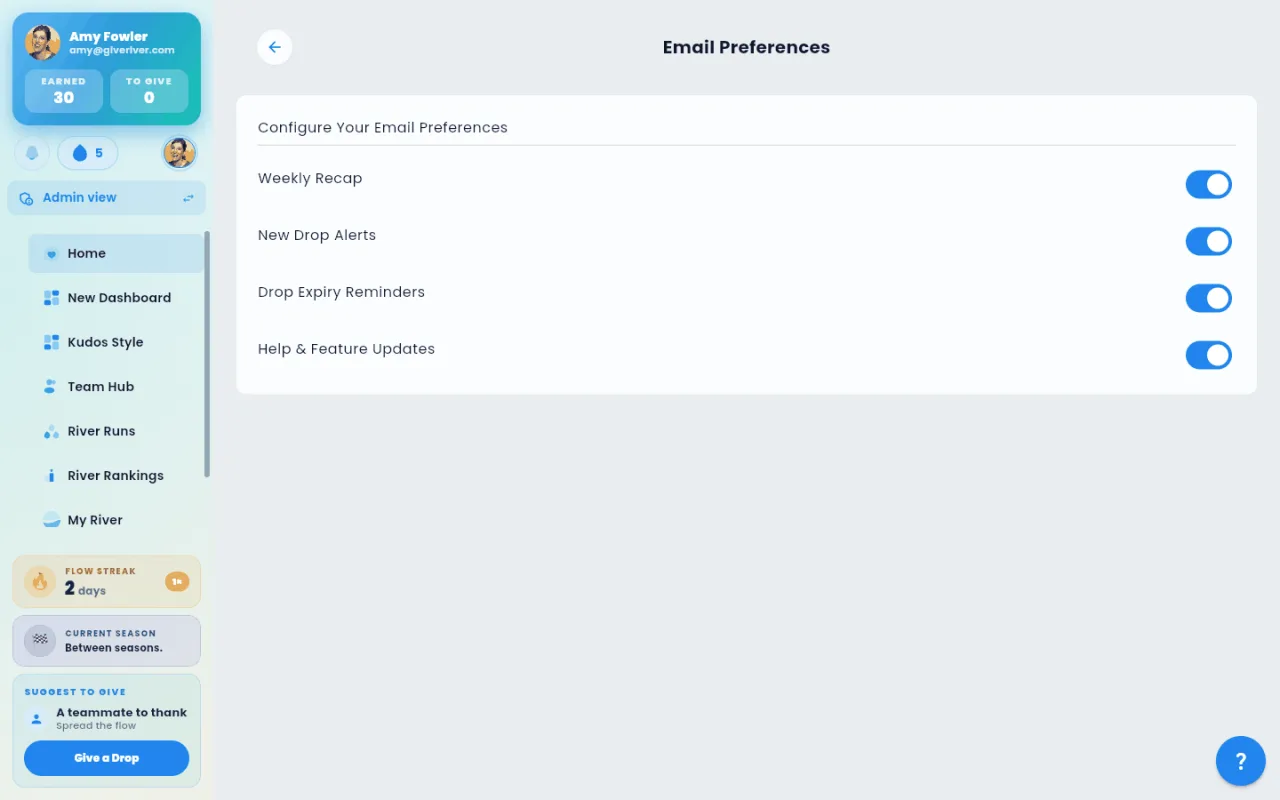
Available Email Preferences
| Preference | What it controls |
|---|---|
| Weekly Recap | A summary email sent once a week showing your recognition activity, drops earned, and highlights |
| New Drop Alerts | An email sent when you receive a new drop (recognition) from a colleague |
| Drop Expiry Reminders | A reminder email when your available drops are about to expire |
| Help & Feature Updates | Emails about new Give River features, tips, and product updates |
| Team emails from your admins | Emails your team's admins send from Give River: season kickoffs and results, the weekly Game Day email, and other team news. On by default |
Each preference is independent — you can enable or disable any combination.
Every team email also has an Unsubscribe link at the bottom. Clicking it turns off Team emails from your admins for that team, without signing in, and the page it opens has an undo button. Sign-in codes, invitations and required-training notices still arrive either way. To get team emails again, turn the switch back on here.
Welcome-Back Summary
Below the email switches, Welcome-back summary sets how often Home greets you with the card that sums up your new drops, Flow level, rank and River Run since your last visit:
| Option | When it shows |
|---|---|
| Every visit (default) | Each time you come back, at most once every 6 hours |
| Once a day | At most once per day |
| Once a week | At most once every 7 days |
| Off | Never |
Your choice is saved on your account, so it applies on every device. If your admin has turned the summary off for your team, it doesn't show whatever you pick here.
How to Access Email Preferences
- Open the Settings menu (the gear at the bottom of the side menu; on a phone, your photo in the top-right corner).
- Tap Notifications Preferences.
- The Email Preferences screen opens with your current settings.
Changing a Preference
- On the Email Preferences screen, find the preference you want to change.
- Tap the toggle switch next to it.
- Toggle on (blue) means emails of that type will be sent to you.
- Toggle off (grey) means you will not receive emails of that type.
- Your preference saves immediately and a confirmation message appears.
Tips
- Changes take effect right away; there's no Save button.
- Email preferences only control emails from Give River. They don't affect push notifications; see Push Notifications.
- If you are not receiving expected emails, check your spam or junk folder and ensure the preference is toggled on.
Did this article help?
Related articles.
See the platform in action.
Free for up to 25 members, or try Core or Growth free for 30 days. A card is required; Free is never charged, and a trial bills when it ends unless you cancel.