My River — Personal Stats Dashboard
My River is your personal dashboard inside Give River. It brings together everything that matters to your recognition journey in one scrollable screen: your drop balance, stats, completed runs, causes, badges, awards, stickers, and your private journal.
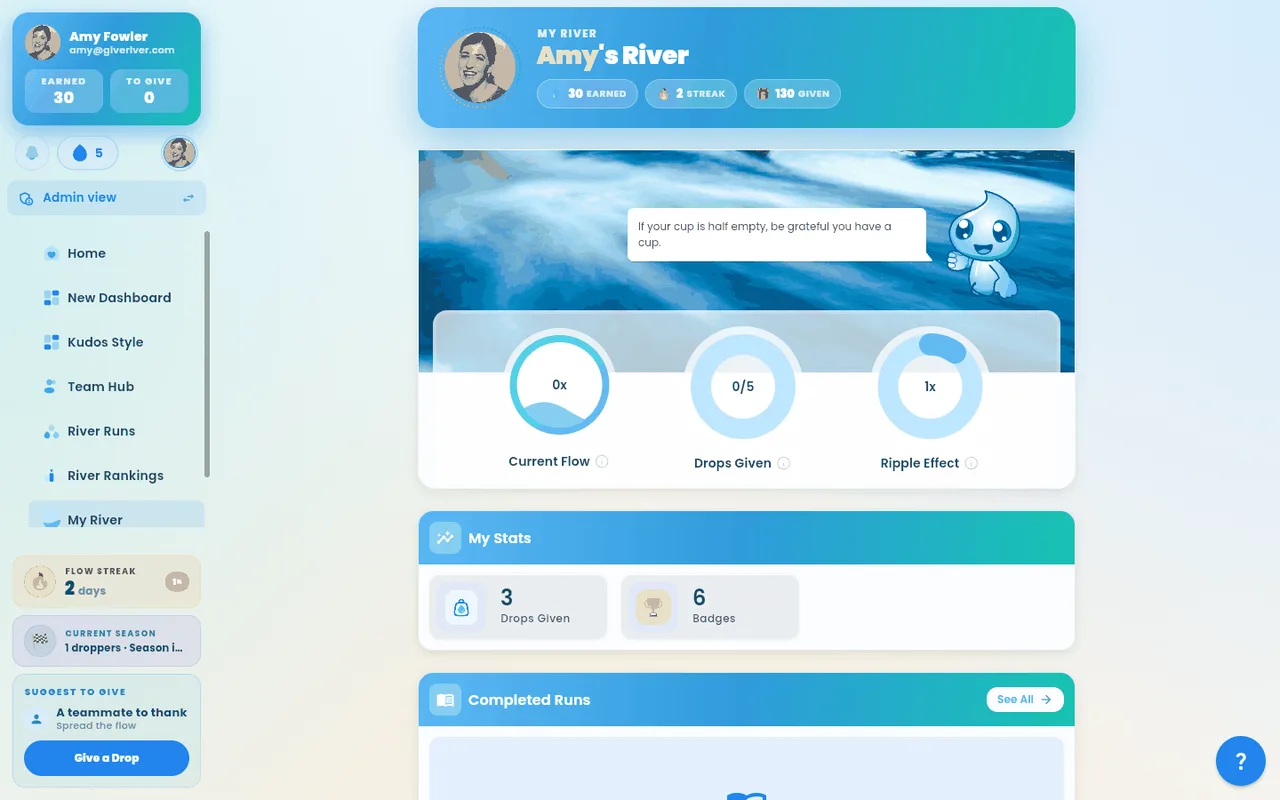
Sections on My River
Your river
My River opens on your river card. Across its top is your banner — the same one you chose on your profile (see Your Profile); tap the pencil in its top-right corner to change it from here too. Ugo stands at the banner's edge (on a computer or tablet his quote of the day sits beside him), and below it are your profile photo and your river's name, for example "Amy's River". Three tiles under your name show your Flow level (its tile fills with water to your level — a quarter at 1×, full at 4×), Given this cycle (drops you've given this cycle out of your team's regular per-cycle allowance — extra drops you've been granted aren't counted here, so check To give on Home's My Drops card for your full balance), and your Ripple Effect. Tap the small ⓘ beside any tile's label for a short explanation of what it measures (on a computer, hovering shows the same text). Your Flow level counts today's visit, so it never reads below 1× while you're using the app. For what each number means, see How Drops Work.
Chest Animation
Below the Add Drop panel sits an animated chest. The chest reflects activity and rewards — it plays when you have something to collect, and its badge shows how many rewards are waiting. Tap it to open them: each reward shows in turn, with Next reward (and a count such as 1 of 3) until the last one, which has Close.
My Stats
The first card under your river. It shows your personal performance metrics:
- River Bank comes first: the drops you can spend in the Drop Shop.
- Below it, your totals as a grid of equal tiles. River Runs streak is the first tile (if your team uses it and you have streak data): the days in a row you've spent time in River Runs and how many days until it resets. Tap the small ⓘ beside it for how it's counted and how to keep it going. It's separate from your Flow level.
- Drops given · all time, Drops received · all time, Drops earned · all time and your other totals follow. The Badges tile counts each badge you've earned once, so it matches the All badges count on the Badges card below.
My Goals
Your active SMART goals, each with a progress bar and a pace chip (On track / At risk / Behind). Tap a goal to open its detail page, See all for the full list — with your drafts, goals your manager suggested, and the bell icon for goal reminder settings (managers also get My team and Approvals views there) — or New goal to create one. See the SMART Goals article for the full walkthrough.
Drop Flow
Your drop economy at a glance, appearing once you have some activity, on a soft blue wash that fills the whole card. It opens in a compact Summary — your River Reps total with a mini trend, your given/received/earned totals, and a small source ring — and a Summary / Full toggle in the section header (or a tap anywhere on the summary card) expands it to the full charts. The view you pick is remembered.
The Full view shows three charts:
- River Reps by week — how many engagement actions (reps) you logged each week, aggregated weekly so trends are easy to see. Use the 8w / 12w toggle to widen the window.
- Drops given, received & earned — a weekly side-by-side of the drops you gave to teammates, received from them, and earned from rewards and badges.
- Where your drops come from — a donut of every drop you have ever been credited, split into Recognition, Reflections, River Runs, Badges & Challenges, Milestones, and Other, with your lifetime total in the center.
Hover or tap any bar or slice for exact numbers.
Completed Runs
If your organization has River Runs enabled, this section lists the runs you have finished as compact rows — a small thumbnail, the run title, and a completed check. Tap a row to revisit the run, or See all for the full run cards with creator, category, and progress details.
Dropping For
If your organization has the cause and charity feature enabled, this section shows:
- Your primary cause — the social cause your drops support
- Your primary charity — the charitable organization you have selected
Tapping either card opens the corresponding charity or cause group chat.
Badges
One Badges card holds everything about your badges, in two parts, one under the other.
Progress shows the badge you're closest to earning, with a progress bar and a count toward its target (for example 8 of 10), and, under Coming up, up to two more badges after it. Only badges you haven't reached yet are shown: once your progress meets a badge's target it leaves this list and the next one takes its place. When no badge is in progress, a short line says your next badge shows up here as you take part.
Earned shows the badges you've earned as compact tiles, each with the badge's medal and its name, in up to two rows (about three tiles across on a phone, up to six on a computer). If you've earned more than fit, the last tile shows + and how many more; tap it, or See all in the card's header, to open All badges. Badges are awarded automatically when you reach recognition milestones. Until you earn your first one, this part says No badges earned yet.
If either part can't load, it says so in place with Try again. The card only appears when your team has badges switched on.
All badges shows every badge you've earned on a deep night-river background, grouped by type (Engagement, Performance, Wellness, Growth), with how many you've earned under the title. On a phone it fills the screen; on a computer or tablet it opens as a large panel. Tap the X in the top-right corner to close it.
Tap any badge, on the card or in All badges, to open its details: the badge image and name, its type, your admin's description, how to earn it, and when you earned it. A badge you've earned more than once shows ×2, ×3 and so on, with the first and latest dates you earned it.
Awards and Milestones
Awards you have received from managers or admins are displayed in this section.
Stickers
Stickers sent to you by teammates appear here. Pull down to refresh the list.
Daily Reflections
A full photo card: a random background image fills the whole card, with the day's inspirational quote set in large type across it.
Your River (activity timeline)
This section is titled with your own first name — for example "Amy's River". Your recent activity — recognitions you gave and received, reflections, Streams and River Runs you finished, quizzes, goal milestones met and goals completed, badges, awards, team bonuses, gifts, and causes — flows down a gently waving stream line, grouped by day, with a color-coded icon for each kind of moment. Tap an entry to open what it's about — the run, the goal, your team goals, or the post. The timeline loads by itself right after the rest of the page appears — there's no button to press — and Flow further back at the bottom pages older days in. Tap See all to open the full My Journal page (also in Settings → My Journal).
Navigating My River
- Open the app and tap the My River tab in the bottom navigation bar.
- Scroll down to explore all sections.
- Pull to refresh individual sections (badges, stickers) to load the latest data.
- Tap See all on any section to open the full list.
Drop Transaction History
The Drop Transaction History section sits just above My Journal and uses the same gradient section bar as the other My River sections. It shows your most recent drop transactions — sends, receives, season rewards, and manual adjustments — in reverse chronological order, and its See all button opens the full transaction history page with pagination and a date-range filter ("this week", "this month", or a custom range). This is the same data your admin sees on the per-member drop history in the admin Members area, scoped to you.
Ugo on My River
When you open My River, Ugo plays a short three-loop animation and then settles into an idle pose. Tap Ugo to replay it. See the Ugo Mascot article for more on Ugo's behavior.
Tips
- My River loads all sections in parallel on first open for speed.
- The Dropping For section only appears if your organization has cause and charity features enabled and you have chosen a primary charity.
- Completed Runs only appears if your team admin has enabled River Runs.
Did this article help?
Related articles.
See the platform in action.
Free for up to 25 members, or try Core or Growth free for 30 days. A card is required; Free is never charged, and a trial bills when it ends unless you cancel.