Report Bugs and Feedback In-App
Available to all users (Admins and Members)
Give River includes an in-app mechanism for reporting bugs and submitting feedback directly to the Give River team without leaving the platform.
When to Use In-App Reporting
Use the in-app reporting tool when you encounter:
- Unexpected errors or crashes
- Features that are not working as described
- Display or layout issues
- Suggestions for product improvements
- Questions about unexpected behavior
How to Report a Bug or Submit Feedback
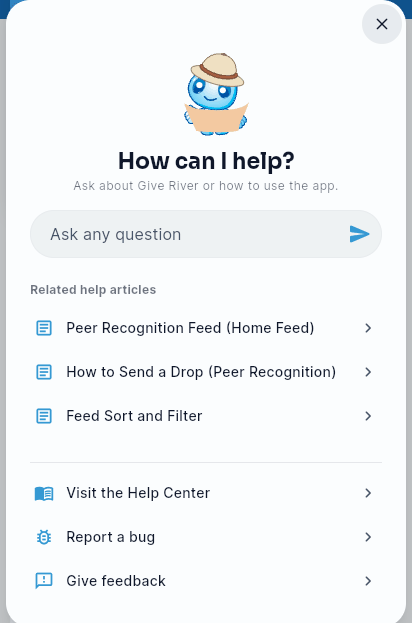
- On a computer or tablet, click the round Help & Support button (?) in the bottom-right corner of the screen. On a phone, tap your photo in the top-right corner and choose Share Feedback (on a computer, the same item is in the Settings menu, the gear at the bottom of the side menu).
- In the help panel, scroll down past "Related help articles" and click Report a bug (or Give feedback for a general suggestion).
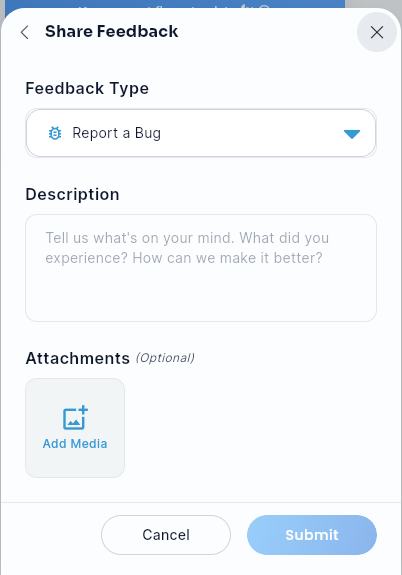
- The Share Feedback form opens, with Feedback Type already set to "Report a Bug" (choose a different type from the dropdown if you're not reporting a bug).
- Describe the issue or suggestion in the Description field. Be as specific as possible:
- What you were trying to do
- What actually happened
- Any error message text you saw
- Optionally attach a screenshot or image via Add Media.
- Click Submit.
Reporting a Problem From an Error Message
When something fails on Give River's side, or in a way the app didn't expect, the error message that appears at the top of the screen has a Report a problem button and a short reference code, such as Ref GR-7K2Q.
- Click Report a problem on the message.
- The Share Feedback form opens with Feedback Type set to "Report a Bug" and a first line in Description that names the page you were on. Edit it or add what you were doing when the error appeared.
- Click Submit.
The report automatically includes the reference code and details about the error. This lets the support team find exactly what went wrong, so you don't need to copy the error text yourself. If you contact support another way, mention the reference code.
When a page or section can't load, the same message appears in place of its content instead of at the top of the screen, with Try again and, for problems on Give River's side, Report a problem and the reference code.
Error messages close on their own after a few seconds unless they have buttons. Close one at any time with the X, or swipe it away. Hovering over a message (or pressing and holding it) keeps it open.
When part of a page doesn't load
If a section can't load (for example the feed, your stats, River Runs, the Drop Shop or Rankings), a short card appears in its place instead of a message at the top of the screen, such as Couldn't load the feed. Click Try again on the card to reload just that part. If the problem is on Give River's side, the card also shows a reference code (for example, Ref GR-7K2Q). Mention it if you report the problem.
What Happens After You Submit
Your report is sent directly to the Give River support team. You may receive a follow-up response via the email address associated with your account. Response times vary depending on report volume and severity.
Tips for Effective Bug Reports
| Include | Avoid |
|---|---|
| Step-by-step description of what you did before the bug appeared | Vague descriptions like "it doesn't work" |
| The exact error message, or its reference code (for example, Ref GR-7K2Q) | Assuming the cause of the bug |
| The specific screen or feature where the issue occurred | Combining multiple unrelated issues in one report |
| Whether the issue is reproducible or happened only once |
Reporting Urgent Issues
If you experience a critical issue (e.g., inability to log in, data loss, or a security concern), contact Give River support directly via email for faster handling, in addition to or instead of the in-app tool.
Feedback vs. Bug Reports
| Type | Use When |
|---|---|
| Bug Report | Something is broken, erroring out, or behaving incorrectly |
| Feedback / Suggestion | You have an idea for a new feature or improvement to an existing one |
Both types are welcomed and reviewed by the Give River product team.
Admin-Specific Feedback
Admins are encouraged to report issues specific to admin workflows — such as CSV import errors, billing discrepancies, or analytics data that appears incorrect. Including your organization's name helps the support team find your data quickly.
Did this article help?
Related articles.
See the platform in action.
Free for up to 25 members, or try Core or Growth free for 30 days. A card is required; Free is never charged, and a trial bills when it ends unless you cancel.