River Rankings
River Rankings is the Give River leaderboard. It shows who is leading in recognition activity — both for giving and receiving drops — and surfaces which members and teams are most engaged with charitable causes. Rankings help celebrate top contributors and keep the team motivated throughout each season.
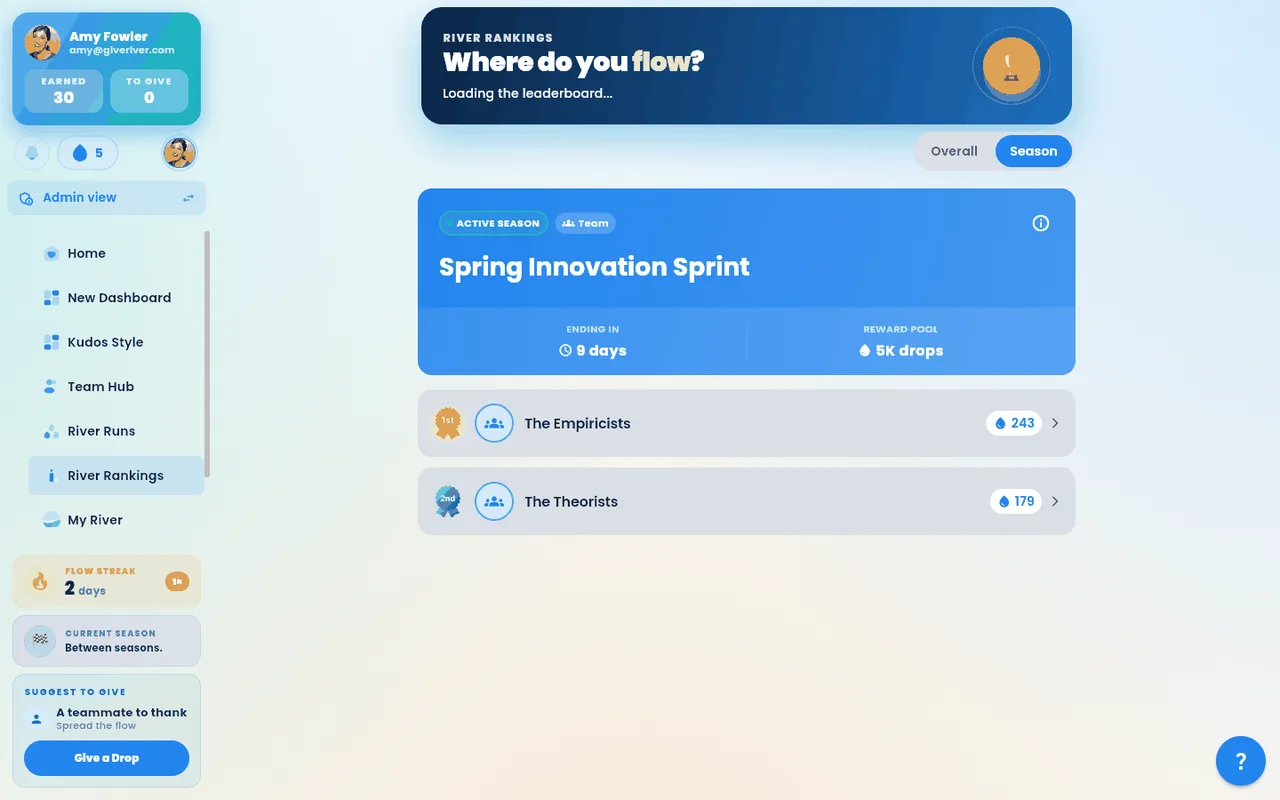
Accessing River Rankings
- Open the main menu (☰ on phones, the left sidebar on desktop) and tap River Rankings. If you don't see it, your team's administrator has turned rankings off.
- The Rankings screen loads your organization's leaderboard data. A loading spinner appears while data is being fetched. The page opens with a Rankings banner — a painted mountain scene — that sums up where things stand: during a season it shows the season's name, the days left (counted in calendar days to the season's end date, in your own time zone; on the end date itself it reads Last day) and your score (your place, in an individual season); between seasons it shows how many droppers are competing. The banner scrolls away with the page.
Overall vs. Season Tab
At the top of the Rankings screen, two tabs let you switch views:
| Tab | What it shows |
|---|---|
| Overall | All-time rankings since the organization started using Give River |
| Season | Rankings within the current active season only |
If your organization has an active season, the Season tab is selected by default when you open Rankings.
Ranking Types
Rankings are split into multiple categories. Use the category tabs (or swipe between them) to explore different leaderboards:
| Ranking Type | Who appears here |
|---|---|
| Charity Leaders | Members most aligned with or contributing toward charity goals (shown when charities are enabled) |
| Cause Leaders | Members supporting the top causes (shown when causes are enabled) |
| Recent | Members who have been most active with recognition drops recently |
| Top Droppers | The highest-volume recognition participants, broken down by sub-category |
Top Droppers Sub-Tabs
The Top Droppers leaderboard has four sub-tabs:
| Sub-Tab | Who is ranked |
|---|---|
| Combined | Total drops sent, received, and earned combined |
| Received | Members who have received the most drops from others |
| Given | Members who have sent the most drops to others |
| Earned | Members who have earned the most drops through engagement and challenges |
Time Filters
For the Overall tab (and when applicable), you can filter rankings by time period. Rankings open on All Time, so everyone on your team is listed:
| Filter | Period covered |
|---|---|
| All Time (default) | Everything since your team started |
| This Week | Monday through today |
| This Month | First of the current month through today |
| Last Week | The previous full Monday–Sunday week |
| Last Month | The previous full calendar month |
| Custom | A date range you specify |
To apply a custom date range:
- Select Custom from the time filter dropdown.
- A date picker appears. Choose your start date.
- Choose your end date.
- The leaderboard updates to show rankings for that specific window.
Reading a Leaderboard Entry
Each entry in the leaderboard shows:
- Rank number — position from 1 (top) downward
- Avatar and name — the member's profile photo and display name
- Drop count — the number of drops relevant to that ranking category
- Rank change indicator — an up or down arrow showing movement since the last calculation (where available)
The Season Tab: the Standings and How to Win
The standings
At the top of the Season tab, under the season banner, the standings come first: a card per team or member.
- One card per team (team seasons) or per member (individual seasons), ranked by points, with the place as a medal (gold, silver and bronze for the top three). Each card's bar shows that team's or member's points next to the leader's; the bars fill and the points count up when the race first comes into view (not if your device asks for reduced motion). A team's picture appears large at the top of its card.
- Under each bar: Leading, or how far behind the one ahead they are (for example "120 points behind #1"), or Tied with #2. When available, a green arrow shows points scored in the last 7 days.
- Your row (or your team's) is outlined and marked You or Your team. The top 10 are shown; if you're further down, your row is pinned at the bottom. Tap Show all to see everyone.
- In team seasons, a team's points are the sum of its members' points. Each team row lists its member count and its top three members with their points (a ★ marks the team captain; "+N more" counts the rest). Tap a public team to see every member.
- What the marks mean: the outline is you or your team, the ★ is a team captain and the green arrow figure is points scored in the last 7 days. How points are scored is in How to win.
The season card
Below the standings, the Active season card shows the season's name, whether it's a team or individual season, Ending in (the days left) and the Prizes. Under those, a thin bar shows how far through the season you are, with the day you're on, for example Day 22 of 31.
How to win
Under the season card, the How to win card shows your contribution: your points and your place on your team (team seasons), or your score and place in the field (individual seasons), for example "Your contribution: 567 points, #1 on The Empiricists". If you're not on a season team yet, the card tells you to ask an admin to add you.
Tap the ⓘ next to the card's title for the rest of the season's rules in plain words, built from the season's own settings:
- What earns points — for example "Your team scores a point for every drop its members give, receive and earn." One point is one counted drop. The sentence follows the season's rule (Earned, Given, Received or Combined drops); a season created without a rule counts Combined drops.
- What you can win — for example "The top 3 teams win 50, 30 and 20 drops." In a team season, every member of a winning team gets the full amount for their team's place. If your admin hasn't set prizes yet, the card says so. Prizes are shown in drops.
- When it ends — the end date and how many days are left (or, before a season starts, when it starts and ends).
Tap Full rules (next to the ⓘ) for the detailed Season Info (tiebreaker and what isn't counted). The Prizes figure on the season banner and on the Home and Team Hub season card names each place the same way, for example 1st 50 · 2nd 30 · 3rd 20 drops. On the season banner, the ⓘ next to Prizes lists the prize for each place (for example 1st place: 100 drops) and how many winners there are.
How Rankings Are Calculated
- Top Droppers rankings count the drops given, received, or earned within the selected time filter. A line above the podium names what's counted and the period (for example "Drops received from teammates · Last 30 days"); Combined is drops given plus received. See How Drops Work.
- Charity and Cause Leaders rankings reflect the members whose recognition activity is most aligned with the organization's selected causes and charities.
- Season rankings reset with each new season. Overall rankings accumulate over time.
- How a season is scored: the ⓘ on the How to win card on the Season tab says it in one sentence. For the details, tap Full rules (or the ⓘ on the season banner) to open Season Info. Its How Scoring Works section shows the season type (Individual or Team), the season rule — Earned, Given, Received, or Combined drops — with the formula for that rule, and the tiebreaker. A season created without a rule is ranked by Combined drops, and the popup says so.
- Rankings update as new recognition activity occurs; there may be a short delay between an action and its reflection in the leaderboard.
Tips
- Switch between Overall and Season tabs to see both your long-term standing and your performance in the current competition window.
- The Season tab is only visible when your organization has an active season. If no season is running, only the Overall tab appears.
- Charity Leaders and Cause Leaders tabs are only shown when the Charity Channel feature is enabled for your organization. Contact your admin if you do not see these tabs.
- Your position on the leaderboard is a great conversation starter — tap a teammate's name to view their profile and send them a recognition drop.
- Use the Rankings shortcut on the Map of Good Deeds screen to jump directly here after completing a recognition.
Did this article help?
Related articles.
See the platform in action.
Free for up to 25 members, or try Core or Growth free for 30 days. A card is required; Free is never charged, and a trial bills when it ends unless you cancel.