Slack Integration
Give River can connect to your Slack workspace to surface recognition activity alongside your team's everyday communication. Once connected, Give River can pull Slack analytics data into the Admin Insights dashboard.
Audience: Admins only
What the Integration Does
When Slack is connected, Give River's Engagement analytics page displays Slack activity data alongside recognition metrics. This gives you a unified view of team engagement across both platforms without switching tabs.
Setting Up the Slack Connection
- Sign in to Give River as an admin, and to Slack as a workspace admin.
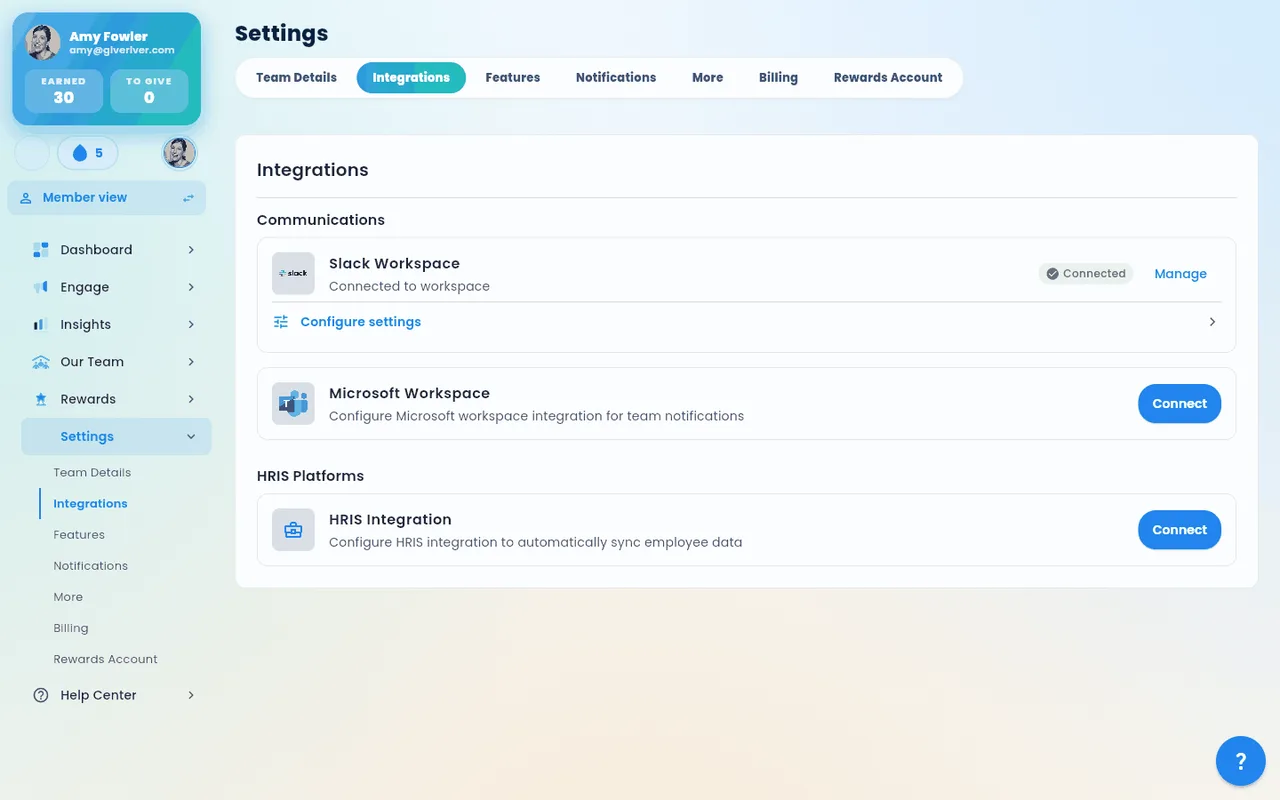
- Navigate to Settings → Integrations.
- Under the Communications group, click Connect on the Slack Workspace card.
- Click Install in Slack (or Copy the authorization link and open it in the browser where you're signed in to Slack), then approve Give River for your workspace.
Installing gives your Slack workspace your team's integration key, the credential Slack uses to talk to Give River. It is separate from your invite link, so an invite link can't be used to reach your Slack connection. Starting an install creates a fresh key; any Slack or Teams workspace you already connected gets it automatically.
The Integration Key
The Integration key card on Settings → Integrations shows when your key was created, how many Slack and Teams workspaces use it, and whether your invite link's token was still used recently. Rotate key replaces the key: the old one stops working right away, and your connected Slack and Teams get the new one automatically. The new key is shown once, with a Copy button — you only need it if you're connecting Microsoft Teams by hand. Only Admins and the Workspace Owner can see or rotate the key.
Viewing Slack Analytics
Once connected, Slack analytics appear in the Engagement tab of the Admin Insights dashboard (Insights → Engagement). The Slack section is only visible when the integration is active.
Configuring Slack Settings In-App
Once Slack is connected, a Configure settings action appears in the Slack section of Settings → Integrations. Changes you make here sync back to Slack automatically.
From the Configure settings panel you can manage:
- Feedback Friday — turn the recurring prompt on or off, pick the channel and day of week, and add, edit, or remove the prompt messages.
- Notifications — choose whether recognition is announced in the channel, sent to the recipient by DM, and/or posted to a global channel (with its own channel picker).
- Leaderboard period — Current Week, Past 7 Days, Month, or Season.
- Anonymous messages — allow anonymous recognition and select which channels it can be sent from.
- Private drop sharing — allow members to share drops privately.
- Analytics — share workspace analytics in Slack.
Make your changes and press Save to apply them. Channel pickers list your workspace's channels when available; if none are returned, you can enter a channel ID manually.
Disconnecting Slack
To remove the Slack integration, return to Settings → Integrations, clear the Slack fields, and save. Slack analytics data will no longer appear in the Insights dashboard.
Did this article help?
Related articles.
See the platform in action.
Free for up to 25 members, or try Core or Growth free for 30 days. A card is required; Free is never charged, and a trial bills when it ends unless you cancel.