HRIS Integration
Give River keeps your team roster in step with your HR system. BambooHR connects directly and syncs on its own: new hires are added, changes are kept up to date, and people who leave are deactivated, without anyone being emailed along the way. ADP, Rippling, Workday, Paylocity and other HR systems connect through a CSV export that you import into Give River.
Audience: Admins only
Plans: HRIS integration is included on the Core and Growth plans.
Supported Providers
| HR system | How it connects | How it stays up to date |
|---|---|---|
| BambooHR | Direct connection: an admin connects it in Settings → Integrations | Automatically — every night, within minutes of a change in BambooHR when instant updates are on, and whenever you tap Sync Now |
| ADP, Rippling, Workday, Paylocity | CSV import: export your employee list from your HR system and import it in Our Team → Add Members → Import CSV | Each time you import. An import adds new members; you update or deactivate existing members in Give River |
| Any other HR system | CSV import, as long as it can export an employee list as a CSV | Each time you import |
ADP and Paylocity also appear in the HRIS Platforms list marked Coming Soon. That label is for a direct connection, which isn't available yet — use CSV import for them today. See Connecting ADP, Rippling, Workday or Paylocity.
What the Integration Does
The BambooHR integration:
- Adds every active BambooHR employee who has a work email to your team
- Keeps names, phones, job details, birthdays, hire dates and managers up to date
- Deactivates members when BambooHR marks them Inactive (or deletes them), and re-activates the same account if they're rehired
- Runs silently — see Emails and notifications
- Can be paused or disconnected at any time
Connecting BambooHR
You connect BambooHR by signing in to BambooHR and approving access — no API key needed. You need to be a Give River admin, and the BambooHR account you sign in with should be able to see every employee's job information, hire date, birth date and status (a BambooHR admin is best), because Give River sees what that account can see.
- Sign in to Give River as an admin of the team you're connecting. Do this in the same browser you'll use for BambooHR: BambooHR sends you back to that browser when you're done, and Give River shows the result to whoever is signed in there.
- Navigate to Settings → Integrations. The screen is grouped into Communications (Slack, Microsoft Workspace) and HRIS Platforms.
- Click Connect on the HRIS Integration card. A dialog lists the available providers.
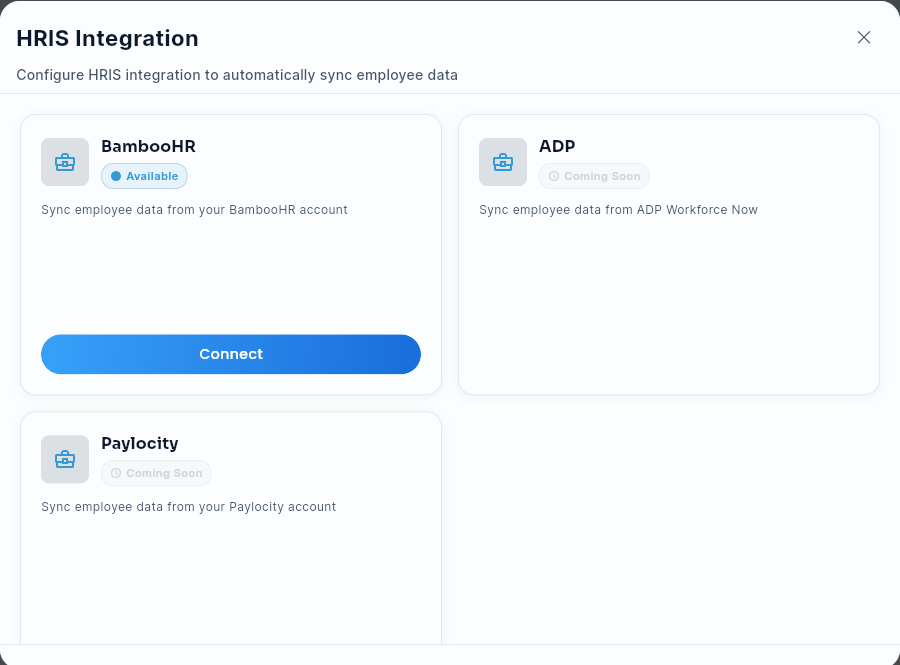
- Select BambooHR. (ADP and Paylocity are marked Coming Soon here: import them by CSV instead — see Connecting ADP, Rippling, Workday or Paylocity.)
- Enter your BambooHR subdomain — the part before
.bamboohr.comin your BambooHR address. If you sign in atacme.bamboohr.com, enteracme. (Pasting the whole address works too.) - Leave Don't email employees automatically checked (recommended — see Emails and notifications).
- Tap Connect with BambooHR. BambooHR opens and asks you to sign in and allow Give River access. Choose Allow.
- On the web, BambooHR sends you straight back to Settings → Integrations, with a message that BambooHR is connected.
- In the mobile app, BambooHR opens in your browser. When you've approved access, come back to Give River: it checks the connection when you return, or tap I've finished — check connection.
- Open the connection again and tap Sync Now to run the first import.
If BambooHR doesn't connect, Give River tells you why — for example, access wasn't approved, the sign-in link expired (links last 10 minutes and work once), or the subdomain is wrong — and you can simply start again.
What you're allowing, and why
When you choose Allow, BambooHR asks you to approve a short list of permissions. Give River asks only for what the sync uses, and it only reads: it never changes anything in your BambooHR account.
| BambooHR permission | Why Give River asks for it |
|---|---|
Sign-in and email (openid, email) |
Confirms which BambooHR user approved the connection. |
Stay connected (offline_access) |
Lets the nightly sync keep running without anyone signing in again. You can revoke it in BambooHR at any time. |
Company details (company:details) |
Finds your BambooHR account (its address), so the sync reads the right company. |
Employee records and names (employee, employee:name) |
Your people and their names, including preferred names. |
Contact (employee:contact) |
Work email (the address members sign in with) and phone. |
Job information (employee:job) |
Job title, department, location, hire date and whether someone is active or has left. |
Reporting lines (employee:management) |
Who reports to whom, for the Manager field and the org chart. BambooHR labels this "Manage Employees"; Give River only reads reporting lines and never manages anyone in BambooHR. |
Photo (employee:photo) |
Profile photos for members who haven't added their own. |
Birthday (sensitive_employee:protected_info) |
Birth dates, for birthday celebrations. BambooHR keeps birthdays in the same permission as SSN and SIN numbers. Give River requests only the birth date and never reads or stores an SSN or SIN. |
Reports (report) |
Reads every employee in one request instead of one at a time, which keeps syncs quick. |
Change notifications (webhooks, webhooks.write) |
Sets up BambooHR's change notifications, so a change in BambooHR reaches Give River within minutes instead of overnight. The only thing Give River creates in BambooHR is this notification. |
Give River doesn't ask for compensation, banking, addresses, ethnicity or nationality, or time off.
If connecting doesn't go smoothly
- BambooHR shows a blank page after you sign in. Go back to Give River and click Connect with BambooHR again. You're already signed in to BambooHR, so it goes straight to the approval screen.
- Give River asks you to sign in when BambooHR sends you back. Sign in as the admin who started the connection; you're then taken to Settings → Integrations with the result.
- "BambooHR is connected. Sign in as the team admin who started it to see it." The connection worked, but this browser is signed in to Give River as someone else (another account, or a different team). Sign in as that team's admin (or switch to that team, if you belong to more than one) to see it and run Sync Now.
Using an API key instead
If you'd rather not sign in through BambooHR, tap Use an API key instead in the connect dialog.
| Field | What to Enter |
|---|---|
| BambooHR Subdomain | Your BambooHR subdomain (the part before .bamboohr.com in your login URL) |
| API Key | A BambooHR API key |
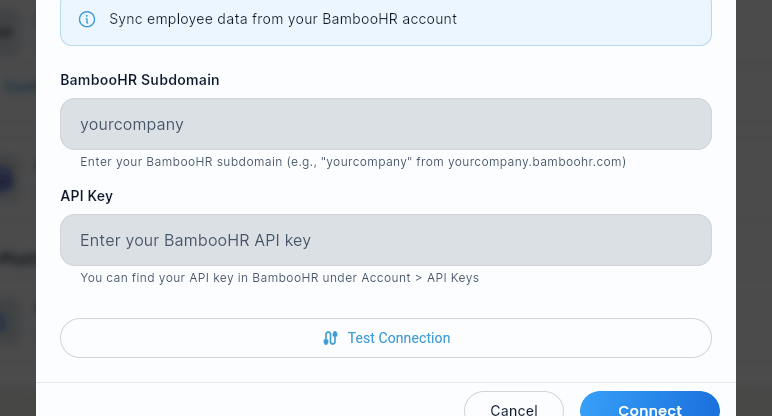
Tap Test Connection (Give River reads your employee list the same way the sync does, so a passing test means the sync can read your data), then Connect (this button reads Save Changes when editing an existing connection).
Getting an API key: a BambooHR admin creates it in BambooHR: click your name → API Keys → Add New Key. Copy the generated key and paste it into Give River — BambooHR won't show it again.
What Syncs
| BambooHR field | Give River |
|---|---|
| Preferred name + last name (or display name, or first + last name) | Member name |
| Work email | Login email — members sign in with a one-time code sent to it |
| Mobile phone (or work phone) | Phone |
| Job title | Position |
| Department | Department |
| Location | Location |
| Reports to | Manager (members see it on profiles under Reports to and Direct reports) |
| Hire date | Joining date (used for work anniversaries) |
| Birth date | Birthday (used for birthday milestones). Teammates see only the month and day; the year is visible only to the member and to admins who manage members |
| Photo | Profile photo, when the member doesn't have one yet (new members on every sync; existing members on the first import and when you tap Sync Now) |
| "About me" (or "Bio"), if your BambooHR account has that field | Bio, only when the member hasn't written one |
| Status (Active / Inactive) | Active / deactivated member |
Missing values in BambooHR never erase what's already in Give River — for example, a birthday a member entered themselves stays if BambooHR has none. A bio a member wrote is never replaced.
Not synced: pronouns and division (Give River has no field for them yet), and home address and gender.
How people are matched: by BambooHR employee ID once linked, and by work email the first time. Someone who already has a Give River account in your team is linked, not duplicated.
Not imported (listed under "Needs attention" after a sync):
- Employees with no work email in BambooHR
- Two BambooHR records sharing one work email (the active record wins)
- Employees who are already Inactive in BambooHR when you connect
- An email that belongs to a member of a different Give River company
- Members an admin removed in Give River — re-add them manually to resume syncing
Email changes that aren't applied: if someone's work email changes in BambooHR but they also belong to another Give River company, Give River keeps their current email. Their account is shared across companies, so the email isn't changed by one company's sync. The rest of their details still sync.
How Often It Syncs
- Every night, automatically, for every active connection.
- Within minutes of a change in BambooHR, when instant updates (BambooHR's change notifications) are on. The connection dialog tells you which: if instant updates aren't set up, changes arrive with the nightly sync — reconnect to turn them on.
- Any time you tap Sync Now (Settings → Integrations → HRIS Platforms → manage the connection).
After a sync, the dialog shows when it last ran, how many employees synced, and how many were skipped, failed or deactivated, with the reason for each one that needs attention. The BambooHR card under HRIS Platforms shows the last sync time and the synced/failed counts too; tap Sync details on the card to open those details directly.
When Someone Leaves
When BambooHR marks an employee Inactive (or the record is deleted), Give River deactivates them in your team the next time it syncs. Deactivation goes through the same clean-up as removing a member by hand: they're taken off approval lists, their manager links and event/season participation are cleaned up, and ownership passes to another admin if needed. Their account and history are kept, so if BambooHR sets them back to Active (a rehire), the same account is re-activated.
Emails and Notifications
Syncing never contacts your employees. Adding, updating or deactivating someone through BambooHR sends no email, text, push notification or invitation, and doesn't add anyone to email marketing lists — whatever your other email settings are. People can sign in whenever you're ready to invite them.
The team chat stays quiet too: your first import, and any later sync that adds more than 10 people at once, posts no "has joined" messages, while a few new hires added by a later sync still get the usual welcome message.
Don't email employees automatically (on the connect screen, checked by default) also turns off Give River's automated member emails for your team: birthday and work-anniversary emails, weekly recaps, drop-expiry and new-drop emails, goal reminders and onboarding emails. That matters because synced birthdays and hire dates would otherwise make people eligible for those emails. Admin emails (approval requests, reports) still go out.
To change it later, open the connection (Settings → Integrations → HRIS Platforms) and use the Email members automatically switch. The toggles in Settings → Notifications only take effect while this switch is on.
Managing the Integration
| Action | How |
|---|---|
| Reconnect | Tap Reconnect BambooHR and approve access again — see Reconnecting BambooHR |
| Test connection | API-key connections: tap Test Connection — confirms Give River can read your employee data |
| Sync now | Tap Sync Now in the connection dialog |
| Member emails | Email members automatically switch in the connection dialog |
| Enable/disable | Use the toggle to pause syncing without deleting credentials |
| Disconnect | Remove saved credentials and stop change notifications via Disconnect |
| Update API key | API-key connections: enter a new key in the API Key field and save |
| Switch to sign-in | API-key connections: tap Switch to Connect with BambooHR |
The connection dialog shows how the team is connected: Connected with BambooHR sign-in or Connected with an API key.
Reconnecting BambooHR
A BambooHR sign-in connection keeps itself signed in. If BambooHR access is revoked — for example, the BambooHR user who connected it is deactivated, or someone removes Give River's access in BambooHR — syncing pauses, the HRIS card in Settings → Integrations shows Reconnect needed, and the connection dialog says that access expired or was revoked.
To fix it, open the connection and tap Reconnect BambooHR, then sign in to BambooHR and choose Allow. Your members, settings and history stay as they are; the next sync picks up where it left off.
Birthdays missing? Connections made before October 2026 didn't ask BambooHR for birth dates. Reconnect once (same steps) and approve; the next sync brings birthdays in, and changes to who reports to whom start arriving within minutes too.
Connecting, disconnecting and changing the email setting are recorded in the Admin Audit Log.
Connecting ADP, Rippling, Workday or Paylocity
These HR systems, and any other that can export an employee list, connect through Give River's CSV import. There's nothing to install and no credentials to share.
- In your HR system, run an employee report and export it as a CSV. Include each person's work email (required). Name, department, job title, location and hire date are optional, and carry over when you include them.
- In Give River, go to Our Team → Add Members → Import CSV, and click Start Import.
- Work through the five steps: upload the file, confirm the column mapping, create any new departments, locations or positions, review the rows, then import. Each step is covered in CSV User Import.
| Your CSV column | Give River |
|---|---|
| Work email | Login email (required) |
| Name | Member name |
| Department | Department |
| Job title | Position |
| Location | Location |
| Hire date | Joining date (used for work anniversaries) |
Give River recognizes common column names automatically; you can map any other column by hand during the import.
Keeping the roster current. A CSV import doesn't run on a schedule, and it adds people without changing anyone who's already in Give River:
- New hires: export and import just the new people.
- Changes (a new department, title, location or manager): edit the member in Our Team. Managers aren't part of the CSV import, so set them there too.
- Leavers: change the member's status in Our Team to deactivate them. See Members.
Did this article help?
Related articles.
See the platform in action.
Free for up to 25 members, or try Core or Growth free for 30 days. A card is required; Free is never charged, and a trial bills when it ends unless you cancel.