Admin Audit Log
The Admin Audit Log captures admin-initiated actions across the platform for accountability and historical reference. It answers questions like "Who approved that reward request?", "When was this member's role changed?", and "What HRIS settings were updated last week?"
What Gets Logged
The following admin actions are recorded:
| Category | Logged Events |
|---|---|
| Reward approvals | Reward redemption approved, reward redemption rejected |
| Member management | Member join request accepted, member join request rejected |
| HRIS integration | HRIS connection saved, HRIS connection deleted, HRIS sync toggled on/off (turning Email members automatically on or off is logged as a settings change) |
| Team settings | Admin settings updated (role/permissions changes, team-level preferences) |
| Drop settings | Drop allocation rules updated, team drop settings changed |
| Give River actions | Team suspended (with the reason) and suspension lifted, Free plan allowed for a team that was over the free-team limit. These show Give River staff as the person who acted |
Each entry captures who took the action, what was changed (before/after where applicable), the timestamp, and which team it applied to.
What Is Not Logged (Yet)
These actions are out of scope for the initial release and may be added based on customer demand:
- Post moderation actions (hide/delete on posts and comments)
- River Run review/rating moderation
- Survey/poll create/delete (the survey itself records its creator and timestamp)
- Individual drops given (the drop ledger already records this)
Accessing the Audit Log
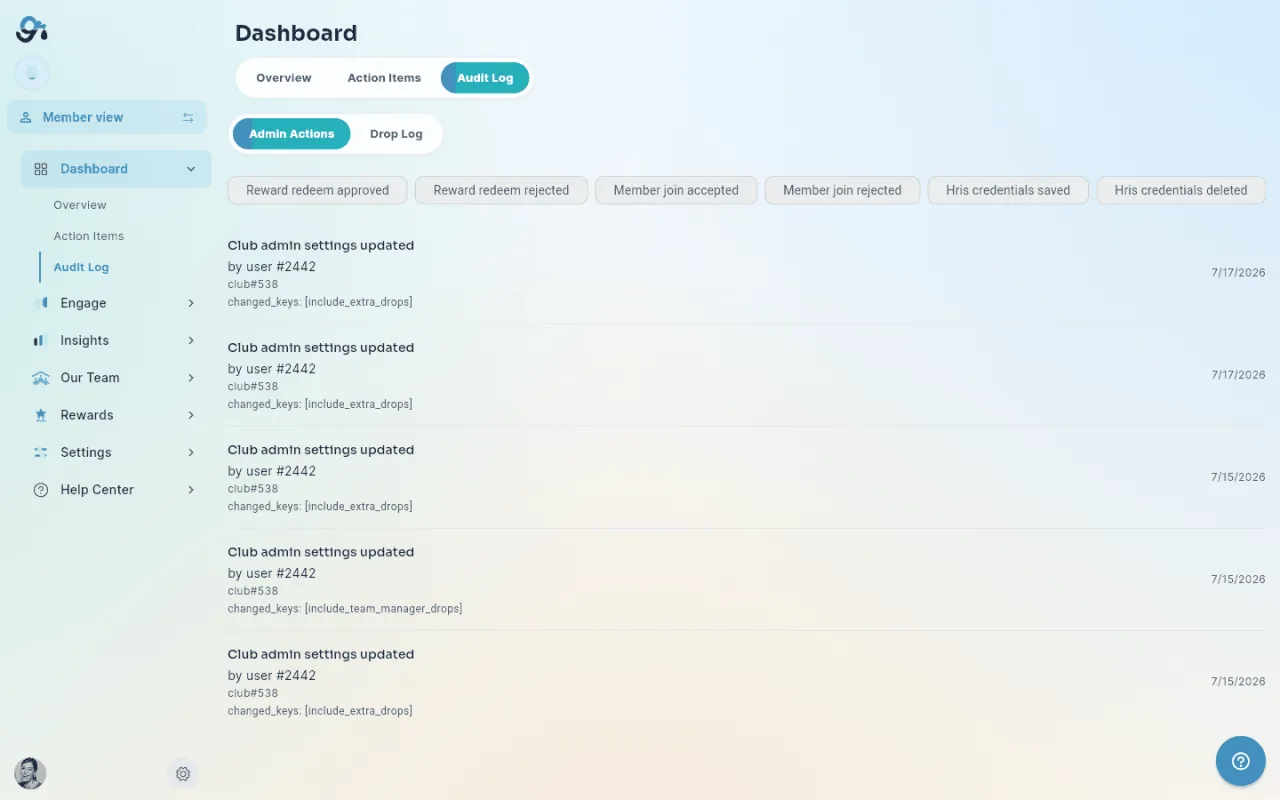
Navigate to Dashboard → Audit Log (the Audit Log is a sub-section of the admin Dashboard). The log displays as a reverse-chronological timeline, with tabbed navigation to switch between the admin-action log and the drops log.
Drops Log: Streamlined vs. Raw Ledger
The drops log tab shows every drop transaction in your team. Each give has two sides — a debit (the giver's side) and a credit (the receiver's side).
- Streamlined (default, toggle at the top-left of the drops log) — each debit/credit pair collapses into a single row: who gave whom, how many drops, the event, and when. The Transaction (debit/credit) column is hidden because a streamlined row represents both sides at once.
- Raw ledger (toggle off) — every debit and credit entry is shown as its own row with a Transaction badge, for full double-entry auditing.
System entries with no counterpart (earned drops, refunds, season awards) look the same in both views.
Filtering
- Filter by event type — chip selectors at the top of the page (Reward approved/rejected, Join accepted/rejected, HRIS, Settings changed, Drop settings, ratio changes). On a wide screen the chips wrap onto several lines; on a narrow one they scroll sideways, with arrows at the edges.
- Filter by date range — preset options (Last 7 days, Last 30 days, All Time, Custom) or a date-picker.
- Filter by admin — dropdown of admins who have taken actions.
- Search — free-text search across action descriptions and entity names.
Reading an Entry
Each audit log entry shows:
- Action — a plain-language sentence, e.g. "Changed banner position, banner zoom and team logo visibility" or "Approved Sarah K.'s reward redemption". Settings changes name the settings that changed rather than their internal keys.
- Actor — the admin who performed the action ("by Amy Fowler"). If that account has since been removed, it reads A former member.
- Timestamp — how long ago the action was taken (e.g. 5h, 3d), or the date for older entries.
- Note — the comment an admin left when approving or rejecting a reward, when there is one.
When the same admin makes the same change several times in a row (say, four banner tweaks while framing a new cover photo), the entries collapse into one row that says how many times, e.g. "by Amy Fowler · 4 times in a row".
Export
A CSV export of the visible (filtered) log entries is available via the Export button at the top of the page.
Retention
Audit log entries are retained indefinitely. There is no admin-facing delete function — the log is immutable by design. If you have a compliance or data-deletion request, contact support.
Privacy Notes
- The audit log is visible only to admins of the team it pertains to.
- Entries reference the admin who took the action; member-level activity (drops given, posts created, etc.) is not duplicated here — those live in their own respective views.
- The log captures what changed, not why. If you need to record reasoning behind an admin decision (e.g., why a reward was rejected), use the optional comment field where available in the originating action.
Did this article help?
Related articles.
See the platform in action.
Free for up to 25 members, or try Core or Growth free for 30 days. A card is required; Free is never charged, and a trial bills when it ends unless you cancel.