Admin Billing and Stripe Account
The Billing portal lets admins view and manage the team's subscription, review invoices, and see subscription history. Payments are processed through Stripe.
Plans and the Free plan
New teams choose between three plans: Free, Core and Growth. (Teams already on Lite keep it, and still see it here; it just isn't offered to new teams.)
| Free | Core and Growth | |
|---|---|---|
| Price | $0, never charged | Per member, monthly or annual |
| Members | 25 active members included | No cap |
| Card | Required at sign-up, kept on file | Required |
| Free trial | None (it's free) | 30 days for new teams |
| Included | Recognition and drops, the dashboard, your team and roster, drop defaults, tags, badges, milestones, seasons (one at a time), announcements, polls and chat groups | Everything in Free, plus insights and exports, surveys, events and video events, River Runs, awards, custom rewards, gift cards and team emails (by plan) |
The River Guide doesn't count toward the 25. Something your plan doesn't include shows a lock with Upgrade to unlock; anyone who can't change billing sees Ask your team admin to upgrade the plan. instead.
The 25-member limit
On Free, the billing page shows a member meter ("18 of 25 members") and how many spots are left. Add Members, the CSV import and the Team setup Invite step show the same count. You can still add people when the team reaches 25: the note says how many members you have and that you can keep adding people.
If your team has more than 25 members on Free
Nothing is locked. Everyone keeps using Give River as usual, and you can keep adding people. Instead:
- Admins see a Your team has 31 members. The Free plan includes 25. banner at the top of every admin page, and a Your team is growing card on this page, with Choose a plan and Contact us. Members don't see it.
- The team's owners and admins get one email about it, and someone from Give River may reach out to help you find a plan that fits.
- The banner goes away when you choose a plan, or when 25 or fewer members are active.
Free plan limits
Free teams also have a few fair-use limits:
- Ask Ugo and styled avatars: a set number of Ask Ugo questions per day and styled profile avatars per week for the whole team. When one runs out, you'll see Your team reached a Free plan limit. Try again later, or upgrade for more.
- File size: each photo, video or file you upload can be up to 10 MB. If you pick a bigger file, you'll see This file is too large. Choose a smaller file, or upgrade (Core and Growth don't have this limit).
- Storage: the Current Subscription card shows Storage used (for example, "Storage used: 12.4 MB · Files up to 10 MB on Free"). There's no total storage limit today.
- Free teams per company: a company can have up to 3 teams on Free, counted by the email domain of each team's owner (personal addresses such as Gmail or Outlook don't count toward this). One payment card can also be used for up to 3 Free teams. Teams that have upgraded don't count.
If you choose Free when your company already has 3 free teams, you'll see Free plan not available and can pick Core or Growth instead. If the card you enter at checkout already pays for 3 Free teams, your team is still created, but it starts paused with a Choose a paid plan to continue card on this page. Members can look around, and everything turns on as soon as you pick a paid plan. If you think this is a mistake, email support@giveriver.com.
If Give River suspends your team
In rare cases, for example when an account breaks our terms, Give River may suspend a team. Nothing is deleted. While a team is suspended:
- Admins see a red Team suspended banner at the top of every admin page, and a This team is suspended card on this page, with Contact support.
- Members can still sign in and look around, under a slim notice. Posting, commenting, reacting, giving drops, redeeming and inviting people are off. If they try, they see This team is suspended. Contact support@giveriver.com.
- Admins can still open billing, the member list and settings.
To resolve it, email support@giveriver.com. Everything turns back on as soon as the suspension is lifted, and the change shows in your Admin Actions log.
If a payment fails
When a Core or Growth payment fails, your team keeps its full plan for 7 days. A Payment failed banner at the top of every admin page, and a Your payment didn't go through card on this page, say by when to fix it, with Update payment. If it isn't fixed by then, the team moves to Free. In the mobile apps, Update payment opens the card form; on the web, it emails Give River support, who send you a secure link.
A free season
Give River sometimes gives a team a paid plan for free for a set time, for example Growth for a season through a nonprofit program. During a free season:
- The Current Subscription card shows the plan with Free until and the date. A banner at the top of every admin page, and a card on this page, say which plan you have, free until when, and that your team moves to Free after that unless you choose a plan.
- Nothing is charged, and you have everything the plan includes.
- The team's owners and admins get an email 14 days and 3 days before the season ends, and another when it has ended.
- When the season ends, your team moves to the Free plan on its own. Nothing is charged, and no members, posts or drops are removed. Features Free doesn't include switch off.
- To keep everything on, use Choose a plan. Billing starts on the day you choose a plan, even during the season.
Trial and Free banner
During a Core or Growth trial, a slim banner at the top of every admin page shows how many days are left (Core trial · 23 days left), your Team setup progress, and Manage plan. On Free it shows your member count (Free · 7 of 25 members) with Upgrade. Both open this page, and you can hide them with × until you next open Give River. See Plan banner.
Accessing the Billing Portal
In Admin view, open Settings in the side navigation, then select the Billing sub-section (from the nested side navigation or the sticky tabs — see Admin Navigation). The Billing sub-section is the Stripe-based subscription management portal described in this article. It appears only for admins with the subscription-billing permission.
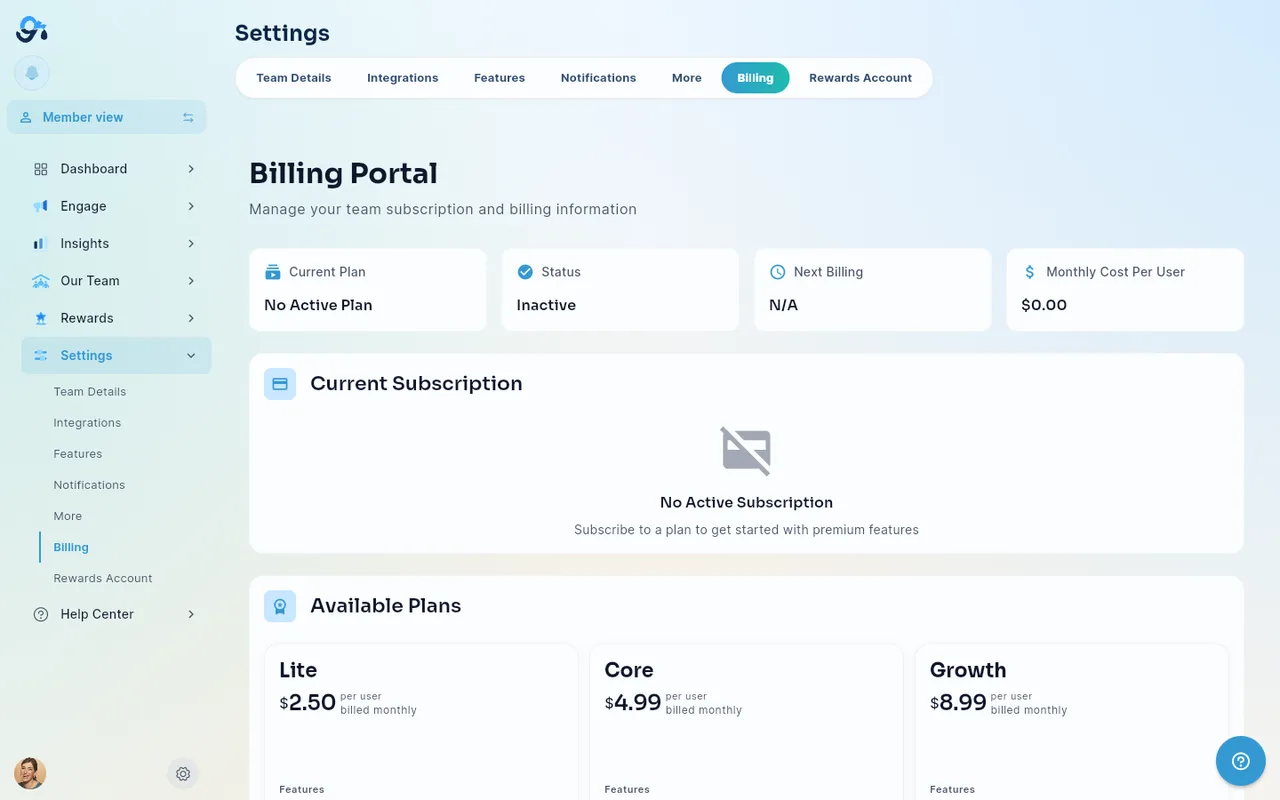
Billing Portal Overview
The Billing Portal page shows:
| Section | Description |
|---|---|
| Billing Overview Stats | High-level summary cards of your current plan usage and billing status. The Status card's icon follows the status: a green check only for an active or trial plan. On the Free plan the Next Billing card reads Free — no charges, since Free is never billed. If your company has no Stripe subscription on file, these cards are hidden and the Current Subscription card says Managed by Give River instead. |
| Current Subscription Card | Your active plan name, status, billing interval, and next renewal date — on Free, the member meter instead — or Managed by Give River when your plan is set up and invoiced by Give River |
| Subscription Plans | Available plans you can upgrade or downgrade to: Free, Core and Growth (plus your own plan if it's one no longer offered, such as Lite) |
| Invoices | Downloadable invoice history |
| Subscription History | Record of past plan changes |
Viewing Your Current Subscription
The Current Subscription card displays:
- Plan name
- Subscription status (active, past due, cancelled, etc.)
- Billing cycle (monthly or annual)
- Next billing date
Managed by Give River
Some companies don't pay through this page: their plan is set up and invoiced by Give River (and demo companies have no paid plan at all). For them, the Current Subscription card shows Managed by Give River instead of "No active plan", "Inactive" or "$0.00", because nothing has lapsed. There's nothing to pay on this page; for changes to your plan or invoices, contact your Give River account manager. The self-serve plans are still listed below if you'd rather pay by card.
Upgrading or Changing Your Plan
- Scroll to the Subscription Plans section (or navigate directly if you arrived via the upgrade prompt — the page auto-scrolls and highlights the plans section).
- Review the available plans and their features.
- Click Subscribe on the plan you want (Switch to Free on the Free plan), then confirm.
- With a plan in place, the change is made on the card you already have on file — no checkout. If your subscription was cancelled (or has no plan yet), Stripe checkout opens instead to start a new one.
Changed your mind about cancelling? While a cancellation is still scheduled, click Resubscribe on your current plan: the same subscription simply carries on (no checkout), and you'll see Your subscription is back on. 5. Return to the Billing Portal to confirm your new plan is active.
From Free to Core or Growth: billing starts the day you upgrade, on the card on file. There's no new free trial.
Switching to Free: the features Free doesn't include switch off, and the 25-member limit applies. If your team has more than 25 active members, nothing is locked, and Give River may reach out about a plan. The confirmation tells you before you switch.
Viewing Invoices
The Invoices section lists all past invoices. Each entry shows:
- Invoice date
- Amount
- Status (paid, open, etc.)
Click an invoice row to download it as a PDF.
Subscription History
The Subscription History section shows a timeline of plan changes, upgrades, downgrades, and cancellations with timestamps.
Refreshing Billing Data
Pull down on the Billing Portal page (mobile) or wait for the next automatic load to refresh billing data. The page can also be refreshed by navigating away and back.
Rewards Account
Settings → Rewards Account holds the money side of rewards (separate from your Give River subscription):
- Gift Cards — turn Tango gift cards on or off for the Drop Shop. See Tango Gift Cards.
- Auto Redeem — when on, members' redemptions are approved and sent automatically; when off, an admin approves each one.
- Account Balance and Add Funds — the balance gift-card redemptions are paid from. Link a card under Card Management to add funds. Transactions can take up to 72 hours to complete.
- Transaction History — every top-up and redemption, with filters and Export CSV.
- Business Details — your organization's business name, address, contact and signer information.
Low-balance warning
When Gift Cards is on and your rewards balance is $0.00 (or under $10), a warning appears under the Gift Cards and Auto Redeem switches with an Add Funds shortcut. Gift-card redemptions can't be fulfilled from an empty balance, so top up before members redeem.
Reporting reward spend for payroll and tax
Your Stripe invoices cover your Give River subscription; money spent on rewards (gift cards and custom rewards) is reported separately. Use Rewards > Reports to download or email a monthly report of reward spend and who received which reward — see Admin Reward Reports.
Payment Method
Payment methods are managed directly through Stripe. Every team, Free included, keeps a card on file; on Free it's never charged. The Current Subscription card shows the card on file. If a payment fails, use Update payment on the banner (see If a payment fails); otherwise contact Give River support to change the card.
Need Help?
For billing questions not answered here, contact Give River support or use the in-app bug/feedback reporting tool.
Did this article help?
Related articles.
See the platform in action.
Free for up to 25 members, or try Core or Growth free for 30 days. A card is required; Free is never charged, and a trial bills when it ends unless you cancel.