Admin Home and Engage Page
The Dashboard is the screen admins land on when they switch into Admin view, and where a new team's owner lands right after Launch my team in Team setup. It opens on your Weekly briefing: what needs you, how your program is doing, what's at risk, and one suggested next step. It sits alongside the other admin sections (Engage, Insights, Our Team, Rewards, Settings, and Help Center). For how the admin sections and their sub-sections are organized, see Admin Navigation.
Plan banner
A slim plan banner sits at the top of every admin page (except the billing page, which shows the full details). It shows the one thing that matters most right now, in this order:
- Team suspended · contact support@giveriver.com — Give River has suspended the team. Contact support opens an email to support. See If Give River suspends your team.
- Team paused · choose a paid plan to continue — your company or card already has the most free teams allowed; Upgrade.
- Payment failed · fix it by … — a Core or Growth payment failed. It says by when to update your payment before the team moves to Free, with Update payment.
- Your team has 31 members. The Free plan includes 25. — the team is on Free with more than 25 active members. Nothing is locked; Choose a plan, or Contact us to talk it through. See If your team has more than 25 members on Free.
- … season: Growth plan, free until … — your team has a paid plan for free until that date, then moves to Free unless you choose a plan, with Choose a plan. See A free season.
- Core trial · 23 days left — your free trial, with Setup 5 of 9 (opens Team setup; it disappears once setup is done) and Manage plan.
- Free · 7 of 25 members — with Upgrade.
On a paid plan (after the trial) there's no banner. You can hide the free season, trial and Free banners with × until you next open Give River; the suspended, paused, payment and member-count banners stay until they're fixed. Manage plan and Upgrade open Settings › Billing. The plan links show only to people who can manage billing.
Dashboard sub-sections
The Dashboard is split into three sub-sections, reachable from the nested side navigation or the sticky tabs at the top:
| Sub-section | What's there |
|---|---|
| Overview | Your Weekly briefing (described below) |
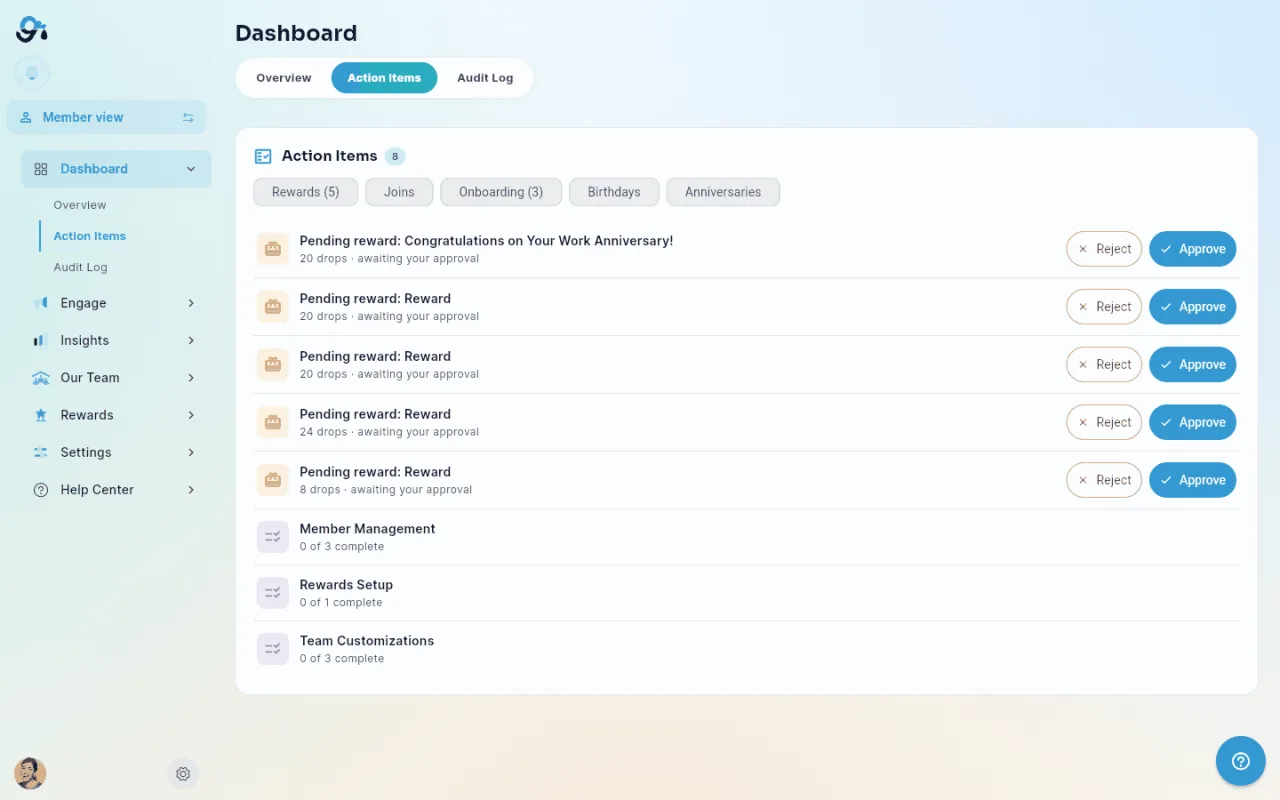
| Action Items | Your one approvals inbox: everything waiting on an admin |
| Audit Log | A record of admin actions — see Admin Audit Log |
Overview — your Weekly briefing
A compact header shows your team name, the current season and days left, your active member count, and your River Guide. See what your members see (an eye icon on a phone) switches you to Member view and runs a short guided tour of the member app; see See what your members see. New admins also get a one-minute admin tour of this side the first time they open the dashboard. On a brand-new team it waits until you launch: Team setup comes first, then the tour starts when Launch my team brings you here.
Your team is live. Right after you launch your team, a banner at the top welcomes you, with a See what your members see button. Close it with ×.
Finish setting up. While your team is still getting set up, a card with a progress ring sits at the top of the Overview. It lists a few things that help a new team get going (a logo, a banner, an about line, core values, five members, a custom reward, a season, a first post from an admin, and taking the member tour). Items tick themselves off when the real thing exists; you can't tick them by hand. Tap an item to open its step in Team setup, or Open Team setup to start where you left off. The card disappears once every item is done. × hides it just for you (Undo brings it back).
Sample numbers. A brand-new team has no activity yet, so instead of a row of zeros, Program pulse and At risk show example content marked Sample, with a note saying so, and Suggested action says Not enough activity yet. It is never your team's data, and it disappears as soon as your team has its first real activity. Until the team has at least three members, your own visits don't count as activity.
Below it, top to bottom:
- Needs you — approvals waiting, counted by type (reward requests, birthday and anniversary rewards, goals, join requests, member removal requests, health challenge claims, River Run requests). Each row opens the place where you act on it. Open the approvals inbox takes you to the Action Items tab.
- Program pulse — participation, recognitions, survey response rate and active River Runs, each with the change since the previous period and an 8-week trend line. View Insights opens the full analytics. On the Free plan (no Insights), the card shows the plan lock with Upgrade to unlock instead of your numbers.
- At risk — a season ending soon, a survey closing with a low response, people who haven't been recognized in 30+ days, and overdue required training. Click any name to open that person's 360 view.
- Suggested action — the one thing most worth doing this week, with a button that starts it (for example, Recognize them opens Recognize with those people already picked).
At the bottom, Weekly briefing email turns the Monday email of this page on or off — just for you. It's off until you switch it on, and Send me a test emails you this week's briefing so you can see it first. Full details, including how each number is worked out: Weekly Briefing.
Action Items
Action Items is your one approvals inbox. Everything in Give River that is waiting on an admin decision lands here, so you don't have to check several screens. It's the recommended starting point each day. Each row is something that:
- needs a decision (a reward request, a goal, a join request, …), or
- is one click away from done (an onboarding step), or
- is coming up soon (a birthday or work anniversary this week).
Managers see their own people's requests only. A Manager sees and decides the requests of everyone who reports to them, directly or through their managers; a Location Manager those of their location. Goals still go to the member's own manager. Nobody approves their own request. See Roles and Permissions.
Order: approvals come first, oldest waiting at the top, so nobody's request sits forgotten at the bottom. Onboarding steps follow, then the upcoming birthdays and anniversaries, soonest first.
Use the filter chips at the top to narrow by item type. Every chip shows its count, including (0), so you can tell "nothing waiting" at a glance. Item types:
- Rewards — custom reward and gift card requests, with who asked and the drop cost. Approve or Reject them right here. Both ask you to confirm first; approving a gift card places the order straight away and charges your gift card balance. Reject has an optional Reason (shown to the member) box (up to 300 characters) — for example "This reward is out of stock this month." The member sees it in their rejection notification and next to the request in their Drop Shop History. Rejecting returns the drops to the member.
- Milestone rewards — birthday and work-anniversary rewards waiting for approval (approve them before the day so the drops go out on time). A milestone with Auto-approve on never shows up here — see Automated Milestones.
- Goals — goals and milestones waiting for your approval. Review opens Engage → Goals on its Approvals view, where you can approve or return them with a note.
- Joins — requests to join your company (Accept or Reject, which also asks to confirm).
- Removal requests — members who asked to leave your company, with their message if they wrote one. Approve removes them from your company right away and tells them; Reject keeps them and tells them the request was declined. Both ask you to confirm, and Reject has an optional Reason (shown to the member) box. The notification and email you get about a removal request open this list directly.
- Health claims — health-challenge claims to review. Review opens Rewards → Health Challenges, where you can see the photo and approve or reject with a reason.
- Run requests — River Run topic suggestions from members; mark them handled once actioned.
- Onboarding — the "Finish setting up" items still open (add a logo, invite five people, plan a season, …). They tick themselves off when the real thing exists. Click a row, or its Set up button, to open its step in Team setup.
- Upcoming birthdays and anniversaries.
Approving several rewards at once
Custom reward and milestone reward rows have a checkbox. Tick the ones you want (or Select all), then click Approve selected (n) above the list and confirm once. Each request is approved on its own, exactly as if you'd clicked its Approve button: members who asked for a custom reward are told it's approved. If any can't be approved (for example, another admin already decided it), a note above the list names each one and says why; the rest still go through.
Gift cards have no checkbox. Approving a gift card orders it and charges your gift card balance straight away, so each one is approved on its own with its own confirmation. Their rows say so. Rejecting is always one at a time, so you can give a reason.
Rewards › Pending Rewards is the same inbox, filtered to reward requests (rewards and milestone rewards) — same rows, same buttons, and the same Approve selected. Approving something in one place removes it from the other. A link under the list takes you back to all action items.
The Clear filters button resets to all items. On a phone, a row's buttons sit under its title so the title stays readable. When everything is handled, you'll see an empty inbox — that's the goal. If one source can't be loaded, a note above the list says it may be incomplete, with a Retry button.
The Engage Page
The Engage section is where you actually create and manage every type of engagement content. It opens on an Overview sub-section and is organized into these sub-sections (tabs):
| Sub-section | Purpose |
|---|---|
| Overview | Active & scheduled: one list of the seasons, surveys, polls, events, announcements and time-bound River Runs that are running or about to start, plus a single + Create menu |
| Seasons | Create and manage recognition seasons with drop reward pools |
| Surveys | Build and send surveys to gather team feedback |
| Polls | Create quick polls for team input |
| Games & Events | Plan team events from templates or from scratch, and set up team games (Team Trivia, Would You Rather, Caption This, Predict the Co-worker); see Events and Team Games |
| Announcements | Post announcements visible to all team members |
| River Runs | Create and manage learning/development programs |
| Chat Groups | Manage admin-created chat groups. Status changes and Delete are in each row's ⋮ menu; Delete confirms how many members lose the chat |
| Goals | Set and track SMART goals |
Engage navigation
- Selecting a sub-section shifts the screen to that page, and on the web the page address changes so it can be bookmarked and shared.
- Each sub-section loads its own data independently. Empty ones show a Create CTA.
- The Overview tab lists everything that is Live or Scheduled, live items first (ending soonest at the top), then scheduled ones (starting soonest). Each row shows the program type, its title, when it ends or starts, and the same status pill the Engage lists use (Draft · Scheduled · Live · Ended). Click a row to open it in its tab. Only River Runs with a due or expiry date are listed, so the evergreen catalog doesn't fill the list.
- + Create opens a menu to start a season, survey, poll, event, announcement or River Run (only the types you can manage). When there's something worth acting on — a teammate who hasn't been recognized in a while, a cluster of milestones, an event short on RSVPs — up to three Smart Suggestions appear under the list; dismiss any you don't need.
- Tags (core values) are in Settings › Tags.
- Several admin flows support Preview Mode — see exactly what members will see before publishing announcements, polls, events, or surveys.
- Modals prompt for confirmation if you try to close them with unsaved edits.
Where to find other admin tools
- Audit Log — a Dashboard sub-section (Dashboard → Audit Log).
- Billing — a Settings sub-section (Settings → Billing); see Admin Billing.
- Help Center — its own admin section, browsable by category.
- Pending Approvals (people asking to join) — at the top of Our Team → Member List (see Admin Members Management), and in Dashboard → Action Items.
Getting Help
Many admin sections show a small help video play icon that opens a contextual walk-through for that area. You can also open the Help Center section from the admin navigation, or open it from the Settings menu (the gear at the bottom of the side menu).
Did this article help?
Related articles.
See the platform in action.
Free for up to 25 members, or try Core or Growth free for 30 days. A card is required; Free is never charged, and a trial bills when it ends unless you cancel.