Admin Insights and Analytics
The Insights hub gives admins a comprehensive view of team health, engagement patterns, recognition activity, and growth metrics. It is organized into nine tabs, each covering a different analytics domain.
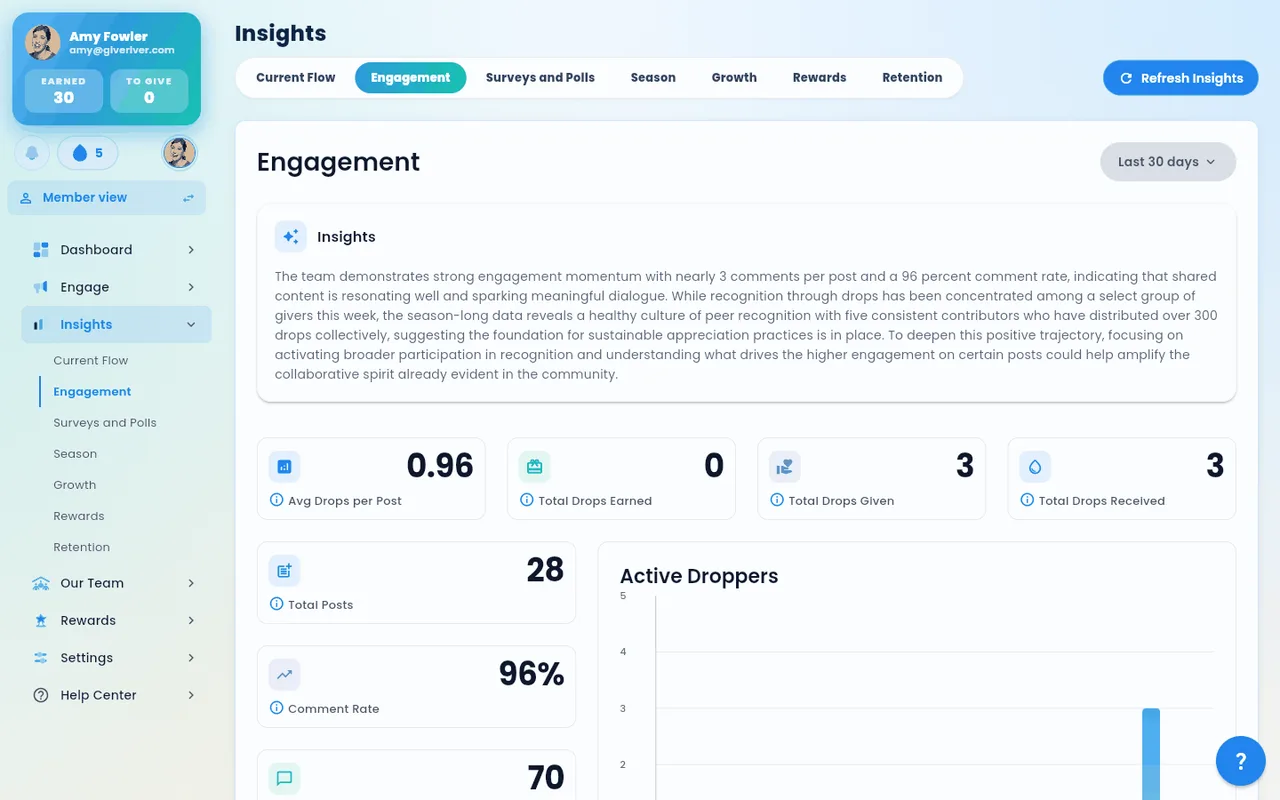
Accessing Insights
Navigate to Insights in the main sidebar. Data for all tabs loads automatically when the page opens. Under the tabs sits one date-range bar shared by every tab, with the Refresh Insights button at its right (on a phone, Refresh is a round icon button so it never covers the tabs).
Insights Tabs
| Tab | What It Shows |
|---|---|
| Current Flow | Real-time recognition flow stage, participation rate, recent droppers, drops earned, and a drops activity chart |
| Engagement | Team activity stats, active droppers chart, top team moment, weekly drops comparison, top droppers leaderboard, top tags, and optional Slack analytics |
| Surveys | List of surveys with response analytics; click any survey to see detailed per-question results. Includes an eNPS panel for active eNPS series (gauge, score, breakdown). |
| Polls | Poll response data and participation metrics |
| Season | Season-level analytics: a chart comparing seasons by giving rate, participation or total drops, and the All Seasons list. Click a season's name for a detailed breakdown, or tick two seasons and Compare them side by side. With a single season, only the totals show: averages, the top season and the comparison chart appear once you have run two or more seasons. |
| Goals | SMART-goal adoption and outcomes: participation rate, completion rate, average progress, pending approvals, drops paid through goals, active goals by pace, manager reviews by season (see below), a goals-completed-per-week trend chart, and a category breakdown |
| Growth | River Runs enrollment, completion rates, completion percentage, category breakdown pie chart, and a full River Runs overview table |
| Rewards | Rewards redeemed, their value in dollars, the drops spent on them, and the top redeemed rewards (value in $ and drops in separate columns) |
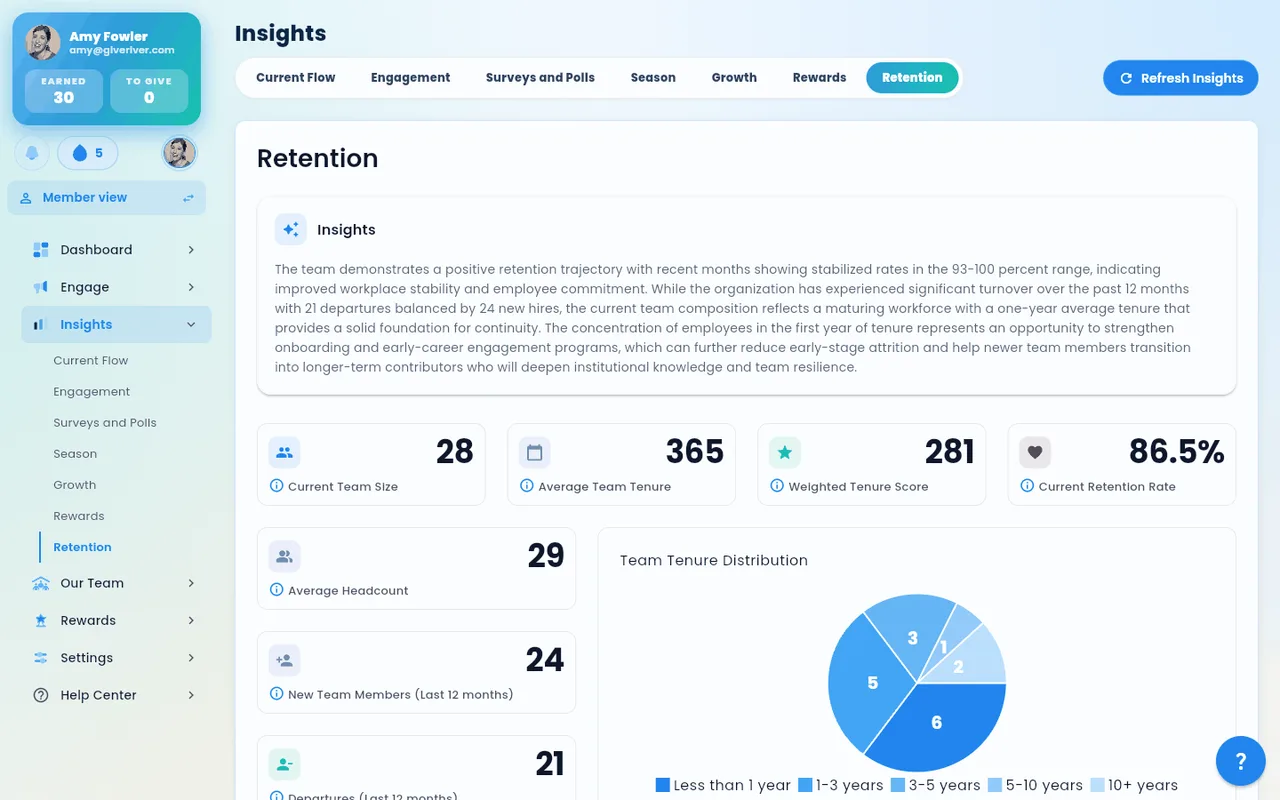
| Retention | Team size, tenure distribution, retention rate, new members, departures, and a stabilized retention rate chart |
Manager reviews by season (Goals tab)
Under the pace chips, the Goals tab shows your six most recent seasons, newest first, each with two numbers:
- Median response — the typical time between a member submitting a milestone and a person approving it, for approvals made during the season. Shown in hours, or in days once it's two days or more. Automatic approvals aren't counted, since nobody had to respond.
- On time — the share of milestones due during the season that were approved by their due date ("6 of 8"). A milestone counts once it's approved, or once its due date passes without an approval (then it's late). Milestones of abandoned goals that were never approved aren't counted.
Milestones without a due date can't be on time or late, so they're left out of the on-time rate; the season's row says how many approvals that was. Due dates are optional on milestones, so encourage members to set them if you want this number to mean something.
These numbers are per season, so the date-range bar doesn't change them. They're in the Goals CSV export as their own table.
One date range for every tab
The date-range bar under the tabs sets the period for the whole Insights hub. Pick This Week, This Month, Last Week, Last 30 days, All Time or Custom Range (then set your dates). Next to the picker, the bar spells out the dates covered and the period every card compares with, for example "Sep 2 – Oct 2 · compared with Aug 2 – Sep 1".
- Your choice follows you. Moving between tabs keeps the same range, and Insights remembers it the next time you open it on the same device.
- Every tab that has dated data follows it: Current Flow, Engagement (including Top Droppers and Slack analytics), Goals, Growth and Rewards reload for the new range.
- Surveys & Polls list the surveys sent and the polls posted in the range, and the average response rates count those. Active and expired surveys are counted as of today. A short note under the bar says so.
- Season and Retention don't use the range: seasons are compared season by season, and Retention shows today's team and the last 12 months. On those tabs the picker is dimmed and a note under the bar explains why.
- All Time covers your team's entire history, from its first activity to today, so it always includes everything the shorter ranges show.
To change the range:
- Click the date-range picker under the tabs.
- Select a preset period, All Time, or Custom Range (then set your dates).
- The cards, charts and tables on every tab update.
Comparing with the previous period
Every number card shows how it changed: an arrow, the change, and the period it's compared with, for example "Up 6.5 pts vs Aug 2 – Sep 1". Percentages change in points (pts). Green means the change is good news and red means it isn't (for Departures, fewer is better); the words always say which way it went.
- Which period: the same number of days just before the range. This Week and This Month compare like for like: this week so far with the same weekdays of last week, and this month so far with the same days of last month, so a Wednesday never compares three days with a full week.
- All Time has no earlier period, so the cards say "No earlier period to compare".
- Cards that describe today (for example Goals participation, pending approvals, current team size) say "As of today, so there's no earlier period".
- Retention compares new members, departures and the retention rate with the 12 months before. Season compares the totals with the seasons before your latest one.
What each number means
Hover over the ⓘ next to a card's title (or tap it on a phone or tablet) for a one-line definition. A few that are easy to misread:
| Card | What it counts |
|---|---|
| Participation (Current Flow) | Share of active members who opened Give River at least once in the period. |
| Recent Droppers | Members who gave drops or earned drops at least once in the period, each counted once. |
| Drops Earned / Total Drops Earned | Drops earned by taking part (posting, River Runs, surveys, badges and more). Drops from recognition aren't included, which is why it can be far lower than Total Drops Given. |
| Avg Drops per Post | Despite the name, the share of the period's posts that received at least one drop: 0.47 means 47 of every 100 posts got a drop. |
| Comment Rate | Share of the period's posts that got at least one comment. |
| Average Response Rate (Surveys) | Average of each survey's responses ÷ the people it was sent to, over the surveys sent in the period. |
| Weighted Tenure Score | Average tenure in days where newer members count less: under 3 months ×0.2, 3–6 months ×0.4, 6–12 months ×0.6, 1–2 years ×0.8, over 2 years ×1. Higher means a more seasoned team. |
| Retention Rate | Over the last 12 months: 1 − departures ÷ (starting headcount + new members). |
| Average Headcount | Average monthly team size since your company joined Give River, counting today's members from their join date. |
Exporting to CSV
Every tab has an Export CSV button in its header once it has data (on the Goals tab it sits above the stat cards). Click it, confirm in the dialog, and you get a CSV of what the tab shows:
- For the selected period. Tabs that follow the date-range bar export the range you picked, and the file says which period (and its dates) at the top. Retention covers the last 12 months and Season covers all seasons.
- The same numbers as the cards and tables. For example, Current Flow exports the stat cards and the weekly drops activity; Engagement exports the stat cards, weekly active droppers, the top team moment's counts and top droppers; Surveys and Polls exports every survey plus each poll's answer options.
- On the web the file downloads. On a phone the share sheet opens, so you can save the file or send it on.
The Top Droppers table on the Engagement tab has its own Export CSV, for the same date range.
Section Headlines
The Current Flow, Engagement, Growth, Rewards, and Retention tabs open with a storytelling headline: the section's single most important number in large type, followed by a plain-language sentence explaining what it means for your team. Where the data references content the app has imagery for — River Run covers on Growth, reward images on Rewards — small thumbnails appear alongside the headline.
Insights Summary Cards
Most tabs show an Insights summary card near the top (below the headline): a short, plain-spoken summary of the tab's numbers, written for team leaders. Summary cards appear on:
- Current Flow
- Engagement
- Surveys and Polls (one for surveys, one for polls; see Survey Summary)
- Season (see Season Suggestions)
- Growth (River Runs)
- Rewards: what was redeemed, the dollar value and the drops spent
- Retention
The summary covers the numbers shown on the same tab, for the period selected in the date-range bar: it only quotes figures that appear on the tab's cards, and it rewrites itself when you change the date range. If there's no data for the selected period, the card doesn't appear.
How accurate are summaries? They're written automatically from your numbers and can occasionally be wrong, so check the figures on the tab before acting on them.
Key Metrics by Tab
Current Flow
- Rapid Ratings stage — which of the flow stages your team is currently in
- Participation % — share of active members who opened Give River in the period
- Recent Droppers — members who gave or earned drops in the period
- Drops Earned — total drops earned in the period
- Drops Activity chart — time-series visualization of drop volume
Engagement
- Average drops per post (the share of posts that received at least one drop)
- Total drops earned, given, and received
- Total posts and comment rate
- Active droppers bar chart
- Top team moment (most-engaged post): a preview of the post with its drops, comments and reactions counts. Click Open post to see the full post.
- Drops Performance: this week so far compared with the same days of last week (for example, "Mon–Wed vs Mon–Wed last week"), or this month so far compared with the same days of last month
Retention
- Current team size
- Average tenure, in days
- Weighted tenure score
- Current retention rate
- New members and departures (last 12 months)
- Team tenure distribution chart (only the tenure groups your team has members in are shown and labelled)
- Stabilized retention rate chart over time
Growth (River Runs)
- Total enrolled runs
- Total completed runs
- Run completion rate
- River Runs categories pie chart
- River Runs overview table with per-run enrollment, completion, and completion rate
- Per-run detail: each Stream's completion, with answer breakdowns for quiz Streams and a View results button that opens the quiz's summary, per-question answer counts (correct answers marked), and each member's score and answers — or totals only when the quiz is anonymous. See River Run Quizzes: Rewards and Results.
Surveys (including eNPS)
- Surveys list — the surveys sent in the selected range, with their response count and response rate (responses ÷ the people each survey was sent to). Status uses the same pill as Engage (Draft · Scheduled · Live · Ended), so a finished survey reads Ended in both places. The Season table's status column uses the same pill.
- Per-survey detail view — click any survey to see per-question response breakdowns, charts, and the survey's results. Anonymous surveys show comments without names and hold results back until at least 5 people have answered. The response rate reads "70 of 120 recipients (58%)"; scale questions show what the ends of the scale mean and the share of answers on each bar. See Survey Results in the Surveys (including eNPS) article.
- eNPS panel — appears when an active eNPS series exists for the team. See the Surveys (including eNPS) article for setup; this section covers what you see in Insights:
- Speedometer gauge — where your team's answers fall on the 0–10 question scale, with color-coded zones for Detractors, Passives, and Promoters.
- Score number — the current eNPS, on a −100 to +100 scale, displayed alongside the gauge. It comes from the most recent eNPS survey with at least 5 responses, so a survey that was just sent doesn't hide the score while answers come in. The panel always shows the latest result; it doesn't follow the date range picker.
- Until an eNPS survey in the series gets its first response, the panel says there are no responses yet instead of showing a score.
- eNPS is always anonymous: a survey with fewer than 5 responses isn't scored. The panel says Not enough responses to show (min 5) and how many people have answered so far, and the score and change use the latest eNPS survey with at least 5 responses.
- Breakdown — counts and percentages of Promoters (scored 9–10), Passives (scored 7–8), and Detractors (scored 0–6) in that survey's responses.
- Change vs previous — how many points the score moved since the previous eNPS survey with responses ("First measurement" when there isn't one yet), so you can see whether sentiment is improving, holding, or declining.
- Series comparison — when a survey repeats (an eNPS or other series), its detail view shows Compare runs, which opens the side-by-side comparison of every run. See Survey Series Comparison.
Season
- Seasons Performance Overview — one bar per season. Compare by switches what the bars show:
- Giving rate (the default) — drops given ÷ drops made available to give. It stays fair when seasons allowed different amounts (for example 4 drops a week in one season and 2 in the next).
- Participation — people who gave ÷ people who had drops to give. A season where only managers had drops is measured against those managers, not the whole team.
- Total drops — the raw total, as before.
- All Seasons — each row shows View and the season's name first (both open the season), its status and type, Drops per person (e.g. "4 / week", or "4 → 2 / week" when it changed during the season), total drops and giving rate. On a phone the list shows one season per row; tap anywhere on the row to open it.
- Compare — tick the box next to two seasons and click Compare. A side-by-side panel lists the dates, type, drops per person, drops made available, drops given, giving rate, participation, people who gave and winners. The higher value in each row is highlighted, and on a computer a Difference column shows the change. Ticking a third season replaces the first one you ticked.
Open a season (click its name in All Seasons) to see its detail page:
- Season statistics — start and end dates, total drops, prizes and winners, plus Drops per person (how many drops each person could give per week or month, e.g. "4 / week", or "4 → 2 / week" when it changed during the season), Drops made available (all the drops people could give during the season) and Giving rate (drops given ÷ drops made available).
- Who took part — three tiles: how many members gave, received and earned at least one drop, out of everyone who could take part, e.g. "34 of 52 (65%)". Roles and people excluded from the season are left out.
- Teams (team seasons) — each team shows how many of its members took part, e.g. "18 of 24 took part". Open See all for a compact list of the team's members, ranked by their season score (the Score column), with anyone excluded from the season at the bottom.
- Member results — one compact row per person: rank, name, the season score, and drops given, received and earned. On a computer the column headings stay at the top while you scroll; on a phone each person takes two lines. Tap a person to open their profile.
What's New on Insights
Recent additions across the Insights tabs:
- Growth → Team Reach card — a new top-level stat card surfacing how broadly your team's recognition is reaching across members and groups.
- Surveys → Surveys Sent vs Response Rate — a twin-line chart that overlays send volume and response rate on the same time axis so you can see whether response rate is holding as you scale send volume.
- Surveys → Current Response Rate — a headline card showing the live response rate for the most recent send.
- Polls → Poll Responses time-series — a chart showing daily poll responses from your first poll to today. It counts the same responses as the Total Responses card.
- Stats cards refresh — the headline-number cards on every Insights tab were redesigned: larger numbers, less whitespace, easier to scan at a glance.
- On-scroll animations — Growth, Current Flow, Retention, Rewards, and Season sections fade/slide in as they scroll into view, so the page reveals progressively rather than all at once.
Refreshing Data
Click Refresh Insights at the right of the date-range bar (a round refresh icon on phones) to reload all analytics data for the selected range. A spinner indicates the refresh is in progress. A toast notification confirms success or failure.
Did this article help?
Related articles.
See the platform in action.
Free for up to 25 members, or try Core or Growth free for 30 days. A card is required; Free is never charged, and a trial bills when it ends unless you cancel.