Arranging Home and Team Hub
You can choose the order of the sections on your members' Home and Team Hub pages, hide the ones your team doesn't use, pick how posts look in your team's feed (Team River), pick the look of the Create a post window, pick the look of the top of the River Runs page, choose your team's reactions, and choose the tabs in the members' phone bottom bar. Go to Settings > Layout.
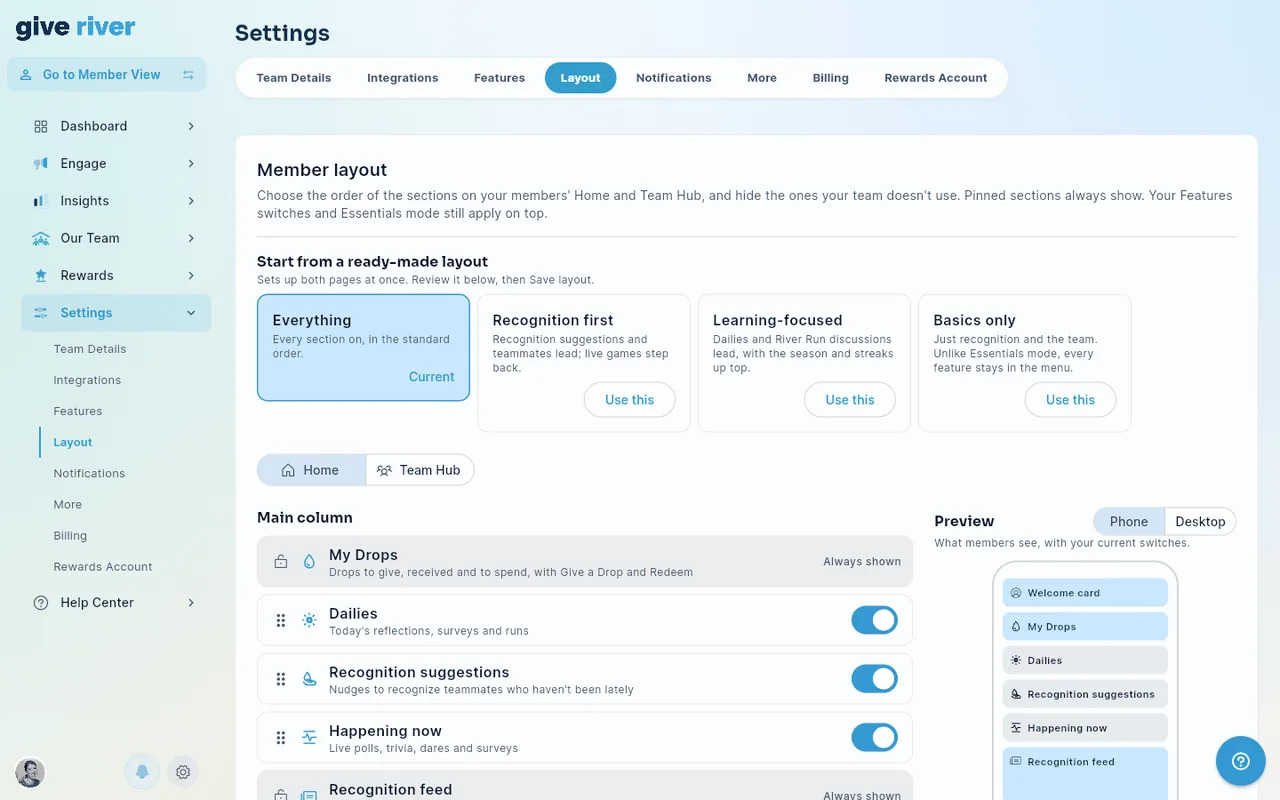
Using the layout editor
- Pick Home or Team Hub at the top.
- Drag a section by its handle (⋮⋮) to move it up or down.
- Use a section's switch to show or hide it. On Home, Recognition suggestions and Your teammates have a menu instead of a switch: choose Main column, Side column or Off (see Sections that can change column below).
- Check the Preview on the right. Switch between Phone and Desktop to see both layouts. On a wide screen the preview stays beside the section list as you scroll, and once you've made a change an Unsaved changes · Save layout bar appears under it.
- Click Save layout. Members see the new layout right away.
Your changes aren't live until you save them. Reset to default puts every section back in its original order and default on/off state. You still need to click Save layout afterwards. Reset to default and the ready-made layouts don't change your Team River post style, your Create a post style or your River Runs page style.
Ready-made layouts
To skip the dragging, start from a ready-made layout at the top of the page. Each one sets up both Home and Team Hub:
| Layout | What it does |
|---|---|
| Everything | The standard order, with every section on except the optional Suggest to give card. |
| Recognition first | Recognition suggestions and teammates lead; Happening now (live polls, trivia and dares) is hidden. |
| Learning-focused | Dailies (with Continue your run) and River Run discussions lead, with the season at the top of Home's side column. |
| Basics only | Just recognition and the team on Home and Team Hub. |
| Performance | My goals this season leads Home, then Dailies (goal reminders, the "Set a goal" card); the season card and teammates lead the side column; Happening now is hidden. On Team Hub, Team goal comes first. Made for a Performance season — pick it under Season layouts; see How Performance Seasons Work. |
Click Use this on a layout, review it in the editor and preview (you can still adjust it), then click Save layout. The layout that matches your current setup is marked Current.
Basics only is different from Essentials mode (in Settings > Features). Basics only trims Home and Team Hub, but every feature stays in the menu. Essentials mode also hides whole features, such as River Runs, Rankings and Wellspring.
Season layouts
You can switch members to a ready-made layout for the length of a season — for example, Performance during a Performance season, or Learning-focused during a learning challenge. Season layouts sits right under the section editor and its Save layout button. Pick a layout next to a current or upcoming season; it's saved right away.
- The season's layout applies only while the season is active and running (between its start and end dates).
- While it applies, members see the season's layout instead of yours. Changes you save to your own layout are stored, but members don't see them until the season ends or you switch back to your layout.
- When the season ends, members go back to your own layout. You don't need to change anything.
- To stop using a season layout, pick Your layout next to that season.
When a season layout is in effect
- Banner: a highlighted note at the top of the Layout page says a season layout is in effect, until when, and which layout members see. Learn more opens this article.
- Use my layout now: the button on the banner switches members to your own layout straight away — the same as picking Your layout next to the running season. The banner goes away, and the season itself keeps running.
- Preview: the preview still shows your layout, and its caption says so: "Preview of your layout (members see the season layout until …)".
- Saving: when you click Save layout, your layout is saved and a window explains that members are seeing the season's layout. It sums up how the two differ on each page — for example, "Home: the Performance layout shows My goals this season, which your layout hides." Choose Use my layout now to switch members to the layout you just saved, or Keep season layout until … to leave the season layout in place until the season ends.
Columns
Each page has two columns:
- Main column — shown on every device.
- Side column — shown on desktop and tablet. Phones don't have a side column, with two exceptions:
- On Home, the Season, Events, Team charities and Celebrations (side) cards show on phones in a swipeable Today strip right under My Drops, in the order you set for the side column. Switching one off here removes it from the strip too. (Your teammates and Suggest to give stay desktop and tablet only; the recognition suggestions cover them on phones.) The phone preview shows the strip.
- Team Hub's Events section moves to the bottom of the main column.
- Home's Recognition suggestions, if you put it in the side column, shows at the bottom of the main column on phones (above the feed).
Sections that always show
Some sections are pinned. They're marked with a lock and Always shown, and you can't move or hide them:
| Page | Pinned sections |
|---|---|
| Home | My Drops (top of the main column), the Recognition feed (bottom of the main column), and the Welcome card (top of the side column) |
Both pages also share the team banner across the top, above both columns. On Team Hub nothing is pinned: the Welcome card is an ordinary section there (see below).
These keep the basics in the same place for everyone: how many drops members have, where to give recognition, and where to redeem.
Sections you can arrange
| Page | Column | Sections |
|---|---|---|
| Home | Main | Dailies · My goals this season · Recognition suggestions · Happening now · Celebrations (feed) |
| Home | Side | Suggest to give · Your teammates · Season · Team charities · Events · Celebrations (side) |
| Team Hub | Main | Groups & chat · Team goal · Events & surveys · Team members · Run discussions |
| Team Hub | Side | Welcome card · About our team · Season · Events · Suggest to give |
My goals this season shows only while a Performance season runs with its Goals on Home switch on (see Season Management); the rest of the time it stays hidden wherever you put it. Team goal (Team Hub) works the same way with the Team goals switch.
Home has two Celebrations sections, both on by default:
- Celebrations (feed) — the main-column card with birthdays, work anniversaries and awards, and its Upcoming / Past week switch. While it's the last section in the main column (where it starts), it sits at the top of the feed, under the share bar and any pinned announcement. Drag it higher and it shows with the other sections above the feed instead; switch it off to hide it. Layouts saved before it was a section show it in that same spot at the top of the feed, and a section you move into the main column lands just above it.
- Celebrations (side) — the shorter card in the side column (and in the phone Today strip).
Switch either one off if you only want one of them. Turning off Celebrations in Settings > Features hides both.
Suggest to give starts switched off on both pages — the recognition suggestions in Home's main column already cover it. Switch it on here if you want it in the side column. Events & surveys is the row of tiles on Team Hub for current events and open surveys; it hides itself when there's nothing current.
The side column (sidebar) is arranged like the main column: drag its cards by the handle to reorder them, and use the switches to hide them. On Team Hub, About our team is the first card by default, then Season and Events; every ready-made layout keeps About first there too. A layout you saved before October 2026 keeps your saved order (Season first) — drag About our team to the top, or click Reset to default and Save layout, to get the new default. Every side-column card uses the same heading style (icon, title, and at most one action), whatever order you choose.
Team Hub leads with your team: its groups, events and members come first, and the Welcome card starts switched off there, so Team Hub doesn't repeat Home. Switch it on (and drag it where you want it) if your members miss it; on phones it then shows as the compact welcome strip at the top. If you saved a Team Hub layout before this change, your order is kept and the Welcome card is simply off.
Sections that can change column
Two Home sections can go in either column: Recognition suggestions (the "Recognize your team" / "Spread the flow" card) and Your teammates. Each has a menu with three choices:
- Main column — shows it in the main column, at the bottom of the arranged sections (just above Celebrations (feed)). Drag it from there.
- Side column — shows it in the side column, at the bottom. Drag it from there.
- Off — hides it. It stays in its current column, ready to switch back on.
By default, Recognition suggestions is in the main column and Your teammates is in the side column. Both cards use the same Recognize button, wherever you put them.
On phones (no side column): Recognition suggestions always shows in the main column — in the side column it moves to the bottom of the main column. Your teammates shows on phones only when it's in the main column.
Team River
You can choose how posts look in your team's feed: on Home, in the Team Hub, on profiles and in the Recognize preview. Under Team River on the Layout page, each style shows two sample posts (a recognition with drops and a core value, and a short update) drawn with the real post card:
| Style | What members see |
|---|---|
| Simple (default) | The classic card: a colored band across the top with the kind of post (Recognition, Moment, Reflection and so on), then the author and the post |
| Stream ribbon | A flowing stream across the top of each card in the post's color, with the author's photo sitting on it |
| Recognition spotlight | A recognition becomes a small scene: the giver and the receiver face each other, joined by a stream of drops, and the message reads as a quote. Other posts get a compact header |
| Scrapbook | Playful: the kind of post on a strip of tape, a drop stamp, core values as stickers, and big reaction buttons members tap directly |
| Bold editorial | Words first: bigger text, tighter cards and a slim colored rail down the side |
| Rising tide | The Comment, React and Give buttons float on water that rises as people react and comment |
- Click a style. On a phone, swipe the row of styles sideways to see them all.
- Check the larger Preview under the styles. It uses sample posts and names.
- Click Save post style. Members see the new style the next time their feed loads. Cancel goes back to the saved style.
The style you're using now is marked Current, and Simple is marked Default. Teams that never picked a style get Simple. Styles marked Moves once have water that flows once as each post scrolls into view and then stays still; members who turn off animations on their device see it still.
Every style uses the same color for each kind of post: blue for recognition, mint for Daily Drops and River Runs, apricot for photos (Moments) and gifts, lavender for reflections, and plain for updates. The style applies to everyone in your team, on phones, tablets and desktop, in light and dark mode. Season layouts don't change it.
Create a post style
You can choose how the Create a post window looks. Members open it from Share something with [your team]… on Home; it lists the kinds of post they can make (Recognize, Milestone, Goal win, GIF and Create), shows how many drops they have to give, and then opens the editor. Under Create a post style on the Layout page, each style shows the window with sample numbers:
| Style | What members see |
|---|---|
| Color splash (default) | A soft wash of your brand colors behind white cards. Each kind of post has its own bright icon: blue for Recognize, violet for Milestone, amber for Goal win, pink for GIF and teal for Create |
| Simple | A plain window with outlined cards and icons in your brand color |
| Bold | Your brand gradient across the whole window, with large icons on light tiles |
- Click a style. On a phone, swipe the row of styles sideways to see them all.
- Check the larger Preview under the styles.
- Click Save style. Members see the new style the next time they open the window. Cancel goes back to the saved style.
The style you're using now is marked Current, and Color splash is marked Default. Teams that never picked a style get Color splash. The options and what they do are the same in every style. The style applies to everyone in your team, on phones, tablets and desktop, in light and dark mode. Season layouts don't change it.
River Runs page style
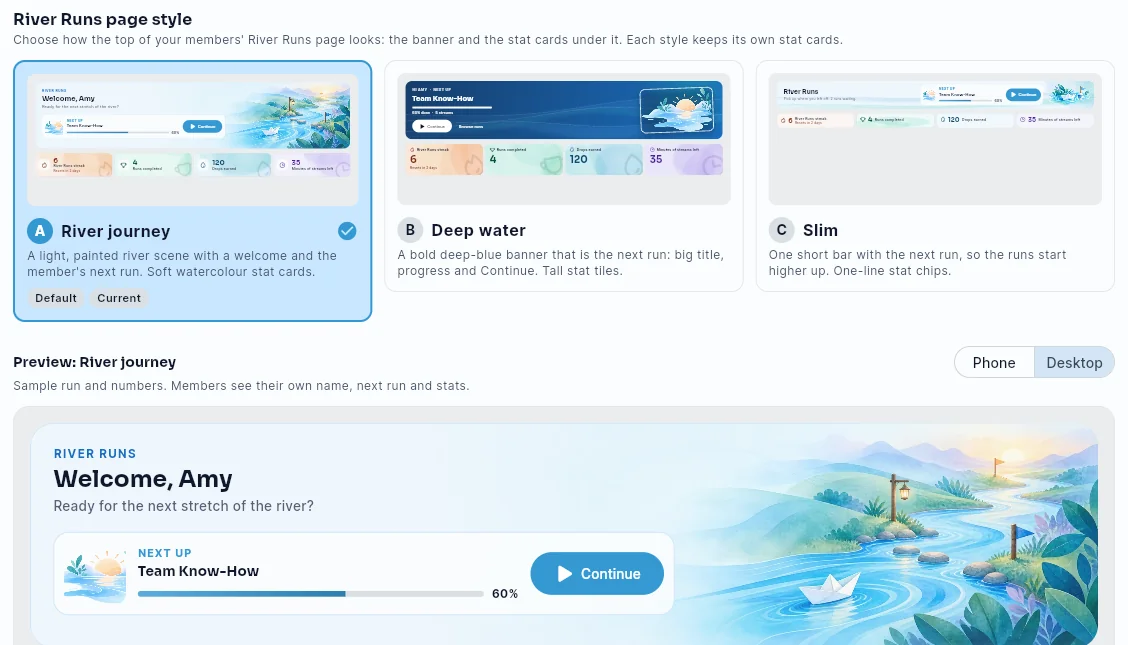
You can choose how the top of your members' River Runs page looks: the banner and the four stat cards under it (River Runs streak, Runs completed, Drops earned and Minutes of streams left). Each style keeps its own stat cards. Under River Runs page style on the Layout page:
| Style | Banner | Stat cards |
|---|---|---|
| A · River journey (default) | A light, painted river scene (a winding river with stepping stones, lanterns and a paper boat), "Welcome, name", and a Next up panel with the member's next run and a Continue button | Soft watercolour cards, each in its stat's color, with a faint flame, trophy, drop or clock |
| B · Deep water | A deep-blue banner that is the next run: its title in large type, a progress bar, Continue and Browse runs, with the run's artwork on the right (a moonlit river scene when the run has no artwork) | Taller tiles with a big number on a bold wash |
| C · Slim | One short bar with the page name, the next run and Continue, and a small paper boat and flag buoy | Compact one-line chips on a brush-stroke wash, so the runs start higher up |
- Click a style. Each option shows a small live preview of its banner and stat cards.
- Check the larger Preview under the options. Switch between Phone and Desktop to see both. The preview uses a sample run and sample numbers; members see their own name, next run and stats.
- Click Save page style. Members see the new style the next time they open River Runs. Cancel goes back to the saved style.
The style you're using now is marked Current, and A · River journey is marked Default. Teams that never picked a style get River journey. The Next up run is the same in every style: the member's unfinished required run that's due soonest (marked with its Required chip, and still listed in Required for you), otherwise the run they joined most recently. With nothing left to finish, the banner offers Browse runs instead.
The style applies to everyone in your team, on phones, tablets and desktop, in light and dark mode. Season layouts don't change it. If River Runs is off in Settings > Features, you can still pick a style; members see it once River Runs is back on.
Reactions
You can choose which reactions your members can add to posts and announcements, and in what order. Under Reactions on the Layout page:
- Your set shows as a grid, five per row, in the order members see it. A team that hasn't changed anything gets the ten defaults: Love, Fire, Adore, Angel, Applause, Like, Haha, Celebrate, Thanks and Insightful.
- Reorder: drag a reaction to another spot (on a phone or tablet, press and hold it first). You can also tap it and use Move earlier or Move later.
- Swap: tap a reaction and pick another one under Swap for another reaction. The library has 40 reactions; the ones already in your set are dimmed.
- Rename: tap a reaction and type a Label (up to 24 characters), for example "Kudos" instead of "Applause". Leave it empty to use the default name, which members see in their own language. A renamed reaction shows a small pencil in the grid.
- Add or remove: click Add reaction to add one from the library, or tap a reaction and click Remove from set. A set holds 3 to 10 reactions. With six or more, members' picker shows two rows.
- Preview: the picker on the right (below on a phone) is exactly what members see. Hover a reaction, or press and hold on a phone, to see its name.
Click Save reactions. Members get the new set the next time their app loads your team. Cancel goes back to the saved set, and Reset to defaults puts the ten default reactions back (you still need to save). If the set can't be saved, the message says why, for example when it has fewer than 3 reactions.
Reactions you remove stay on posts and announcements that already have them — members can still see them there — they just can't be picked any more.
The bottom bar
Members get a bottom bar on phones — in the iOS and Android apps and in a phone's web browser. You choose what's in it under Bottom bar on the Layout page:
- Under Tabs in the bar, drag a tab by its handle (⋮⋮) to change the order. The first tab is on the left.
- Click × to remove a tab. The bar needs at least 3 tabs.
- Under Add a tab, click a page to add it to the end of the bar. The bar holds up to 5 tabs.
- Check What members see — a preview of the bar with your current feature switches.
- Click Save bottom bar. Reset to default goes back to the default bar (you still need to save).
The default bar is Home, Team Hub, River Runs, Drop Shop and My River. You can also add Wellspring, River Rankings (shown as Rankings) and Charity Channel (shown as Charities). There's no separate "Give" tab: members give recognition from the My Drops card at the top of Home. Pages that aren't in the bar stay in the menu (☰) at the top of the screen.
The bar follows your feature switches: a tab whose feature is off in Settings > Features (or hidden by Essentials mode) is marked Hidden from members and left out of the bar. If that leaves fewer than 3 tabs, members' bars are filled back up from the default tabs, and the preview shows the result. Charity Channel appears only for members who have picked a charity. Season layouts don't change the bottom bar.
The team banner
The banner at the top of Home and Team Hub is your team's cover image. Until you set one, members see the Give River default — a soft blue wave. To change it, click the pencil in the banner's top-right corner on Home or Team Hub (admins only — hover it for Edit team banner; it's there on the default banner too), or the pencil on the cover image in Settings > Team Details. Either way, the same Edit team banner window opens (on a phone it slides up from the bottom):
- Image — click Upload new to pick a JPG or PNG (up to 5 MB) and crop it, or click one of your team's 5 most recent banners. The one members see now is marked Current; a just-uploaded image is marked New. The row always ends with the Give River default (marked Default): pick it to go back to the default banner. Your old banner stays in the row, so you can switch back later. Scroll the row sideways on a phone.
- Give River banners — six ready-made banners from Give River (river scenes and soft blue waves). Click one to use it; it's saved like an upload, so it joins your recent banners and you can reposition it.
- Reposition — drag the preview, or use the Vertical position and Zoom sliders. The previews show how the banner will look on a desktop and on a phone. Reset goes back to the full image, centred. Your uploaded image itself isn't changed, so you can re-frame it any time. The Give River default is always shown centred, so there's nothing to reposition.
Click Save. Because the banner is the same for everyone, you're asked to confirm: Confirm team banner — "Changing the team banner affects ALL members of your team. Are you sure?" Click Yes, update banner to apply it (the banner updates on Home and Team Hub right away), or Cancel to go back without changing anything. Banner changes are recorded in the audit log.
The banner always keeps the same size, so the page doesn't jump while it loads: members see the Give River default for a moment, and your banner fades in on top of it.
To show or hide your team logo in the banner's top-left corner, use Settings > Features > Team logo on the banner.
How this works with Features and Essentials mode
The layout and your feature switches work together. A section shows only if it's switched on in the layout and its feature is on.
- If a feature is off in Settings > Features, its section is marked Turned off in Features in the layout editor, and the preview leaves it out. You can still move it, and it reappears in that spot when you turn the feature back on.
- While Essentials mode is on, most sections are marked Hidden in Essentials mode. You can still arrange the layout, and members will see it when you turn Essentials mode off.
Some sections also hide themselves when they have nothing to show — for example, Events when there are no upcoming events, or Team charities when the Charity Channel is off.
Who can change the layout
The Layout tab is available to admins whose role includes the Admin Settings permission. See Role-Based Permissions.
Did this article help?
Related articles.
See the platform in action.
Free for up to 25 members, or try Core or Growth free for 30 days. A card is required; Free is never charged, and a trial bills when it ends unless you cancel.