Admin Members Management
The Members area lets admins view, add, edit, and remove team members, manage departments, locations, and positions, and control member access roles.
Accessing Members
In Admin view, open Our Team in the side navigation. It has two sub-sections — Member List and Org Chart — reachable from the nested side navigation or the sticky tabs at the top (see Admin Navigation). Member List opens by default and shows the full members list for your primary team.
Members List Views
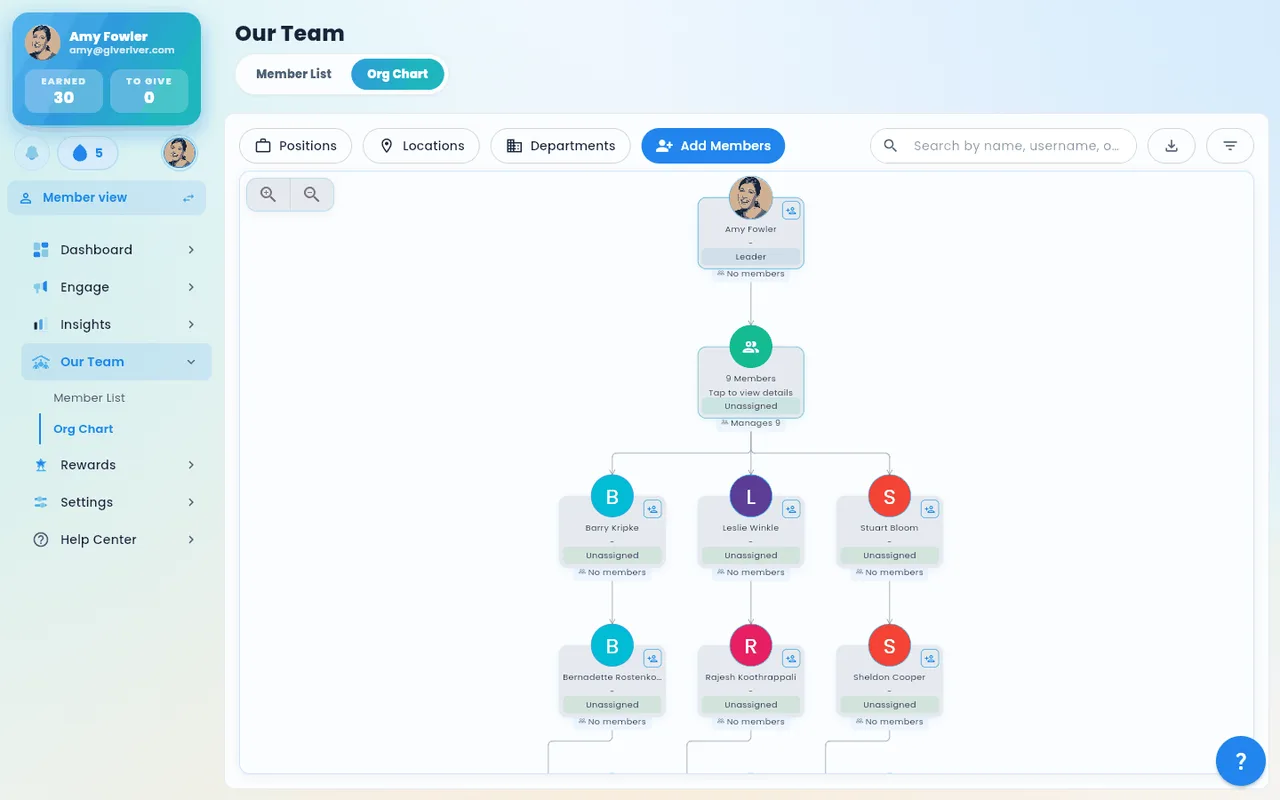
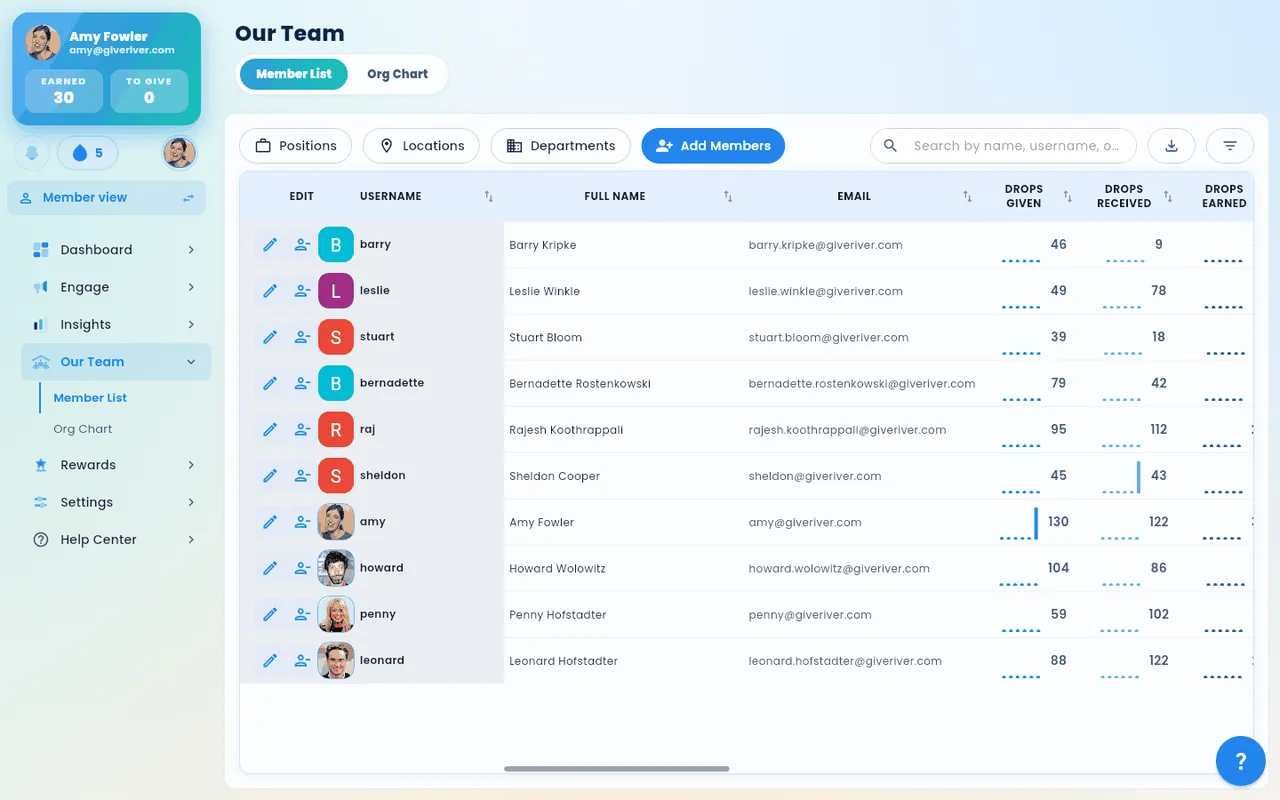
Our Team offers two views, each its own sub-section:
| Sub-section | Description |
|---|---|
| Member List | A compact table with eight sortable columns: Member (photo, name and email), Title (job title, with the department under it), Team (their team in the current season), Role, Status, Last active (the last day they opened Give River), Drops this month (recognition drops given ↗ and received ↙ this calendar month) and Edit. Click any row to open the member's Member 360 panel, where everything else lives. On mobile, this view displays as a vertical list of member cards showing each member's name, job title and department, status and River Bank balance; tap a card (or View 360) to open the panel. |
| Org Chart | Visual hierarchy chart showing manager-to-report relationships. It opens fitted to the screen (a very wide chart opens at its left edge); drag to pan, use the zoom buttons or Ctrl + scroll, and the fit button brings the whole chart back into view. People with no manager of their own who manage others start their own branch at the top, biggest branch first; the first one is tagged Leader. People with neither a manager nor reports — including an admin who just set the team up — are grouped under Unassigned and tagged No manager set. Drag someone onto their manager to fix a missing link. |
Switch between them with the Member List / Org Chart tabs (or the side-nav sub-sections). On narrow screens the Position, Location and Department buttons shrink to icons; hover or long-press one to see its name. The export and filter buttons are icon-only on every screen size and are labelled the same way.
Filtering the Member List
Click the filter button above the table. You can narrow the list by:
| Filter | Shows members who… |
|---|---|
| Role | are admins or team members |
| Location | work at any of the chosen locations |
| Department | are in any of the chosen departments |
| Manager | report to any of the chosen managers |
| Recognition activity | neither gave nor received recognition in the last 30, 60 or 90 days |
| Joined | joined in the last 30, 90 or 180 days (their HRIS hire date or joining date when set, otherwise the day they joined Give River) |
| Status | have any of the chosen statuses (historical members stay hidden unless Show historical members is on) |
Choices inside one filter are alternatives ("Boston or Denver"); different filters all have to match ("Boston and Sales").
Save as segment
When a location, department, manager, activity or join-date filter is on, a Save as segment button appears next to the filter button. It saves those filters as a reusable audience you can pick in Required Training, Announcements, Polls and Surveys under Saved segments. The segment is a rule, not a snapshot — it keeps matching new people who fit. Search, role and status aren't saved. See Audiences & Saved Segments.
Member 360
Member 360 is one panel with everything about a person. Click a member's name or row in any of these places to open it:
- Our Team › Member List (any row, or a member card on mobile)
- Dashboard › Action Items: the requester's name under a reward, goal, health-claim or Request a Run item, and the person under a birthday or anniversary
- Dashboard › Audit Log › Admin Actions: the "by …" admin name
- Insights: the names in the top droppers leaderboard
- Engage › River Runs › Assignments: names in an assignment's member list
On a computer or tablet the panel slides in from the right; on a phone it opens as a sheet from the bottom. It shows:
| Section | What's in it |
|---|---|
| Header | Photo, name, position and department, email, status, and an Admin tag for admins |
| Profile | Team, location, department, position, role, manager (click to open the manager's panel), joined date and last active |
| Activity · last 90 days | A bar chart of recognitions given and received per day, with totals and the number of days they were active |
| Recognitions | How many they've given and received, plus the five most recent each way with the message and drops. Click a name to move the panel to that person (use the back arrow to return) |
| Drops | Drops left to give, River Bank balance, drops given and received this month, drops tied up in pending redemptions, lifetime totals, and the five most recent redemptions with their status |
| Training | Required training counts (assigned, in progress, overdue, completed, average quiz score), each required run with progress, due date and quiz score, and how many River Runs they've joined and finished. Open in Assignments goes to Engage › River Runs › Assignments › By member |
| Goals | Their goals with progress, pace (on track, at risk, behind) and anything awaiting approval |
Actions in the panel (shown only if your role allows them):
- Edit member opens the usual edit dialog.
- Assign training opens the Assign dialog with this person already picked as the audience.
- The ⋮ menu has Recognize (the Recognize flow with this person already picked), Change role (the edit dialog, where Role is set), Give extra drops (the one-time extra drops dialog), Show tour on next sign-in and Change status or remove (the edit dialog's status chooser, with the same confirmations).
Show tour on next sign-in lets you pick the Member tour or, for an admin, the Admin tour. It starts the next time they open Give River, even if they've taken it before, and they can skip it as usual. See The App Tour and The admin tour.
The panel refreshes after you save any of these.
Adding a Single Member
- Click Add Member in the top-right of the Members page.
- Fill in the required fields:
- Full Name
- Username
- Email address
- Optionally fill in:
- Role (see Roles and Permissions; only an Admin or the Workspace Owner can give a role above Member)
- Position (from your configured positions list)
- Department
- Location
- Manager (select from existing members)
- Joined Date
- Extra Drops (boosted drop allocation)
- Set the Member Status (active, inactive, pending, etc.)
- Click Save to create the member.
On the Free plan
The Free plan includes 25 active members (the River Guide doesn't count). Add Members shows how many spots are left. You can keep inviting and adding people past 25: nothing is locked, admins see a banner suggesting a plan, and Give River may reach out. Deactivated members don't count. See If your team has more than 25 members on Free.
Editing a Member
- Locate the member in the table or org chart.
- Click the pencil icon in the member's Edit column, or click their row to open Member 360 and choose Edit member.
- Update any fields as needed.
- Save changes.
Changing a Member's Status or Removing a Member
Status changes and removal are both in the member's edit dialog.
- Open the member's edit dialog (click the pencil icon in their row), or open their Member 360 panel and choose ⋮ › Change status or remove.
- In the Member Status section, click Change Status or Remove (from Member 360 the chooser opens straight away).
- A chooser lists every status with a one-line explanation of what it means.
- Pick the new status. Destructive choices (Removed, Deleted) ask you to confirm before anything is applied.
For a reversible access suspension, choose Inactive — the member keeps their history and can be re-activated later. Re-activating a member prompts you to set a fresh joining date.
Removing a member signs them out. When you set a member to Removed, Left, Deleted or Inactive, and your company was the only Give River company they belong to, they are signed out on every device. The next time they open Give River, the sign-in screen tells them their account was removed from your company (for example, "You were signed out because your account was removed from Acme."). The same happens when your HRIS sync deactivates someone. If they also belong to another Give River company, they stay signed in to that company, but can no longer see or do anything in yours.
Member Status Options
Members can be assigned a status that controls their access and visibility:
| Status | Meaning |
|---|---|
| Active | Full platform access — the member can sign in and participate. |
| Inactive | Temporarily paused — history is kept, but they can't sign in or participate. |
| Pending | Invited but not yet accepted — waiting on their first sign-in. |
| Left | Marks that the member left the organization; their history is kept. |
| Removed | Removed from the team — they lose access, but records are kept. |
| Deleted | The member's account is permanently deleted. This can't be undone. |
Pending Approvals
People who asked to join appear in the Pending Approvals section — whether they used your invite link (with Automatic Join off) or signed up with an email outside your approved domains. Your team never appears in Give River search, so people outside it can't find it by name. Joining is by invitation or request only, so nobody becomes a member until an admin approves them (or invites them). To approve or deny:
- Click Pending Approvals at the top of the members list.
- Review each request.
- Click Approve or Deny for each member.
Additional Drops
To grant a member extra drops outside of the standard drop cycle:
- Open the member's edit dialog.
- Set a value in the Extra Drops field.
- Save the change.
Alternatively, use the Additional Drops dialog to add a one-time supplemental allocation with a reason note. Open it with the drop icon in the member's Edit column, or from Member 360 with ⋮ › Give extra drops.
A grant is at most 1,000 drops, and one member can receive at most 1,000 extra drops per drop period in total. When a grant would go over, Give River says how many are left for that member this period.
Departments, Locations, and Positions
These reference lists are managed from one menu on the Member List toolbar: click Manage org fields ▾ (on a phone, the tune icon) and pick a list:
- Positions — manage the job titles assigned to members.
- Locations — manage office or remote work locations.
- Departments — create, rename, or delete departments.
They're lists you maintain, not filters: to narrow the table by department or location, use Filter.
These values are selectable when adding or editing a member and are also used as filters on the members table.
Inviting Members via Email
- Click Invite at the top of the Members page.
- Enter one or more email addresses in the invite dialog.
- Optionally assign a role and team before sending.
- Click Send Invitations. Each recipient receives an email with a link to join.
Exporting Members
The members table supports CSV export. Click the Export button above the table to download the current (filtered) member list. The export still includes every detail column — lifetime drops given, received and earned, shareable and extra drops, position, department, location, joined date, birthday, role and status (birthdays include the year only if you can add and edit members) — plus River Bank balance, team, last active and drops given / received this month, even though the on-screen table shows only eight columns.
Per-Member Drop History
Select a member in the Org Chart to open their profile with their Drop History — a paginated table of every drop they've sent and received, useful for spot-checking activity, investigating disputes, or auditing manual adjustments.
- Sorting — clicking a column header sorts the full result set, not just the visible page, so the top entry is genuinely the newest/oldest across the member's whole history.
- Filters — narrow by transaction type (recognition, season reward, manual adjustment, etc.) and date range.
- Each row links back to the originating post (recognition drops) or to the season/adjustment context when applicable.
Showing Historical Members
By default, the Members table hides historical members (those who have left the team, been deactivated, or are otherwise no longer active) so the list reflects your current roster.
- Toggle Show historical at the top of the table to include them. The row count badge updates.
- Historical members are read-only — you can view their profile and drop history, but most edit actions are disabled. Removing the toggle hides them again without affecting any data.
Did this article help?
Related articles.
See the platform in action.
Free for up to 25 members, or try Core or Growth free for 30 days. A card is required; Free is never charged, and a trial bills when it ends unless you cancel.