Admin Reward Reports
Rewards can be taxable, and some companies put them on paychecks. The Reward redemption report shows how much your team spent on rewards and who received which reward, so HR and payroll have what they need. You can have it emailed automatically at the start of every month, or run it yourself for any month or date range.
What Managers see
Admins and the Workspace Owner see the whole company and manage the monthly email. A Manager with the rewards permission sees only Run a report now, covering rewards redeemed by themselves and everyone who reports to them, directly or through their managers; a Location Manager sees their location. A note above the preview says so, for example Showing your team (8 people), and both downloads contain the same people only. Managers don't see the monthly email settings or Email to recipients. A Manager with nobody reporting to them sees No one reports to you yet instead of the preview. See Roles and Permissions.
Accessing reports
- Switch to Admin view and open Rewards in the side navigation.
- Open the Reports tab (after Rewards History).
You can also get there from Settings > Notifications: the Monthly reward report row has an Open Reports button.
Monthly redemption report (automatic email)
The top card controls the monthly email. Only an Admin or the Workspace Owner sees it.
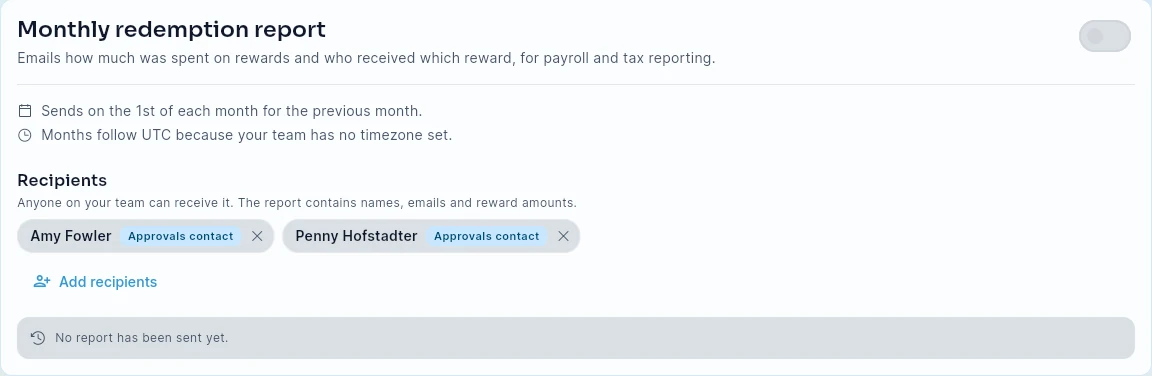
- Turn on Send the monthly report (the switch at the top right of the card).
- Under Recipients, tap Add recipients, search by name or email, and tap people to select them. Remove someone with the × on their chip.
- Anyone on your team can be a recipient — for example your HR or payroll lead — not only admins. Admins and approval contacts are listed first and labelled.
- The first time you open the tab, the list is pre-filled with your approval contacts (or your billing admins). Adjust it, then turn the report on.
- You need at least one recipient to turn the report on.
- The report sends on the 1st of each month for the previous month. Months follow your team's timezone; if your team has none set, UTC is used (the card tells you which). Teams west of UTC receive it on the evening of the 1st.
- The card shows when the next report goes out and when the last one was sent.
If a recipient leaves the team or is deactivated, they are removed from the list automatically and never receive another report.
Run a report now
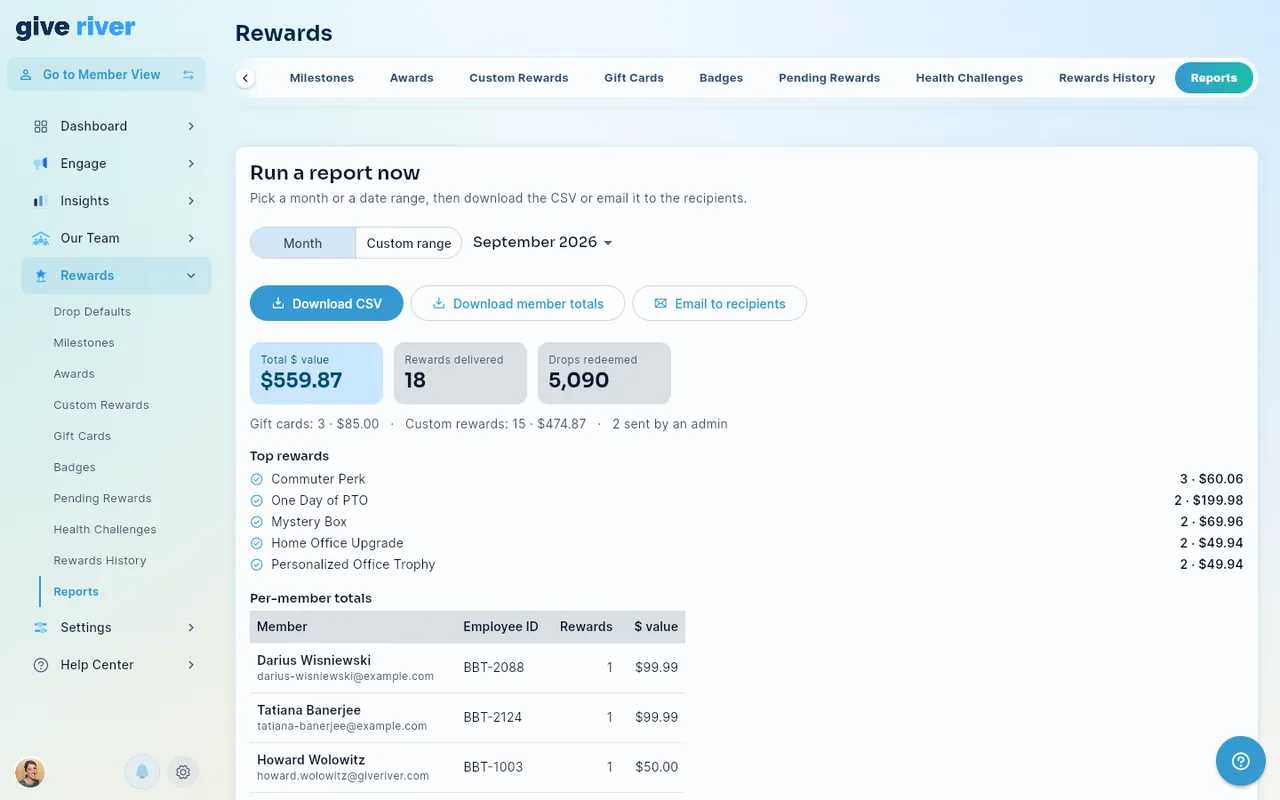
The second card lets you run the report yourself.
- Choose Month and pick a month (last month is selected by default), or choose Custom range and pick start and end dates (up to a year).
- Use the buttons just under the period picker:
- Download CSV — one row per reward (the line items).
- Download member totals — one row per member (the payroll view).
- Email to recipients — sends the report for the chosen period to the recipients above right away, even if the monthly email is off.
- Below the buttons, review the preview: total $ value, rewards delivered, drops redeemed, a gift card / custom reward breakdown, the top rewards, and per-member totals. If some requests in the period are still pending, a note under the breakdown says so (they're in the CSV but not in the totals).
What's in the report
Summary: the period, total rewards delivered, total $ value, total drops, the count and value of gift cards and custom rewards, how many were sent by an admin, and the top rewards.
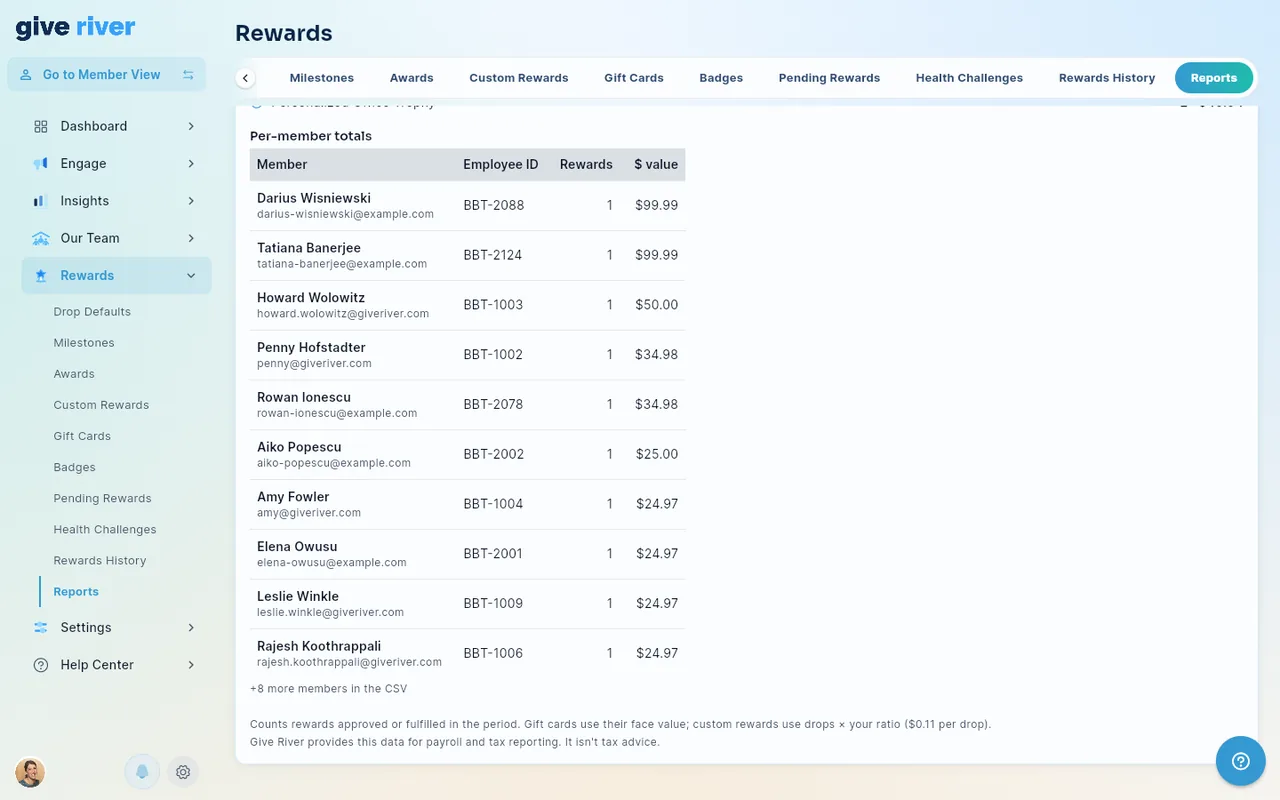
Per-member totals (payroll view): member name, work email, employee ID, department, location, number of rewards, total drops and total $ value. The employee ID comes from your HRIS sync (for example BambooHR); it's blank for members who aren't synced.
The preview's table shows the top members (name and email, employee ID, rewards and $ value) and how many more are in the CSV; the downloads have every column.
Line items CSV (one row per reward): redeemed date, approved/fulfilled date, member name, email, employee ID, department, location, reward name, type (Tango gift card, custom reward, or admin gift), brand (gift cards), face value, drops paid, $ value, status, and who approved it. Gift cards that were fulfilled automatically show "Automatic (gift card)" as the approver.
The email includes the summary and the top 50 members inline, with both CSV files attached.
Which rewards are counted
- A reward counts in the period it was approved or fulfilled — when the money was actually spent — not when it was requested.
- Rejected redemptions are left out.
- Requests that are still pending are listed at the end of the line-items CSV with status Pending and are not included in any total.
- It covers Drop Shop custom rewards, gift cards, and gifts an admin sent from the Drop Shop.
- Drops that members received are not included. Drops aren't a reward until they're redeemed; once a member redeems them, that redemption appears here.
How the $ value is calculated
| Reward | $ value |
|---|---|
| Gift card | Its face value (the amount on the gift card order) |
| Custom reward | Drops paid × your drop-to-dollar ratio |
Admin gifts use the rule for their reward type. Your drop-to-dollar ratio is set in Drop Settings; the report uses your current ratio.
Personal data and tax
The report contains names, emails, employee IDs and amounts, so only send it to people who should see that information. Give River provides this data to help with payroll and tax reporting; it isn't tax advice — check with your accountant or payroll provider about how rewards should be reported.
Did this article help?
Related articles.
See the platform in action.
Free for up to 25 members, or try Core or Growth free for 30 days. A card is required; Free is never charged, and a trial bills when it ends unless you cancel.