Admin: River Run Assignment via Season Goals
Admins can connect River Runs to Seasons — time-bound engagement campaigns with goals, rewards, and team targets. When a Season is configured with a Learning goal, employees are directed toward River Run activity as part of that Season's objectives. Seasons encourage River Run activity broadly; to require a specific run from specific people (with due dates and tracking), use Required Training.
Overview
Admins can connect River Runs to Seasons — time-bound engagement campaigns with goals, rewards, and team targets. When a Season is configured with a Learning goal, employees are directed toward River Run activity as part of that Season's objectives. Seasons encourage River Run activity broadly; to require a specific run from specific people (with due dates and tracking), use Required Training.
What Is a Season?
A Season is a structured period (with a start and end date) during which your organization focuses on a specific goal area. Seasons can include points targets, badge rewards, team competitions, and a defined goal type that determines what activity is encouraged.
Season Goal Types
When creating or editing a Season, admins choose one of four goal types. The Learning goal type is directly tied to River Run activity:
| Goal Type | Icon | Focus |
|---|---|---|
| Performance (Boost Performance & Productivity) | Trending up | SMART goals and results — see How Performance Seasons Work |
| Culture | Heart | Recognition and team values |
| Learning | Graduation cap | River Runs, Streams, and skill development |
| Wellness | Spa/leaf | Wellbeing and personal health habits |
Selecting Learning signals to employees that River Run engagement is the priority activity for this Season.
How to Create a Season with a Learning Goal
- In the Admin panel, go to Engage > Seasons.
- Tap Create Season (or edit an existing one).
- The Season creation wizard opens with the following steps:
Step 1: Season Type
Select whether the Season is Individual (each employee competes independently) or Team (teams compete against each other).
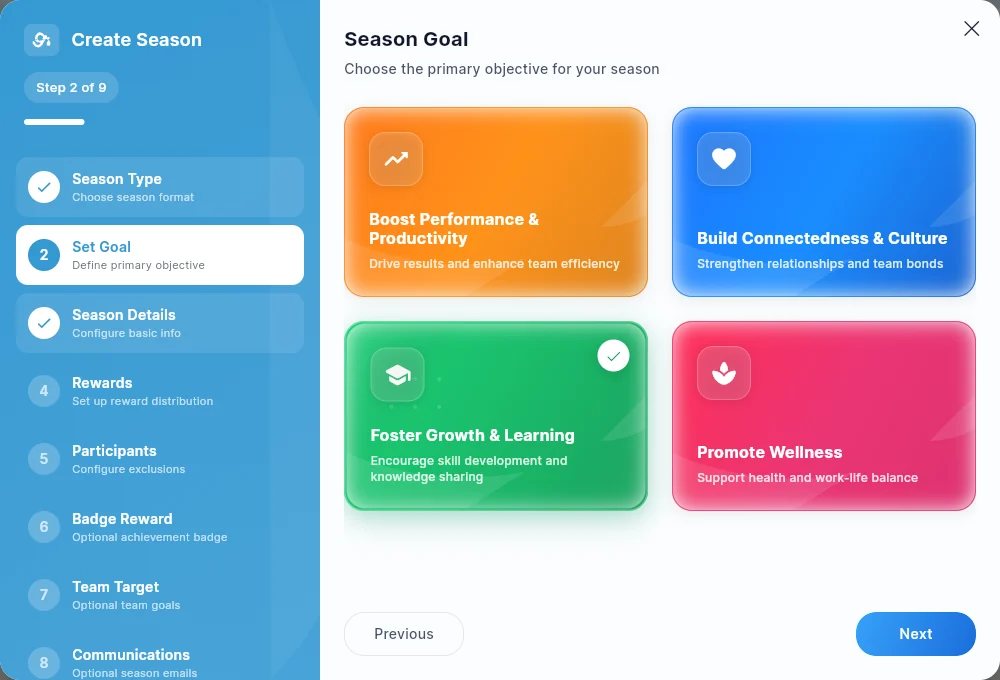
Step 2: Season Goal
Select Foster Growth & Learning (the Learning goal type). This frames the Season around River Run activity.
Step 3: Season Details
Fill in:
- Season name
- Start date and end date
- Description
Step 4: Rewards
Configure what employees earn for hitting targets:
- Drop amounts at milestone thresholds
- Badge rewards (select from available badges or create a new one)
Step 5: Teams (if Team Season)
Assign which teams participate in the Season and set per-team targets if applicable.
Step 6: Team Targets (if Team Season)
Set specific numeric targets for each participating team.
- Review and Save / Publish the Season. Employees will see the Season's goal and progress in their Give River experience.
What Employees See
When a Learning Season is active, employees see:
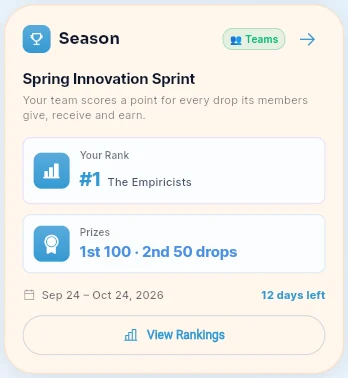
- The Season name and goal type in their Season/competition view.
- Progress toward the Season's Drops or activity target.
- River Runs remain the recommended path for earning points toward the Season goal.
A Learning Season creates organizational context and motivation for employees to self-select and complete River Runs; the Drops employees earn from completing Streams count toward the Season's targets.
Tips for Admins
- Publish River Runs (in Engage > River Runs) before launching a Learning Season so employees have content to engage with immediately.
- Use the Run catalog (Engage > River Runs > Run catalog) to control which runs employees can browse — hide runs that don't fit, or switch to "Only runs I choose" and curate the list for the Season. See Run catalog.
- Use the Season's rewards (Drops thresholds and badges) to create meaningful incentives for completing runs during the Season period.
- For targeted learning, assign the specific runs as Required Training (Engage > River Runs > Assignments) — they show as "Required for you" at the top of each assignee's River Runs, with due dates and reminders. See Required Training.
- Monitor Season progress in the Seasons management page to see team and individual engagement.
Did this article help?
Related articles.
See the platform in action.
Free for up to 25 members, or try Core or Growth free for 30 days. A card is required; Free is never charged, and a trial bills when it ends unless you cancel.