Survey Series Comparison
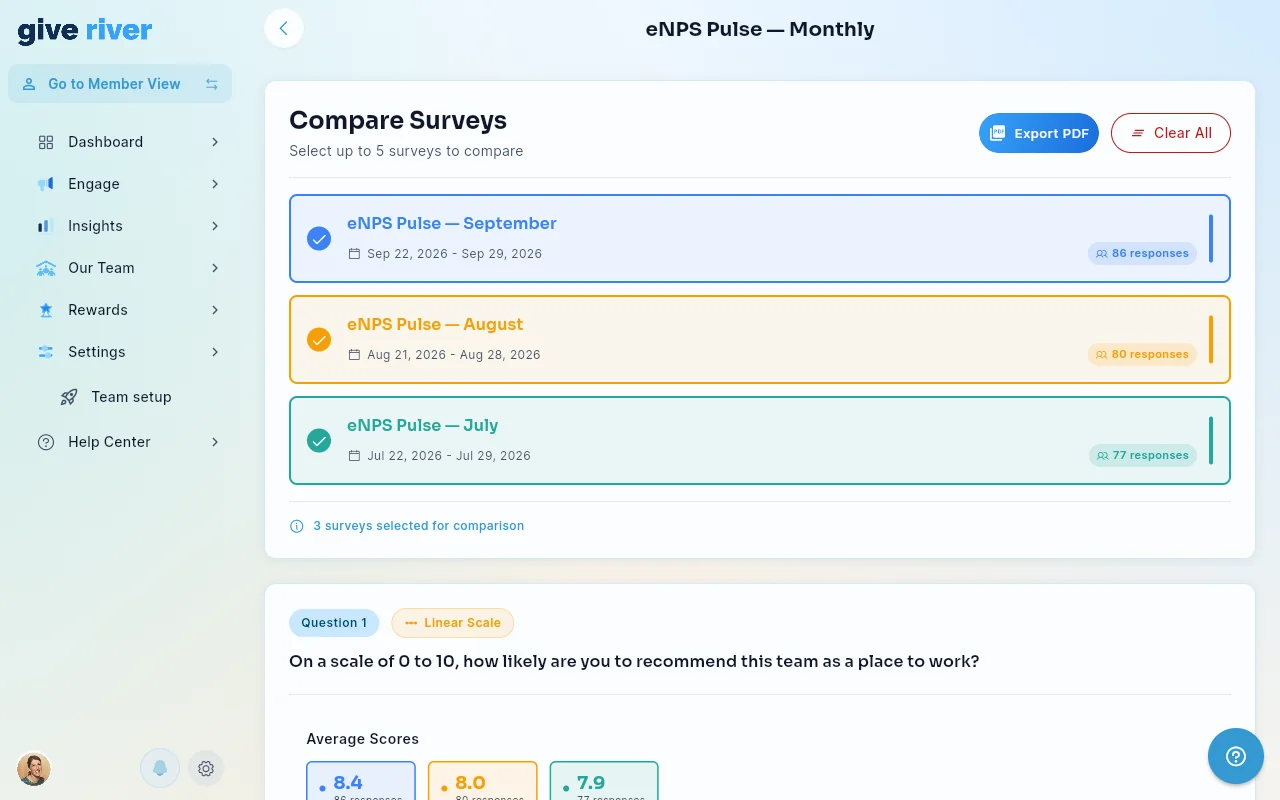
The Survey Series Comparison tool lets admins compare results from multiple surveys that belong to the same series. Instead of reviewing each survey in isolation, you can place them side by side to identify trends, shifts in sentiment, and which questions showed the most change over time.
Audience: Admins only
What Is a Survey Series?
A survey series is a group of related surveys — typically the same survey sent to your team at different points in time (for example, quarterly engagement surveys or monthly pulse checks). Because the questions repeat across surveys in a series, the comparison tool can line up matching questions and show how answers evolved.
The eNPS template in the Create Survey flow automatically creates a series with admin-configurable cadence (Monthly, Quarterly, or Custom). See the Surveys (including eNPS) article for setup. Any custom survey series — created manually or by converting an existing survey to an eNPS series — also works with this comparison tool.
Accessing the Comparison View
- Sign in as an admin and navigate to Insights → Surveys and Polls.
- Click any survey that belongs to the series to open its results.
- Click Compare runs (under the overview cards) to open the Series Comparison page.
Using the Comparison Tool
Once you're on the comparison page:
- Select surveys to compare — Use the survey selector bar at the top to choose which surveys from the series you want to include. You can select two or more.
- Review matched questions — Give River automatically finds questions that appear in multiple selected surveys and displays them in Comparison Question Cards.
- Each card shows the same question answered across the surveys you selected, so you can see how responses changed.
What You'll See
| Element | Description |
|---|---|
| Survey Selector Bar | Dropdown or toggle to choose which surveys to include in the comparison |
| Comparison Question Cards | Side-by-side view of a matched question across selected surveys |
| Response data | Aggregated answers for each survey in the comparison |
States and Edge Cases
The comparison view handles several scenarios:
- No surveys in the series yet — A message indicates there are no surveys to compare.
- No surveys selected — Prompt to select at least one survey to begin.
- No common questions found — Shown when the selected surveys don't share any matching questions (e.g., if survey content changed significantly).
- Comparisons available — The standard view showing all matched question cards.
Chart Scaling
Comparison charts use a y-axis that ends on a multiple of 5, with the same tick steps across the compared occurrences, so side-by-side charts are easy to compare and small differences don't look bigger than they are.
Tips for Getting the Most Out of Comparisons
- Run the same survey template each period to maximize the number of matched questions in the comparison.
- Use the date labels on each card to track which survey results correspond to which time period.
- Look for questions where responses shifted significantly — those often signal meaningful changes in team sentiment or culture.
- Pair survey comparison data with the Engagement tab in Insights for a fuller picture of what's driving changes.
Did this article help?
Related articles.
See the platform in action.
Free for up to 25 members, or try Core or Growth free for 30 days. A card is required; Free is never charged, and a trial bills when it ends unless you cancel.