Surveys (Including eNPS)
Surveys let admins gather structured feedback from the team using a variety of question formats. Members work through one question at a time with a progress bar, and responses can be kept anonymous (eNPS surveys always are). Admins can view response rates and eNPS score trends in the Insights dashboard.
eNPS Template: For ongoing engagement measurement, use the built-in eNPS template when creating a new survey. It pre-fills a 0–10 likelihood-to-recommend question with an open-ended follow-up, and sets up a recurring series (Monthly, Quarterly, or Custom cadence) that automatically schedules future occurrences and feeds the eNPS gauge on the Insights dashboard.
For Team Members: Taking a Survey
- Open the Home page. Surveys waiting for your answers show as a Surveys tile in the Happening Now row; tap it to see them as cards. Surveys you've already completed (or that have closed) aren't listed there.
- Tap a survey card to open it. The survey title and a progress bar (showing "Question X of Y") appear at the top.
- Answer each question and tap Next to advance.
- On the last question, tap Submit to complete the survey.
- Each survey can be answered once. Once you submit, it drops out of Happening Now; opening it again from a link shows an "Already Completed" status.
Question types you may encounter
| Type | How to answer |
|---|---|
| Multiple Choice (select many) | Tap all options that apply. |
| Multiple Choice (select one) | Tap the single best option. |
| Fill in the Blank | Type a short text response. |
| Open Ended | Type a longer free-text response. |
| Scale | Drag a slider or tap a value between the minimum and maximum shown. Scale displays can appear as numbers, emoji, stars, drops, thumbs, or a slider depending on admin configuration. |
For Admins: Creating a Survey
Surveys are created from the Admin panel under Engage > Surveys.
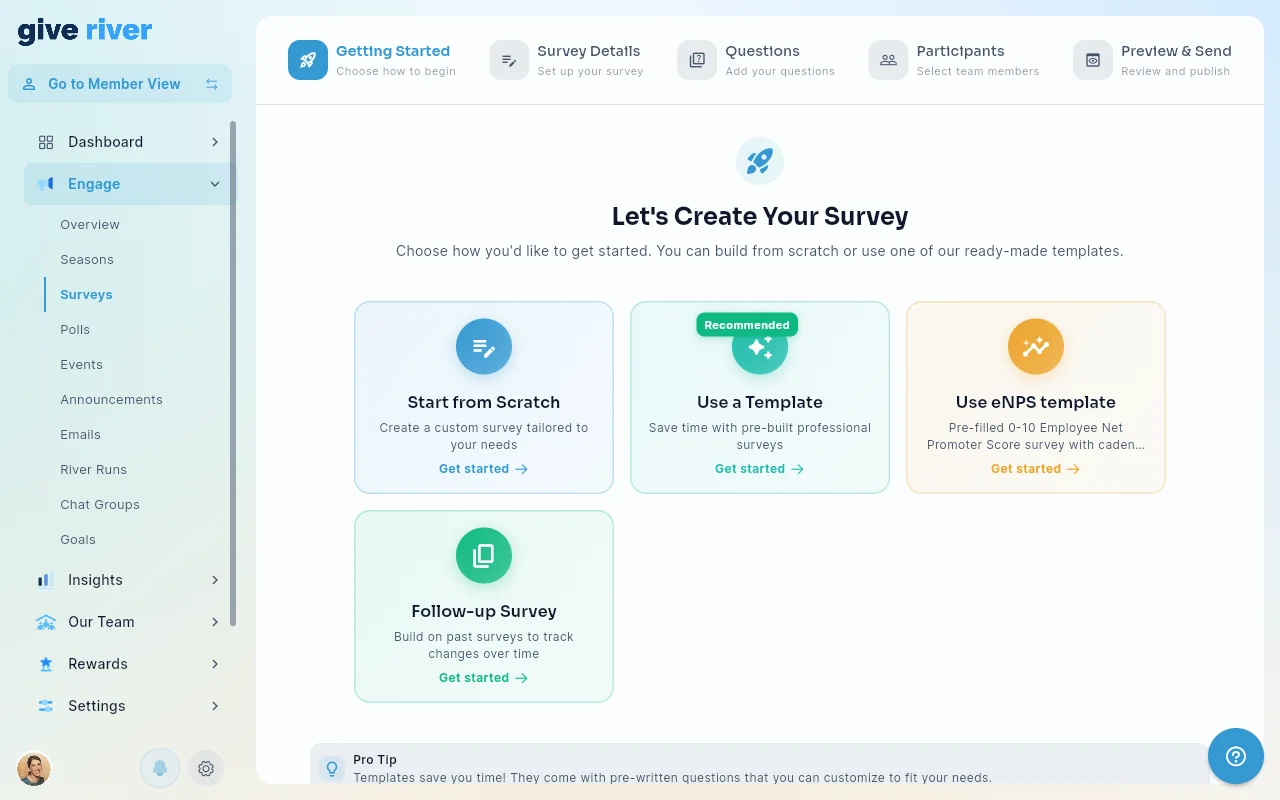
Step 1 — Basic Info
- Click Create Survey, then Start from Scratch, to open the survey creation screen.
- Fill in the Basic Info tab:
| Field | Required | Description |
|---|---|---|
| Title | Yes | The survey name shown to members. |
| Description | No | A brief description of the survey's purpose. |
| Drop Rewards | Yes | Drops awarded to members who complete the survey (enter 0 for no reward). |
| Schedule Date | Yes | When the survey becomes available to recipients. |
| Expiry Date | No | When the survey closes. |
| Notify on Schedule | No | Toggle on to send a push notification when the survey goes live. |
| Custom Notification Message | No | Personalize the notification text sent to members. |
| Anonymous | No | Tick it so admins see totals and comments without names, never who answered what. Results show once at least 5 people have answered. eNPS surveys are always anonymous. Once a survey has responses, anonymity can't be turned off (you can still turn it on). |
- Click Save to create the survey and unlock the Questions tab.
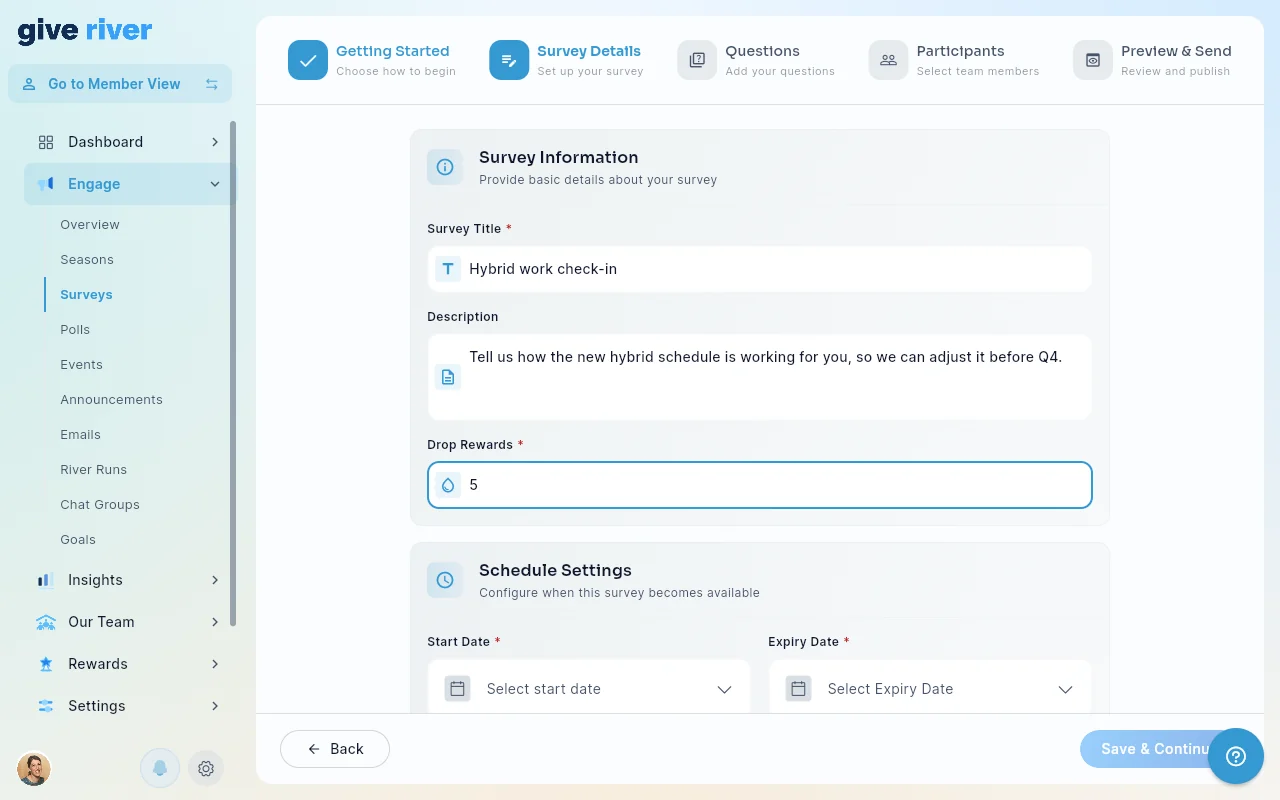
Step 2 — Add Questions
- Switch to the Survey Questions tab.
- Click Add Question to open the question form.
- For each question, choose a type and fill in the question text:
- For Multiple Choice questions: set the number of options and enter each option's text.
- For Scale questions: set the min/max values, min/max labels, and choose a display style (number, emoji, star, drop, thumbs, or slider).
- Click Save to add the question. Repeat for all questions.
- Drag questions to reorder them.
Step 3 — Participants
Choose who receives the survey on the Participants step:
- Tick people in the members table, or select everyone with the table's select-all box.
- Or open Pick by audience above the table and choose teams & groups, locations, departments, roles, specific people or a saved segment (see Audiences & Saved Segments). The button shows how many members match; click Select these N people to make them the selection. You can then add or remove people one by one in the table.
A survey goes to a fixed list: the people selected when you save this step. People who join the team later, or who move into a location or department afterwards, aren't added automatically.
Step 4 — Preview & Send
Review the survey on Preview & Send, then send it or schedule it.
Managing Surveys (Admin)
- Edit: Click a survey to update basic info or add/remove questions.
- Delete: Available from the survey edit screen. Deleting a survey removes all associated responses.
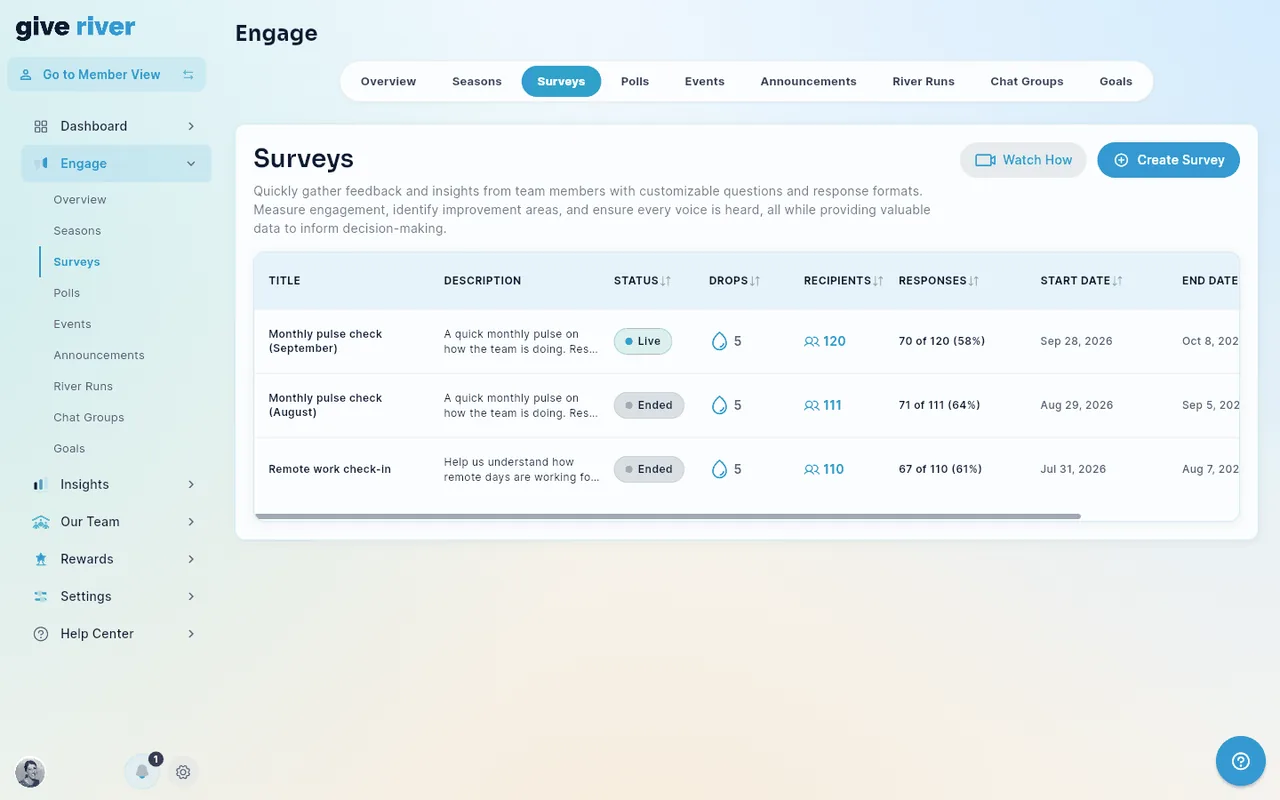
- Status: each survey shows a status pill: Draft, Scheduled (waiting for its send date), Live (open for answers) or Ended (past its end date). It's the same Draft · Scheduled · Live · Ended set used across Engage and Insights, so a finished survey reads Ended in both places.
- Responses: the list shows how many participants have answered, as "70 of 120 (58%)". Click the Recipients count to see who has and hasn't answered yet.
- Convert to eNPS series: Available as a row action on any survey whose first question is a 0–10 linear scale. Converts the survey into the first occurrence of a new eNPS series with the cadence you choose. Surveys whose first question is not a 0–10 linear scale will show an error explaining what needs to change.
- Past Surveys filter: Use the filter at the top of the surveys list to view past (completed or expired) surveys, including past occurrences of eNPS series.
eNPS Series (Recurring Surveys)
eNPS surveys created from the template are organized as a series — a collection of recurring surveys that share the same questions and accumulate responses over time.
Setting the Cadence
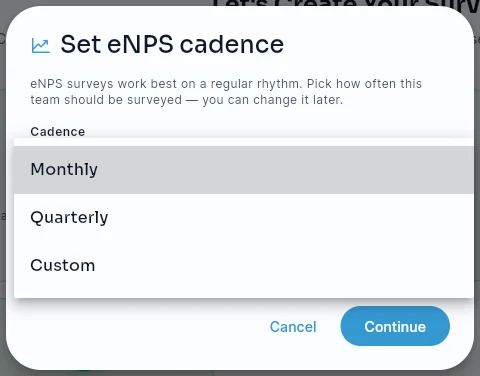
When you create an eNPS series, you choose how often it recurs:
- Monthly — One eNPS survey per month, scheduled automatically.
- Quarterly — One per quarter (every 3 months).
- Custom — Set any interval in days.
Managing the Series
- The Surveys list shows the most recent occurrence of each series, with a series indicator and the next scheduled date.
- Past occurrences are accessible via the Past Surveys filter on the list.
- To pause a series, toggle the most recent occurrence to Inactive. Future scheduled occurrences will not send until the series is reactivated.
- To change cadence mid-series, edit the most recent occurrence; the change applies to future scheduled occurrences only.
Converting an Existing Survey to a Series
If you have an existing survey that uses a 0–10 linear scale as its first question, you can convert it to an eNPS series:
- In the Surveys list, click the Convert to eNPS series action on the survey's row.
- Choose a cadence (Monthly, Quarterly, or Custom).
- Confirm — the existing survey becomes the first occurrence in the new series.
If Conversion Fails
If converting a survey to an eNPS series fails, an error message at the top of the screen says Survey wasn't converted to eNPS, with the reason in plain words (for example, you're offline, or the survey's first question isn't a 0–10 scale). Fix the cause and run Convert to eNPS series again from the survey's row.
When you create a survey from the eNPS template, the survey can save while linking it to the eNPS series fails. The error message then reads Survey saved, but not linked to eNPS Insights and has a Try again button. If the second try also fails, the message points you to the manual fallback: use Convert to eNPS series on the survey's row in Engage › Surveys.
Preview Mode (Admin)
Before sending a survey, click Preview in the create / edit dialog to see exactly how the survey will render for respondents. This is especially useful for eNPS to confirm the 0–10 scale question reads correctly and any bundled follow-up questions are in the order you want.
Unsaved-Changes Guard (Admin)
Closing the survey modal with unsaved edits prompts a confirmation, so an accidental dismissal doesn't discard an in-progress survey or eNPS series setup.
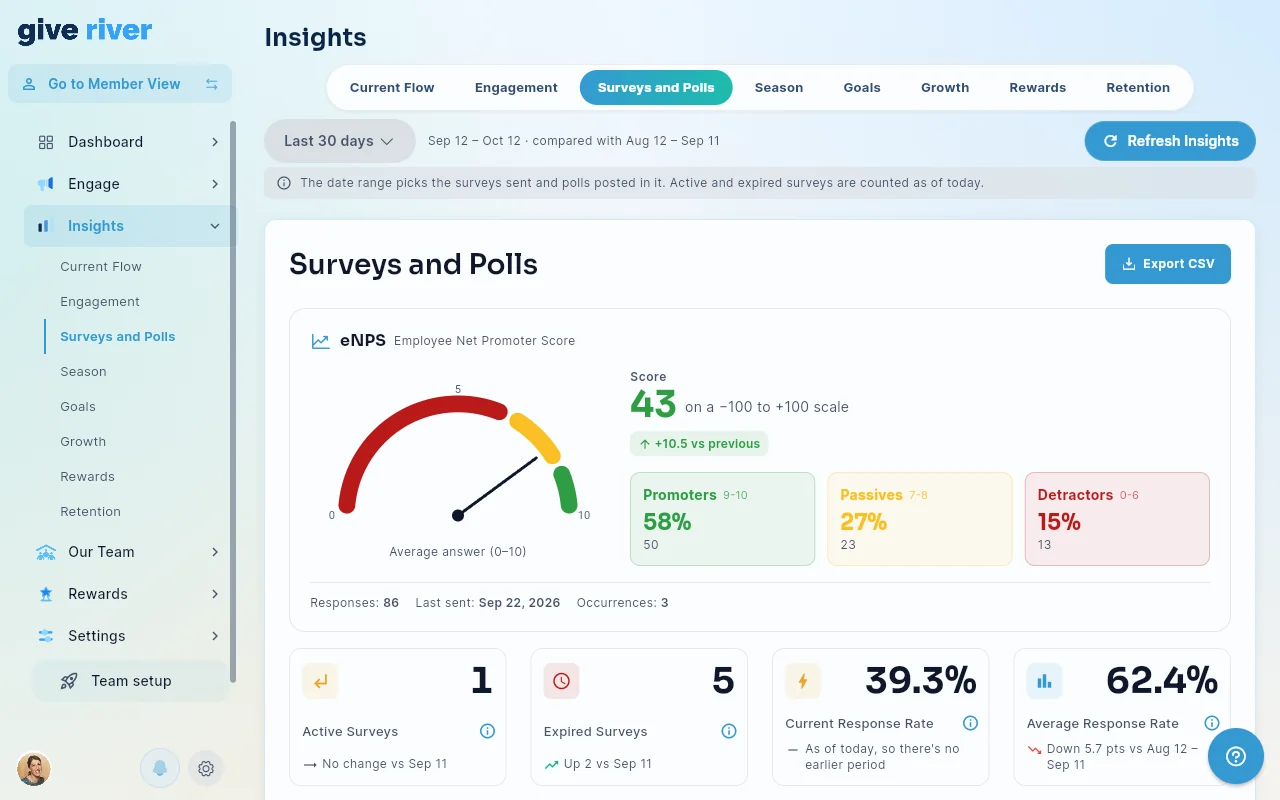
eNPS Tracking (Insights Dashboard)
The eNPS score (Employee Net Promoter Score) is surfaced in the Admin Insights dashboard. The display includes:
- Speedometer gauge — Where your team's answers fall on the 0–10 question scale, with color-coded zones for Detractors (0–6), Passives (7–8), and Promoters (9–10).
- eNPS number — Your current score on a −100 to +100 scale, displayed alongside the gauge. Until an occurrence gets its first response, the panel shows "No eNPS responses yet" instead of a score.
- Always anonymous — eNPS surveys are anonymous whatever their settings. An occurrence with fewer than 5 responses isn't scored: the panel says Not enough responses to show (min 5) and how many people have answered so far.
- Breakdown — Counts and percentages of Promoters (scored 9–10), Passives (scored 7–8), and Detractors (scored 0–6) in the latest occurrence's responses.
- Change vs previous — How many points the score moved since the previous occurrence, so you can see whether sentiment is improving, holding, or declining.
The eNPS score is calculated automatically from responses to the 0–10 linear scale question. For series with multiple occurrences, the latest occurrence with at least 5 responses drives the gauge (a newly sent occurrence takes over once 5 people have answered), and the change is measured against the occurrence with at least 5 responses before it. To compare every occurrence side by side, use Compare runs (see Survey Series Comparison).
Survey Results (Insights)
In Insights → Surveys & Polls, click a survey (or its View button) to open its results.
- Response rate reads like "70 of 120 recipients (58%)": responses out of the people the survey was sent to. Surveys sent before recipients were recorded show the older completion rate (responses out of everyone on the team) instead.
- Scale questions show what the ends of the scale mean above the chart, for example "1 = Not at all supported · 5 = Very supported". The labels are the ones you wrote for the question's lowest and highest values; if you left them blank, the chart says "Lowest" and "Highest".
- Each bar shows its share of the answers as a percentage, so you can read the spread without counting.
- Anonymous surveys (and every eNPS survey) are marked Anonymous under the overview. Comments are listed without names, in alphabetical order rather than the order they came in. Until at least 5 people have answered, the results say Not enough responses to show (min 5); the same applies to a single question fewer than 5 people answered (for example an optional comment box). The response count and rate always show.
- Who's on your team? surveys add a Team role mix card at the top and show each answer's team role next to it. People answering never see the roles. See Survey Templates.
- Repeating surveys: when the survey is part of a series (eNPS or any recurring survey), a Compare runs button opens the Survey Series Comparison, where the same questions line up across every run so you can see how answers changed.
Did this article help?
Related articles.
See the platform in action.
Free for up to 25 members, or try Core or Growth free for 30 days. A card is required; Free is never charged, and a trial bills when it ends unless you cancel.