Automated Milestones (Birthdays and Work Anniversaries)
Give River automatically tracks and surfaces birthdays and work anniversaries so your team never misses a chance to celebrate. Milestones appear on Home in the Celebrations section, which shows either Upcoming celebrations or the Past week.
Give River automatically tracks and surfaces birthdays and work anniversaries so your team never misses a chance to celebrate. Milestones appear on Home in the Celebrations section, which shows either Upcoming celebrations or the Past week.
Every milestone tile carries a 🎉 Congratulate button that opens Recognize with that person already picked as the recipient and a birthday, anniversary, or congratulations message started for you — so celebrating takes one tap plus whatever you want to add, and they actually receive it (and any drops you give).
How Milestones Work
Milestones are generated automatically based on the dates stored in each member's profile:
| Milestone Type | What triggers it |
|---|---|
| Birthday | The member's birthday date on their profile. |
| Work Anniversary | The member's work start date on their profile. |
| Reward Milestone | A milestone tied to a specific reward achievement (set up by admins). |
No manual setup is needed once profile dates are in place. Give River calculates upcoming and recent milestones for all team members and displays them on Home automatically.
Every year, for everyone
The standard Birthday and Work Anniversary milestones fire every year for every member:
- Birthday — on every birthday.
- Work Anniversary — on every full year since the member's work start date (1 year, 2 years, 3 years…).
A birthday on February 29 is celebrated on February 28 in years that aren't leap years. A milestone that falls today shows as "today" in Upcoming.
A special year replaces the yearly one
Create Milestone (in Admin › Rewards › Milestones) lets you give a specific anniversary or birthday its own reward — for that year it replaces the standard yearly one. For example, with a "10-year work anniversary" milestone, a member's 10th anniversary gets only the 10-year milestone's reward, message and feed post; every other year they get the standard yearly anniversary. The same works for birthdays (for example a 50th birthday).
What Members See
On Home, scroll to the Celebrations card. Its button at the top right shows which view you're in and switches between them:
- Upcoming (the default) — members whose birthday or work anniversary is today or in the next 30 days, soonest first.
- Past week — birthdays and anniversaries from the last 7 days, plus any awards given in that time, most recent first.
Each person is a card you can swipe through, with their photo, name, the milestone, and when it is: Today, Tomorrow, In 3 days, or for the past week Yesterday or 6 days ago. A small badge on the photo shows the kind of celebration: a cake for a birthday, the team icon for a work anniversary. Congratulate is the button on each card.
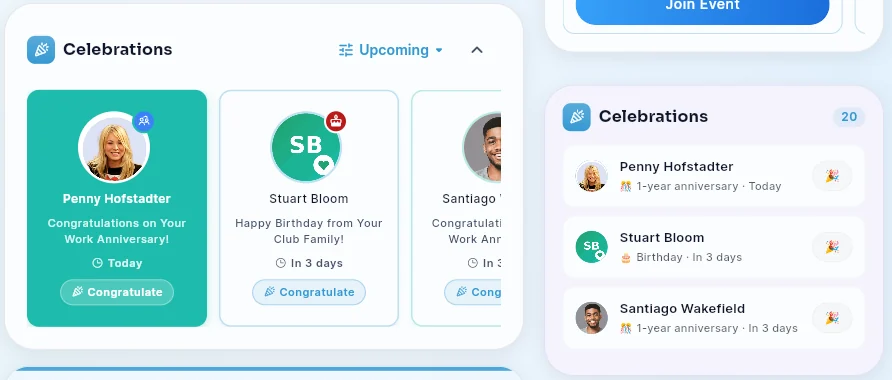
Today's Milestone Highlight
If a milestone falls today, its card is filled with color to make it stand out from the others.
Tap any milestone tile to open a celebration dialog with:
- The member's photo and name.
- The milestone name (e.g., "Happy Birthday!", "3-Year Work Anniversary").
- Animated confetti effects for same-day milestones.
Sending a Celebration
After tapping a milestone tile, you can send a celebratory message or recognition directly to the team member from the dialog that opens.
On the day
When a member's milestone fires they get the milestone's drops, message and image as a notification (and, depending on your company's email settings, by email). If the admin turned on Also post to the team feed (River) for that milestone, a celebration post also appears in the company feed — for example "🎉 Happy birthday, @Jane!" or "🎉 Happy 5-year work anniversary, @Jane!" — with the member tagged so they're notified. Everyone in the company can like and comment on it. Birthday posts never mention the member's age. The Celebrations section on Home works the same either way.
Setting Up Milestones (Admins)
Go to Admin › Rewards › Milestones. The table lists your milestones:
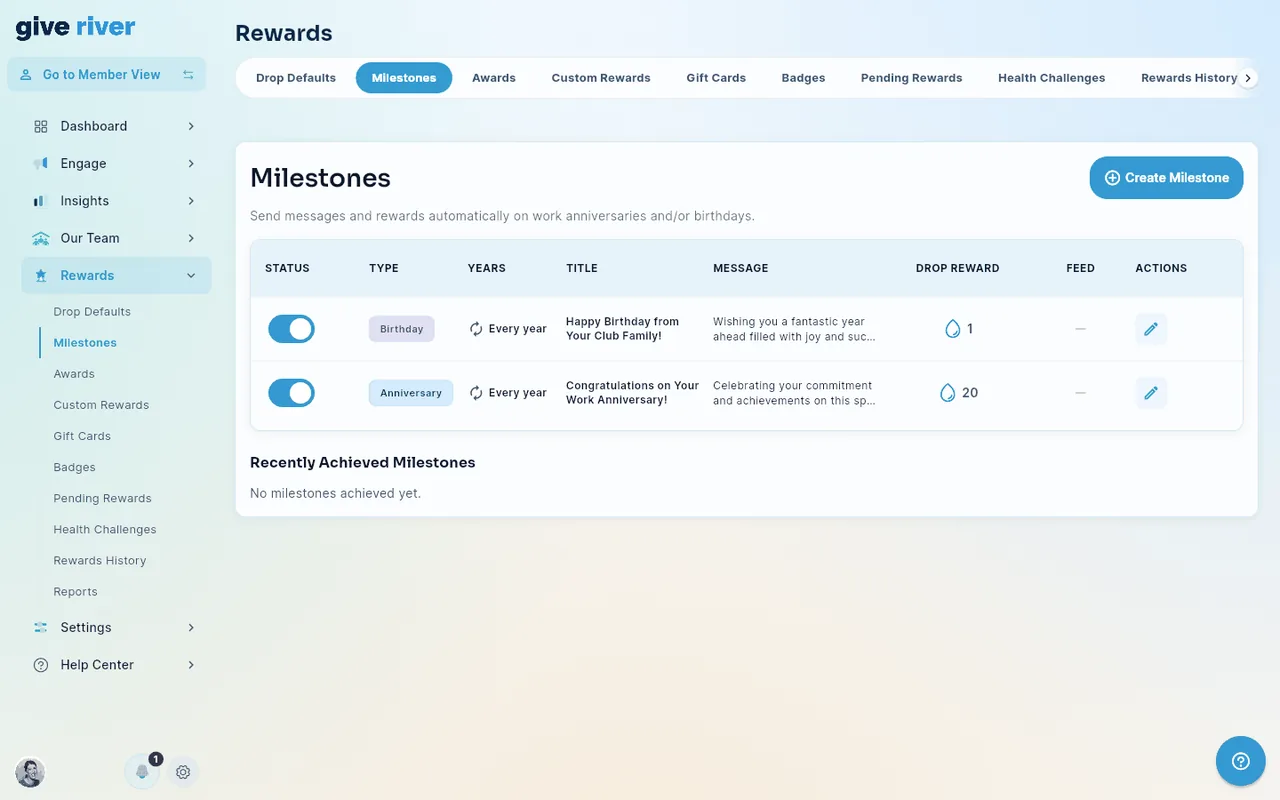
| Column | What it shows |
|---|---|
| Status | Switch the milestone on or off. |
| Type | Birthday or Anniversary. |
| Years | Every year for the standard Birthday and Work Anniversary milestones; N years (for example "10 years") or Age N (for example "Age 50") for a milestone you added for one specific year. Hover a specific year to see that it replaces the yearly milestone for that year. |
| Title / Message | What the member sees. A new milestone starts with a default title and message for its type; switching between Work Anniversary and Birthday swaps them, unless you've already edited them. |
| Drop Reward | Drops the member receives. |
| Feed | A feed icon when the milestone also posts to the team feed; a dash when it doesn't. |
Tap the edit icon to change a milestone:
- The standard Birthday and Work Anniversary milestones say Every year — there's no year to pick, and saving your changes never changes that. They can't be switched to the other type or deleted, so their edit dialog has no type choice and no Delete button; turn one off with its Status switch instead.
- A milestone for a specific year has an Anniversary year (or Age) field. For that year it replaces the standard yearly milestone — the member gets this reward, message and post instead, not both.
- Notify … days before — how many days ahead admins are asked to approve the reward. Each birthday or anniversary creates an approval request in Dashboard › Action Items (also listed under Rewards › Pending Rewards); the drops are sent on the day once it's approved.
- Auto-approve — off by default. Turn it on and each birthday or anniversary reward for this milestone is approved automatically: no request appears in Action Items, nobody is asked to review it, and on the day the member gets the drops, the notification, the email and (if switched on) the feed post exactly as if an admin had approved it. Requests already waiting when you turn it on are approved on the day too. A reward an admin already rejected stays rejected.
- Also post to the team feed (River) — off by default. Turn it on to post a celebration to the company feed on the day (with the milestone's image, if it has one).
To hide the Celebrations section from members' Home entirely, turn off Celebrations in Settings > Features (see Member Experience). To keep just one of Home's two Celebrations cards, or move the main one, use Settings > Layout: Celebrations (feed) is the card at the top of the feed and Celebrations (side) the one in the side column (see Arranging Home and Team Hub). Feed posts are controlled per milestone by the switch above.
Notes for Admins
- Milestones are loaded per-team using each member's profile data. Ensure members have their date of birth and work start date saved on their profiles for this feature to work.
- The Celebrations section is automatically hidden from Home if there is nothing upcoming and nothing from the past week to show — no action needed.
- Reward milestones (a third milestone type) are tied to the awards/badges system and are configured separately under Rewards › Badges.
- To review or adjust milestone data, go to Our Team > Member List and edit individual member profiles.
- Recently Achieved Milestones — under Rewards > Milestones, a list beneath the milestone definitions shows the birthdays and anniversaries most recently celebrated across your team (newest first), with the member's photo, the milestone, and the drops granted. The companion Rewards > Awards tab shows a Recently Given Awards list in the same style — see Custom Awards.
Did this article help?
Related articles.
See the platform in action.
Free for up to 25 members, or try Core or Growth free for 30 days. A card is required; Free is never charged, and a trial bills when it ends unless you cancel.