Drop Budget (Shareable Drops Allocation)
Shareable drops (your drops to give) are what you use to recognize your teammates. Your organization allocates a fresh budget of drops on a regular cycle (weekly or monthly), and you spend them by sending drops to colleagues through posts or the Send a Drop flow.
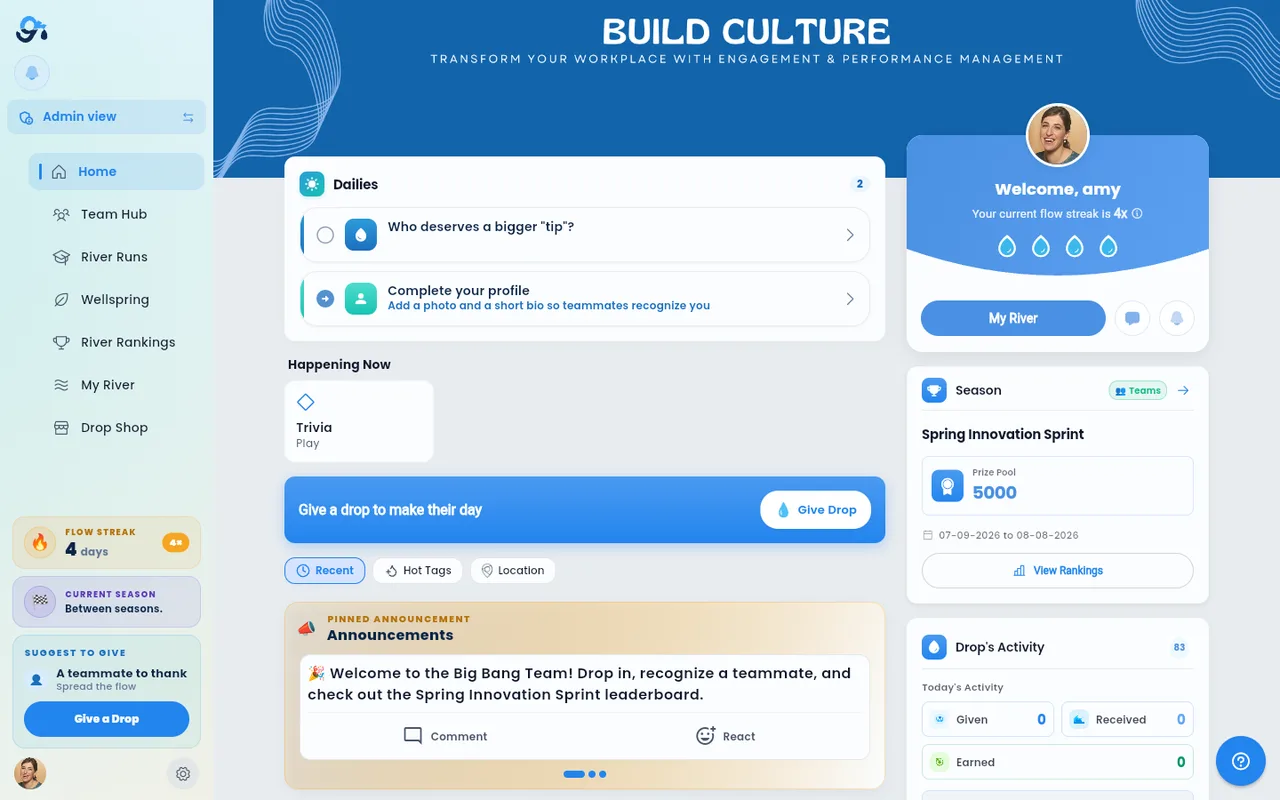
Where to see your balance
Your drops to give (your shareable drops) are shown in several places:
- The My Drops card at the top of Home — To give, with when they reset, next to Received and To spend (your River Bank).
- The to give bubble in the phone app's top bar — tap it for a breakdown of your drops to give, your River Bank, and drops you can earn.
- The bottom of every Recognize step — "X drops to give" — and, on the How much step, a live line such as "Noah gets 5 drops · you have 20 left".
- The top of the Create a post window — "X drops to give", with how many days until they renew.
How the budget cycle works
Your administrator sets the drop budget defaults for the whole team. The key parameters are:
| Parameter | Description |
|---|---|
| Shareable drops per cycle | The number of drops each member receives at the start of each cycle |
| Drop cycle type | Weekly or monthly replenishment |
| Expiry | Unused drops expire at the end of the cycle and do not roll over |
| Drop-to-dollar ratio | The monetary value of each drop (used for cost planning) |
| Team leader additional drops | Extra drops granted to team leads each cycle |
Spending your drops
You spend shareable drops in three ways:
- Recognizing someone — on the How much step of Recognize, choose 1–5 drops for each person you picked (everyone gets the same amount). Amounts you can't afford are greyed out. The drops are deducted when the post is published. You can also use the Give drops option in the free-form post editor.
- Sending drops on an existing post — tap the drops/give action on a post card to open the Send a Drop flow for that post's author.
- Sending a sticker — sending a sticker to someone's post also deducts from your shareable drops. See GIF and Sticker Integration.
Your available balance updates in real time after each send. If you attempt to send more drops than you have available, you will see an "Insufficient drops!" message and the action will be blocked.
What happens when drops reach zero
Once your balance hits zero:
- Recognize shows that you can still post your recognition without drops.
- Attempting to add drops in the free-form post editor shows the "Insufficient drops!" toast.
- You will receive a new allocation at the start of your next cycle.
Administrator budget settings
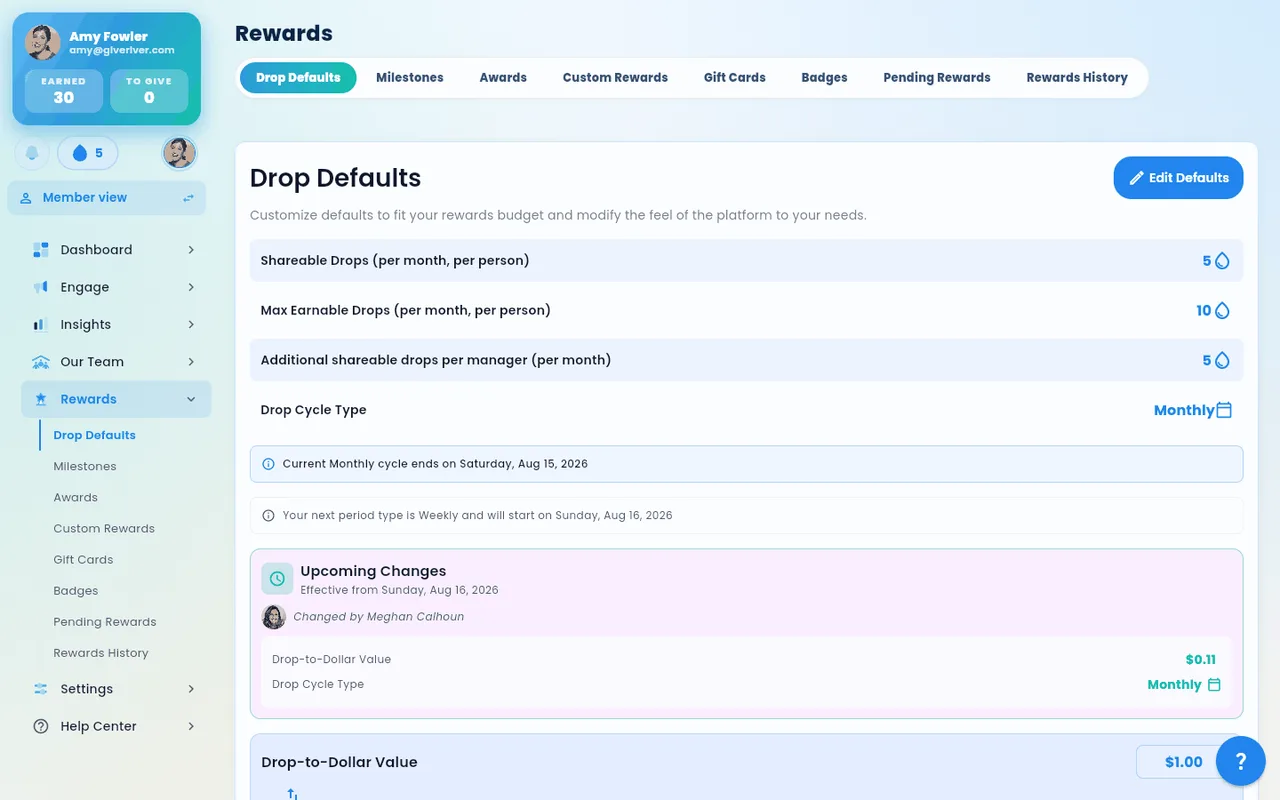
Admins adjust drop budget defaults in Rewards › Drop Defaults. Changes (such as increasing the cycle allocation or adjusting the drop-to-dollar ratio) apply from the next cycle — except that a new shareable-drops amount can also be applied to the current cycle right away (Apply now; see Admin Drop Settings and Defaults). The page includes a live Estimated Monthly Drop Cost calculator that updates as settings are changed.
Did this article help?
Related articles.
See the platform in action.
Free for up to 25 members, or try Core or Growth free for 30 days. A card is required; Free is never charged, and a trial bills when it ends unless you cancel.