GIF and Sticker Integration
Give River includes an animated sticker picker inside posts and comments. You can browse a large library of animated stickers by category, search by keyword, and attach a sticker to a post or send one as a comment on an existing post.
What are stickers?
Stickers are animated (GIF-format) images from Give River's own curated sticker library. The library is organized into categories and is fully searchable, so you can quickly find a sticker that fits the moment. Each one is attached to the post you add it to.
Sending a sticker on a post you're creating
- Open Recognize from Home (Give a Drop on the My Drops card) and pick who you're recognizing.
- On the Why step, tap + next to your message and choose Sticker to open the Add a gift picker. (GIF in the same menu opens the GIF search.)
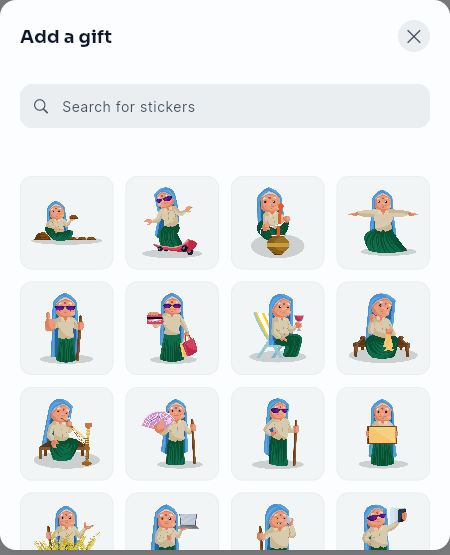
- Use the search bar to find a sticker by keyword, or scroll the grid to browse the library.
- Tap a sticker to attach it to your post.
- Finish your post and post it. The sticker is attached to it.
Sending a sticker on an existing post
You can send a sticker as a reaction to someone else's post. This sends the sticker as a comment on that post and deducts from your shareable drops balance.
- Open the comments panel on the post you want to react to.
- Tap the emoji/sticker icon in the comment input bar.
- Switch to the Stickers tab if it is not already selected.
- Browse by category or search, then tap the sticker you want to send.
- Confirm on the preview dialog (each sticker costs 5 drops).
- A comment is posted automatically: "@YourName sent a sticker."
- A confirmation toast appears: "Gift Sent Successfully!"
Browsing by category
- When the picker opens it shows the full library, with the All chip selected. Celebration, thank-you and encouragement stickers come first, and the grid mixes many sticker packs instead of showing one pack at a time.
- Tap any category chip to browse just that category: Celebrate, Thanks, Encouragement, Love, Greetings, Emotions, Funny, Animals, Food & Drink, Seasonal & Holidays, Sports & Hobbies, Work & Daily Life and Characters.
- The category row scrolls horizontally when there are more categories than fit on screen.
- If no categories are available, the picker shows the search bar only.
Searching for stickers
- Type a word in the search bar to search the library across all categories. Everyday words work: congrats, great job, thanks, welcome, happy birthday, coffee, lol, cat.
- Search understands similar words, so congrats also finds congratulations and celebration stickers, and great job also finds well done and proud. The closest matches come first, from a mix of sticker packs.
- Results load in pages. Scroll to the bottom of the list to load more stickers.
- If nothing matches, the picker says so; try another word.
- Clearing the search (delete the text or tap ×) returns you to browsing the full library.
Emoji picker
The Emoji tab in the same picker gives access to standard Unicode emoji. Tap an emoji to insert it into your comment or post text at the cursor position.
Tips
- Stickers in posts are displayed inline in the feed, the same as photos.
- If sending a sticker fails (for example, due to network issues), you'll see an error message with the reason — no drops are deducted in this case.
- Stickers work on both mobile and desktop/web versions of Give River.
Did this article help?
Related articles.
See the platform in action.
Free for up to 25 members, or try Core or Growth free for 30 days. A card is required; Free is never charged, and a trial bills when it ends unless you cancel.