SMART Goals for Managers
When people report to you, you're the first reviewer for their goals and milestones, and the person best placed to help them get there. This guide covers your views, the approval flow, team goals, and what changes during a Performance season.
Where your team's goals live
Open My River > My Goals. Because you manage people, the screen has two extra views next to your own goals:
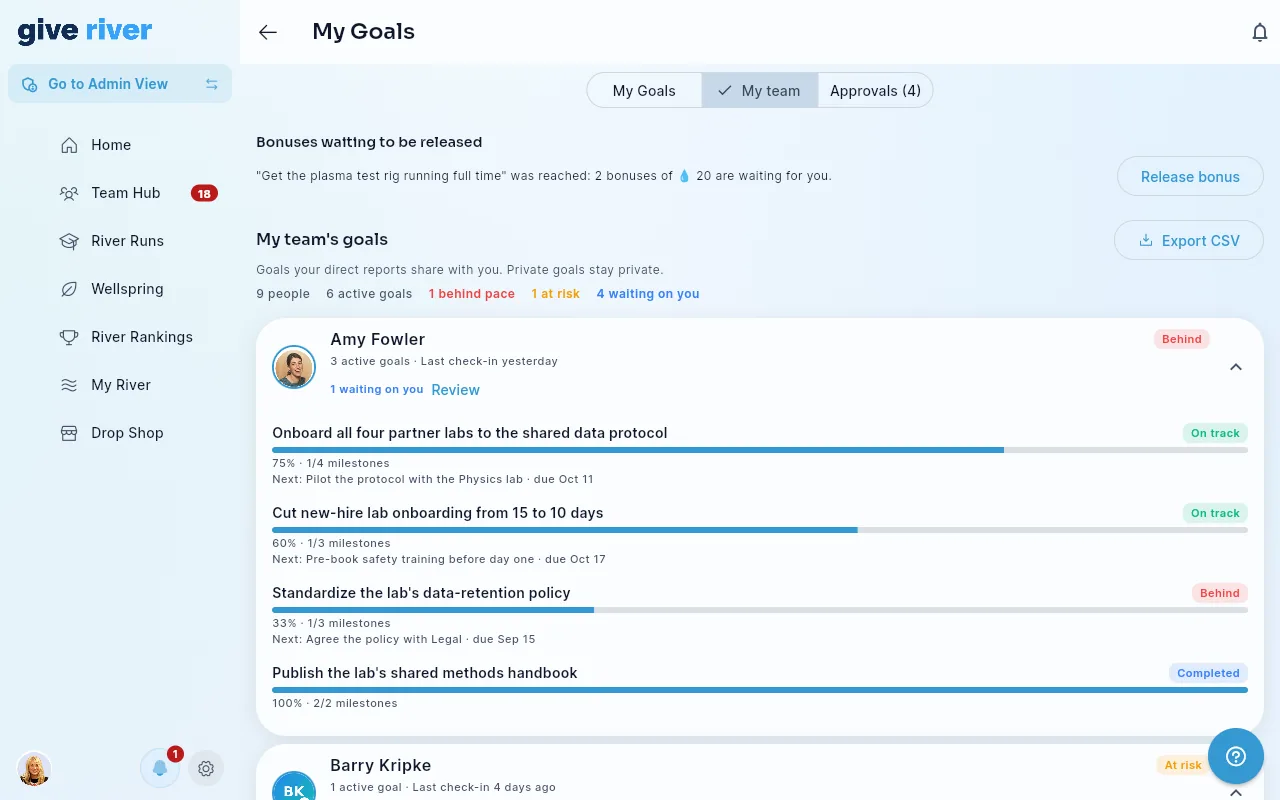
- My team — one row per direct report, with their goals, pace, last check-in and anything waiting on you. See See how your team is doing.
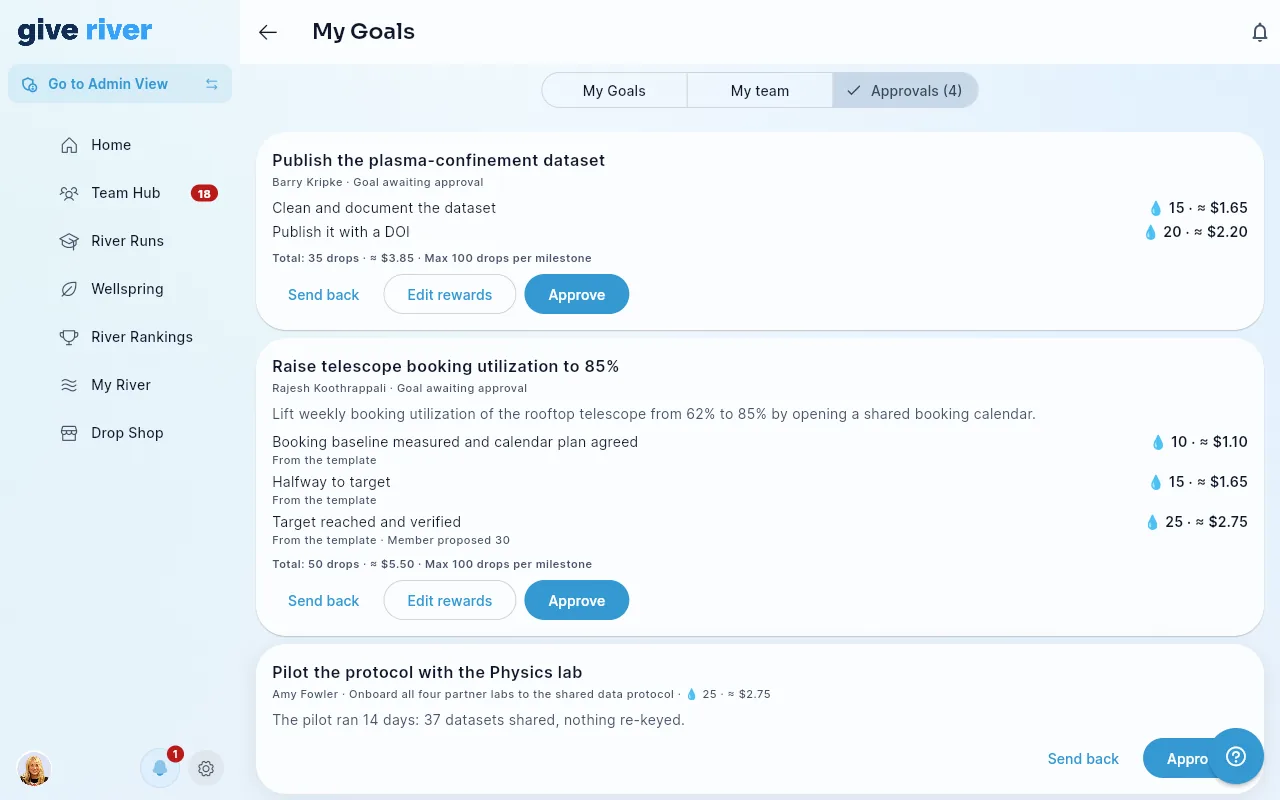
- Approvals — everything waiting for your review, with a live count:
- Goals — when your organization requires approval, a report's new goal (or an edit that changes its metric or dates) waits for you before it becomes active.
- Milestones — when a report finishes a milestone and submits it, with optional evidence (a note and/or a link).
Your reports are the people whose manager field names you (your admin keeps this up to date in Members). If a member has no manager, their submissions go to the admins instead, so nothing gets stuck.
Review a goal and set its rewards
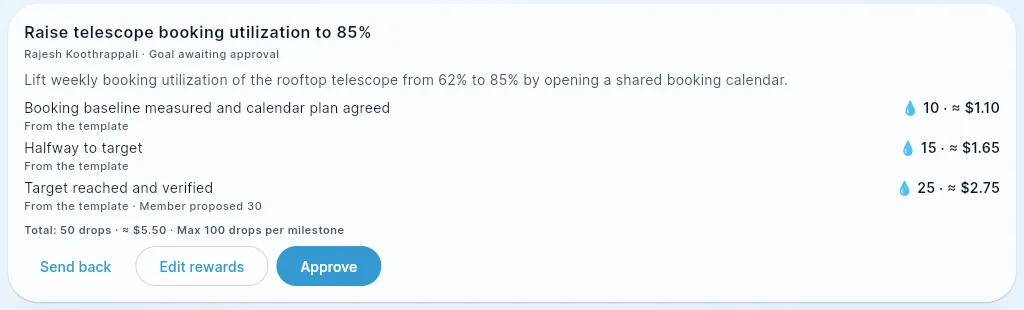
You set each milestone's drop reward when you approve a goal. A pending goal card lists its milestones, each with the reward it will lock in:
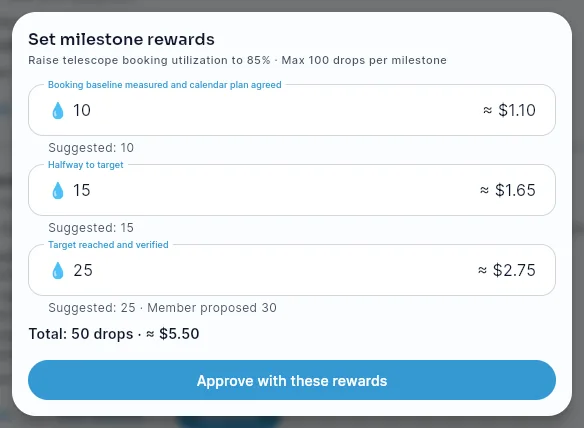
- The number starts at a suggested value: from the goal's template, or what milestones in your organization typically pay, or half of one cycle's drop allowance. A small label says where it came from.
- If the member proposed a different number, you'll see Member proposed … next to it.
- If your organization has a drop-to-dollar value, a ≈ $ amount appears next to each number and the total. Only reviewers see dollars; members see drops.
Then choose:
- Approve — approves the goal with the values shown.
- Edit rewards — change any milestone's number (whole drops, up to your organization's per-milestone maximum, shown on the card), then tap Approve with these rewards.
- Send back — add a note explaining what to change. The member edits the goal and resubmits it, and it comes back to your Approvals.
You can also review from the goal's own page, which shows the same card at the top.
Review a milestone
Each pending milestone card shows who submitted it, the goal it belongs to, any evidence, and the milestone's reward. Approving confirms the work and pays the reward that was locked when the goal was approved, right away and exactly once. Send back works the same way as for goals, and the member can submit the milestone again.

Approving the last milestone of a goal (once its target value is reached) completes the goal. The member gets a celebration and, if the goal is shared with the whole company and they opted in, a #goals post on the River Feed.
Due dates matter: Insights shows how often milestones are approved by their due date. Reviewing promptly keeps that number healthy.
Adjust a reward
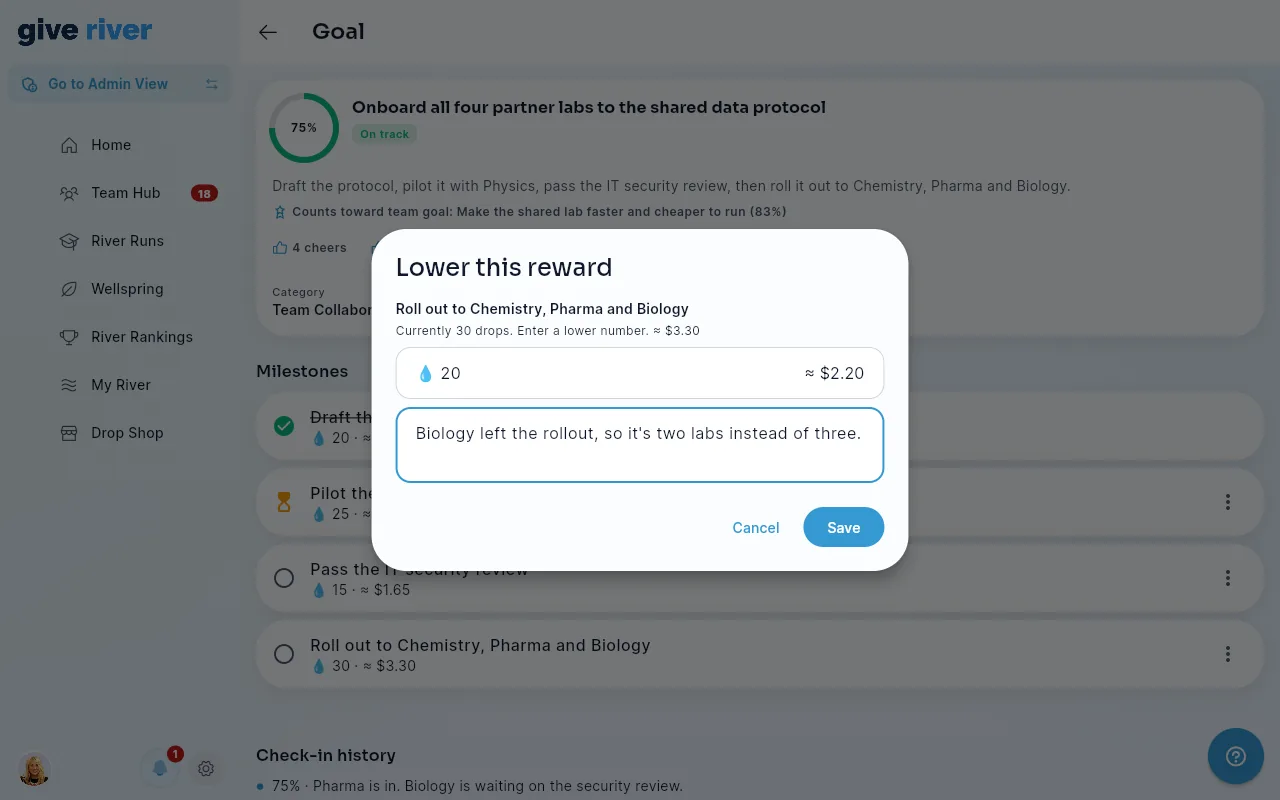
Sometimes a goal's scope shrinks after approval. Open the goal (from My team, or Engage > Goals > All Goals for admins), tap the ⋮ menu on a milestone that hasn't been paid yet, and choose Adjust reward. Enter a lower number and, if you like, a reason. Rewards can only go down, never up. The member is notified with the new number and your reason, and the change is recorded in the admin action log. You can't adjust rewards on your own goals.
See how your team is doing
My River > My Goals > My team shows your direct reports who are still in the organization:
- Each row shows their overall pace (their furthest-behind goal: On track, At risk or Behind), how many active goals they have, when they last checked in, and how many items are waiting on you. Tap Review to jump to Approvals.
- Tap a row to see their goals with progress, pace and next milestone. Tap a goal to open it.
- Rows with something waiting on you come first, then the people furthest behind.
- It lists active goals and goals completed in the last 90 days. Goals marked Only me, and drafts, never appear. A report with nothing shared with you shows "No goals shared with you".
- Export CSV downloads the same rows: one line per goal, with the same columns as the admin goals export plus Last check-in and Waiting on you, and a line for each report with no shared goals.
- Team-goal bonuses waiting for you to release are listed first, under Bonuses waiting to be released, with a Release bonus button. See Lead a team goal.
You don't need any extra permission. Anyone with direct reports has this view.
Who sees a "My team" goal
You always see your reports' goals marked My team or My manager. Beyond you, a My team goal is shared with the member's team: in a Teams season, their season team; otherwise your other direct reports. Only Whole company goals are visible to everyone.
Lead a team goal
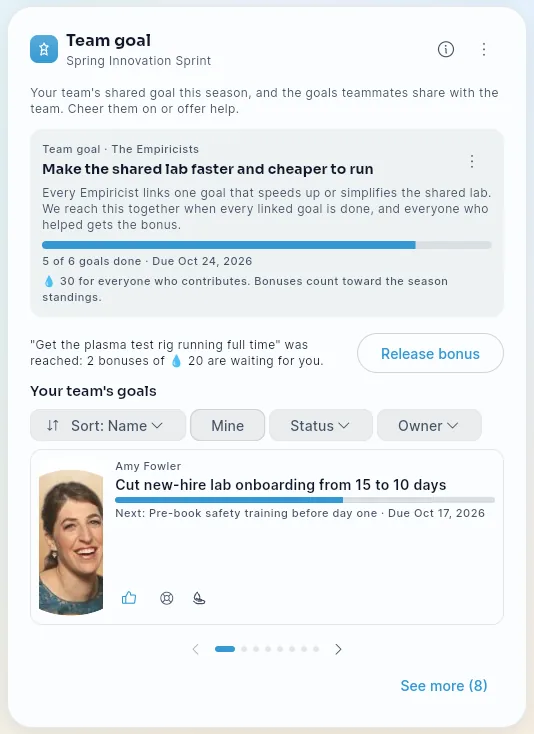
During a Performance season with Team goals on, Team Hub has a Team goal card. Open its ⋮ menu (Team goal options):
- Set the team goal — one per team per season. In an Individual season it's for your direct reports. In a Teams season, a team's captain, a manager of someone on the team, or an admin sets it. Give it a title, an optional description and target date, and the Bonus per contributor. It's live as soon as you save it (there's no approval step), and your team is notified.
- Edit or Abandon it from the ⋮ menu on the team goal itself. Abandoning lets you set a new one; no bonus is paid.
How it works:
- Progress is the share of the goals linked to it that are done. Your reports' new goals during the season start linked to it, and they can unlink them. It's reached when every linked goal is complete.
- The bonus goes to every report whose linked goal has at least one approved milestone, once each, capped at your organization's per-milestone maximum. If milestones auto-approve, it's paid right away. Otherwise the card shows Release bonus for you or an admin. Tap it to see exactly what you're approving: the team goal that was reached (with its team, the date it was reached and, after the season, the season), Who gets it — each person's photo, name and drops — the drops each and in total, and that it's paid as soon as you confirm. The button says what happens, for example Release 40 drops to 2 people; Cancel changes nothing. Each person is notified. You can't release your own bonus — it waits for another reviewer.
- Under Earned or Combined scoring, the bonus counts toward the season standings, once per person (and toward the team's total in a Teams season).
- After the season ends you can still release a bonus that's waiting, for 30 days. It shows as Bonus waiting to be released on the Team goal card, which stays on Team Hub for it even between seasons, and at the top of My team. Release bonus works the same way, and the bonus still counts toward the team goal's own season. Nothing is released automatically.
The card also lists your team's goals that are shared with My team or Whole company, by name and never ranked, with Cheer, Offer help and Recognize.
Suggest a goal to a report
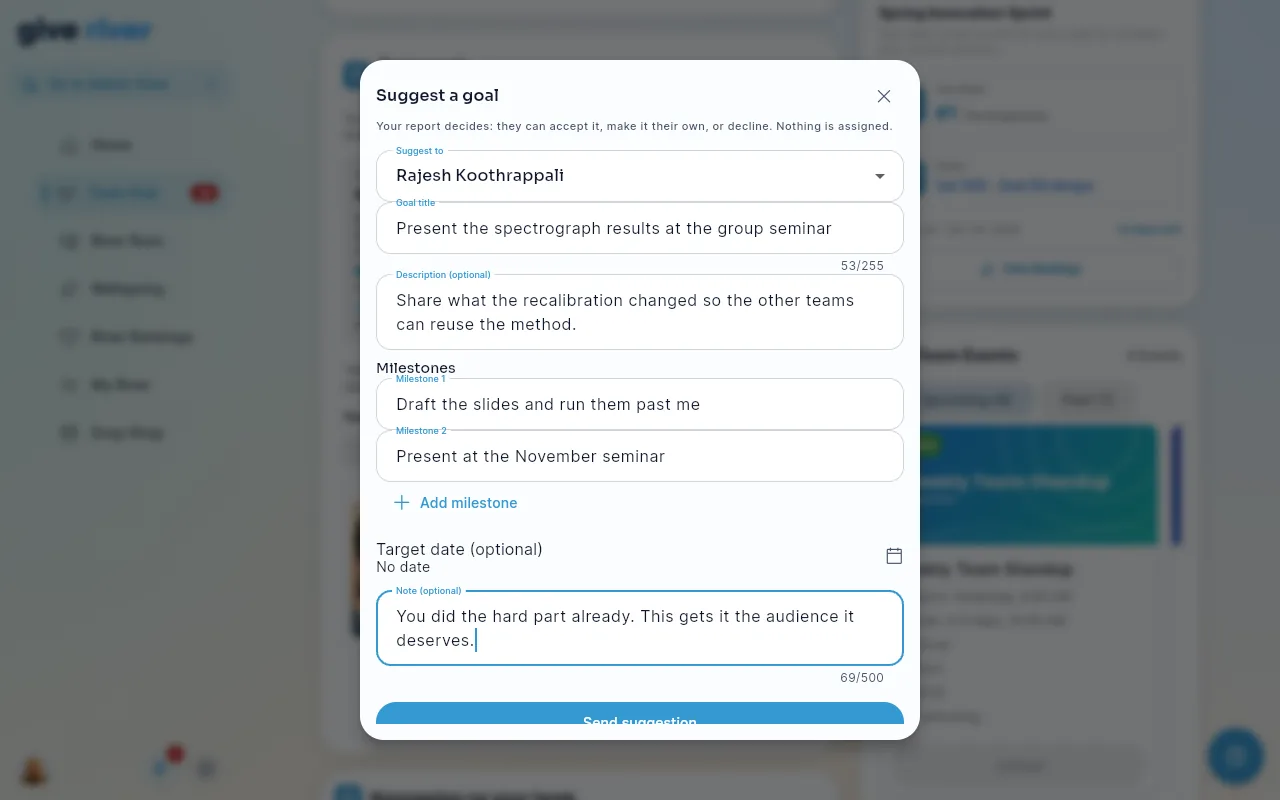
From the Team goal card's ⋮ menu, choose Suggest a goal to a report. Pick a direct report, give a title and, if you like, a description, milestones, a target date and a note, then tap Send suggestion.
Your report decides: they can Accept it, Edit first to make it their own, or Decline it (with an optional note). You're notified either way. A suggestion is never an assignment.
The same menu has See my team's goals, which opens My team.
During a Performance season
When a season's goal is Boost Performance & Productivity, your admin can turn on extra goal features. Your reports may:
- see their season goals on Home and a Set a goal for this season card when the season starts,
- get Goal reminders in Dailies (a milestone or goal due within 3 days, or a goal that has fallen behind pace),
- earn season points for approved milestones, so approving promptly matters a little more.
You hear about slipping goals in My team, not by notification: a report whose goal fell behind shows a Behind chip.
When a season ends
Each report decides what happens to their unfinished goals from a card in their Dailies named after the season that ended (for example Q3 has ended): Carry over into the new season, Mark complete, or Let it go. Nothing changes until they choose. A goal can't be marked complete while one of its milestones waits for you, so review those first. A carried-over goal keeps any milestone still waiting for review; review it as usual.
Between seasons, everything keeps working: reports can check in and submit milestones, and you can approve them. Their drops are paid, but they don't count toward any season's standings.
Stay on top of it
- You get an in-app notification and an email soon after a report submits a goal or milestone for review. Several submissions close together arrive in one Needs your approval email. The notification, or the email's Review goals button, opens Approvals.
- If something is still waiting, you get one reminder after a few days and a final one at day 7; after that, no more emails about it.
- A weekly email nudges you about your own goals if they haven't had a check-in in a while.
- The pace chips in My team show who might need support before a deadline slips.
- Use a goal's Comments for quick coaching between reviews. The owner is notified of every comment.
What approval means for drops
Milestone rewards are paid by the company: approving one credits the member's balance without spending any of your drops. Members can propose numbers, but the rewards you set when approving the goal are the ones that count. No milestone can pay more than the per-milestone maximum your admin set, and a payout never goes above it, even if the maximum is lowered later.
What managers don't do here
Goals in Give River are member-led. There are no formal performance reviews, one-on-ones or ratings, and you can suggest goals but never assign them.
Common questions
- A report was reassigned to me. Do I see their pending items? Yes. Reviews follow the current manager assignment, so their pending goals and milestones move with them.
- Can I create goals for my reports? No, goals are member-written. During a Performance season with team goals, you can suggest one (Team Hub > Team goal > ⋮ > Suggest a goal to a report), and they decide. You can also point them to a template (admins can add your organization's own).
- What if I'm away? Admins can review anything in your queue from Engage > Goals > Approvals.
Did this article help?
Related articles.
See the platform in action.
Free for up to 25 members, or try Core or Growth free for 30 days. A card is required; Free is never charged, and a trial bills when it ends unless you cancel.