Managing the Goals Programme
SMART Goals lets every member set personal goals with milestone steps that pay drops on approval. As an admin you control the workflow rules, curate templates, watch the organization-wide picture, and act as the approval backstop.
SMART Goals lets every member set personal goals with milestone steps that pay drops on approval. As an admin you control the workflow rules, curate templates, watch the organization-wide picture, and act as the approval backstop.
Where Everything Lives
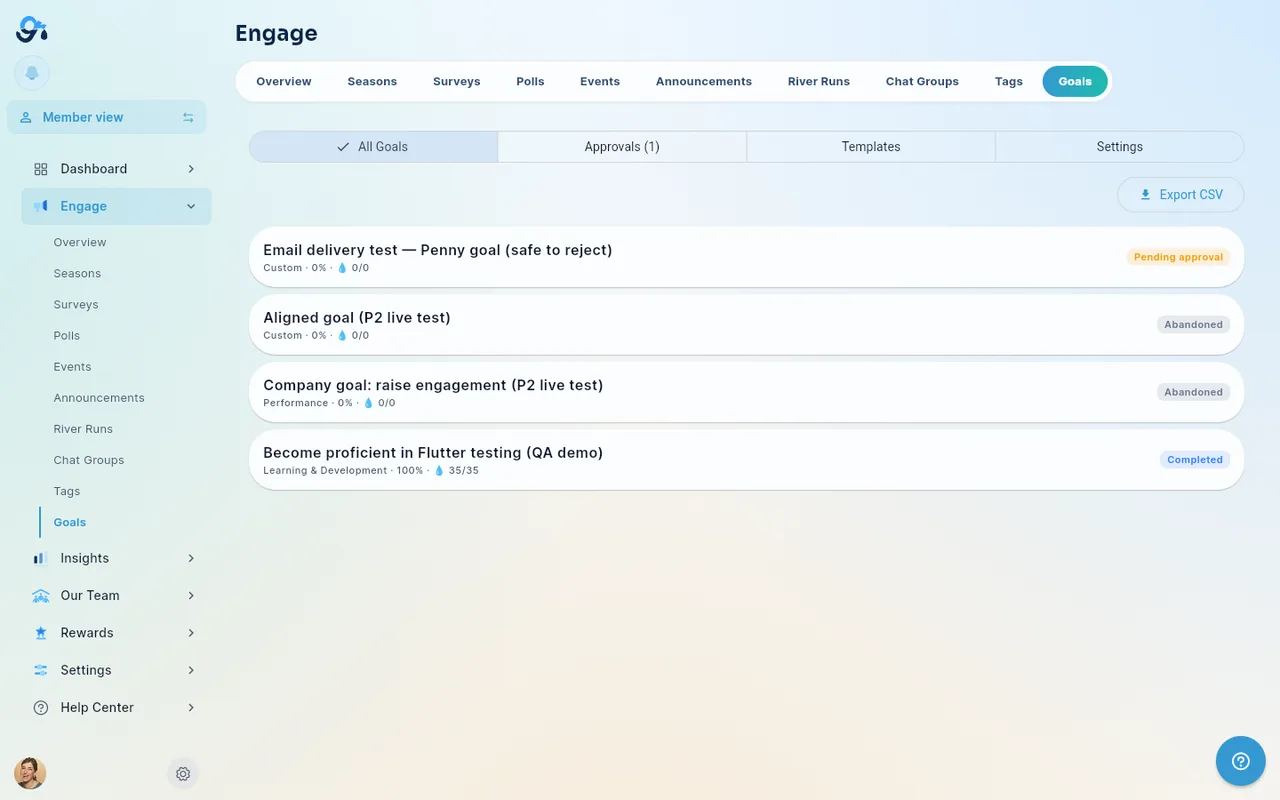
- Engage → Goals — the management hub, with four views:
- All Goals — every goal in the organization with owner, category, progress, pace, and drops earned/potential. Tap a goal to open it (that's where Adjust reward lives). Use Export CSV (top-right of the list) to download the full table for offline review or reporting.
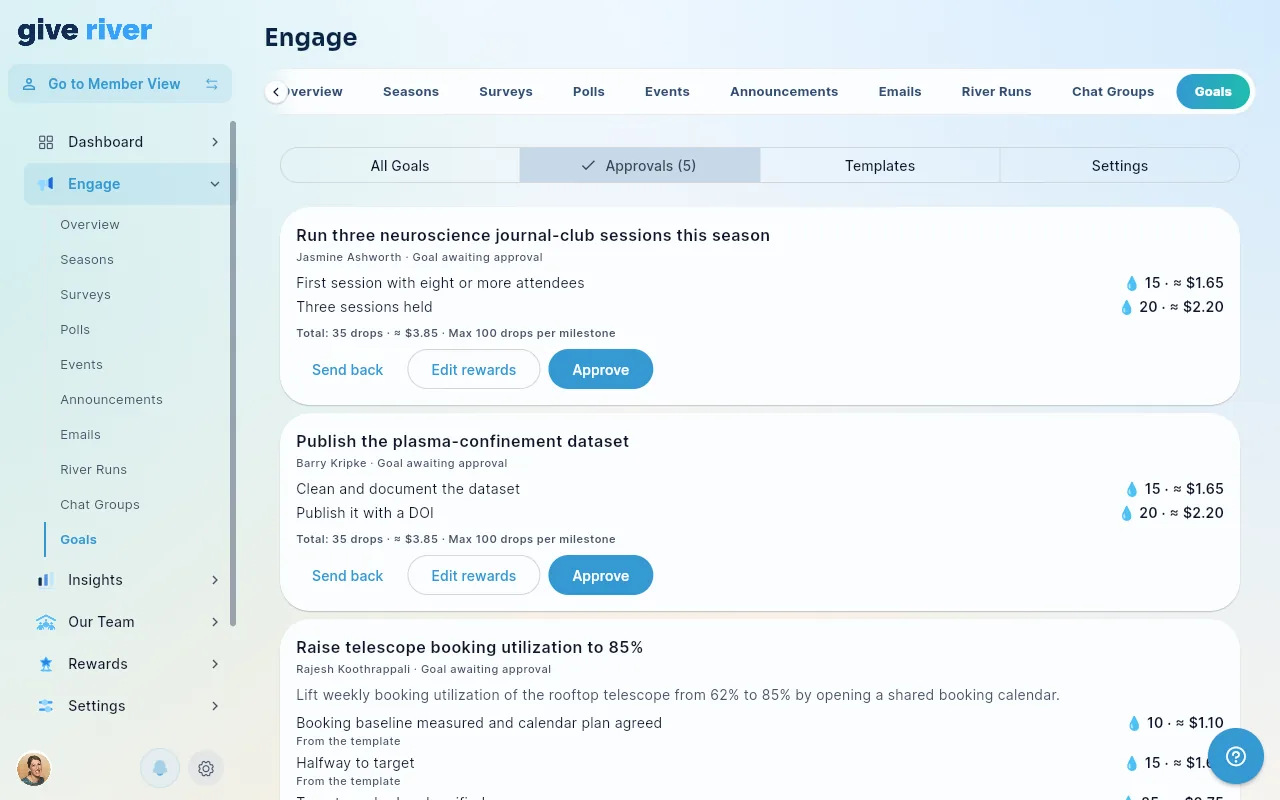
- Approvals — the full pending queue. Admins see all pending goals and milestones (not just their own reports), which makes this the backstop for members with no manager assigned and for managers who are away. Admins review exactly like managers: set the milestone rewards when approving a goal (see SMART Goals for Managers). Nobody reviews their own goal — an admin's goal goes to their manager or another admin.
- Templates — the template library members pick from when creating a goal.
- Settings — the workflow rules (below).
- Insights → Goals — programme analytics.
Workflow Settings
| Setting | What it does | Default |
|---|---|---|
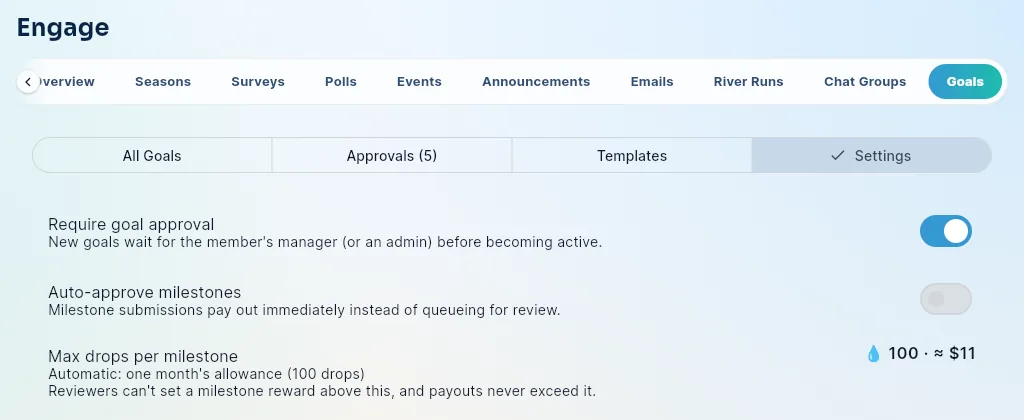
| Require goal approval | New goals (and edits that change a goal's metric or dates) wait for the member's manager — or an admin — who sets each milestone's reward when approving. Turn off to let goals activate instantly; milestone rewards are then set automatically to the suggested values (members can lower them, not raise them). | On |
| Auto-approve milestones | Milestone submissions pay their locked reward immediately instead of queueing for review ("trusted employees" mode). | Off |
| Max drops per milestone | The most any single milestone can pay. Automatic = one drop cycle's to-give allowance per member (e.g. "one week's allowance = 25 drops"; 100 if no allowance is set); or a fixed number; or no cap. Shown with its dollar equivalent when your organization has a drop-to-dollar ratio. | Automatic |
How the cap and suggestions work
- The cap applies everywhere: members' proposals, reviewers' values, template rewards, auto-approved milestones, and payouts (a milestone never pays more than the current cap, even if the cap was lowered after the goal was approved).
- Each milestone gets a suggested reward: the template's value if the goal came from a template; otherwise the median reward of milestones approved in your organization over the last 180 days (once there are at least 5); otherwise half of one cycle's to-give allowance (at least 1 drop). Suggestions never exceed the cap.
- Dollar equivalents (using your drop-to-dollar ratio) are shown only to reviewers and admins — on the review card, on milestone approvals, and next to the cap here. Members see drops only.
Adjust reward
Managers and admins can lower — never raise — the reward of a milestone that hasn't been paid, on an active approved goal: open the goal, tap ⋮ on the milestone, Adjust reward. The member is notified, and each change appears in Dashboard › Audit Log › Admin Actions as "Goal reward adjusted" (with the old and new values and the reason).
Templates
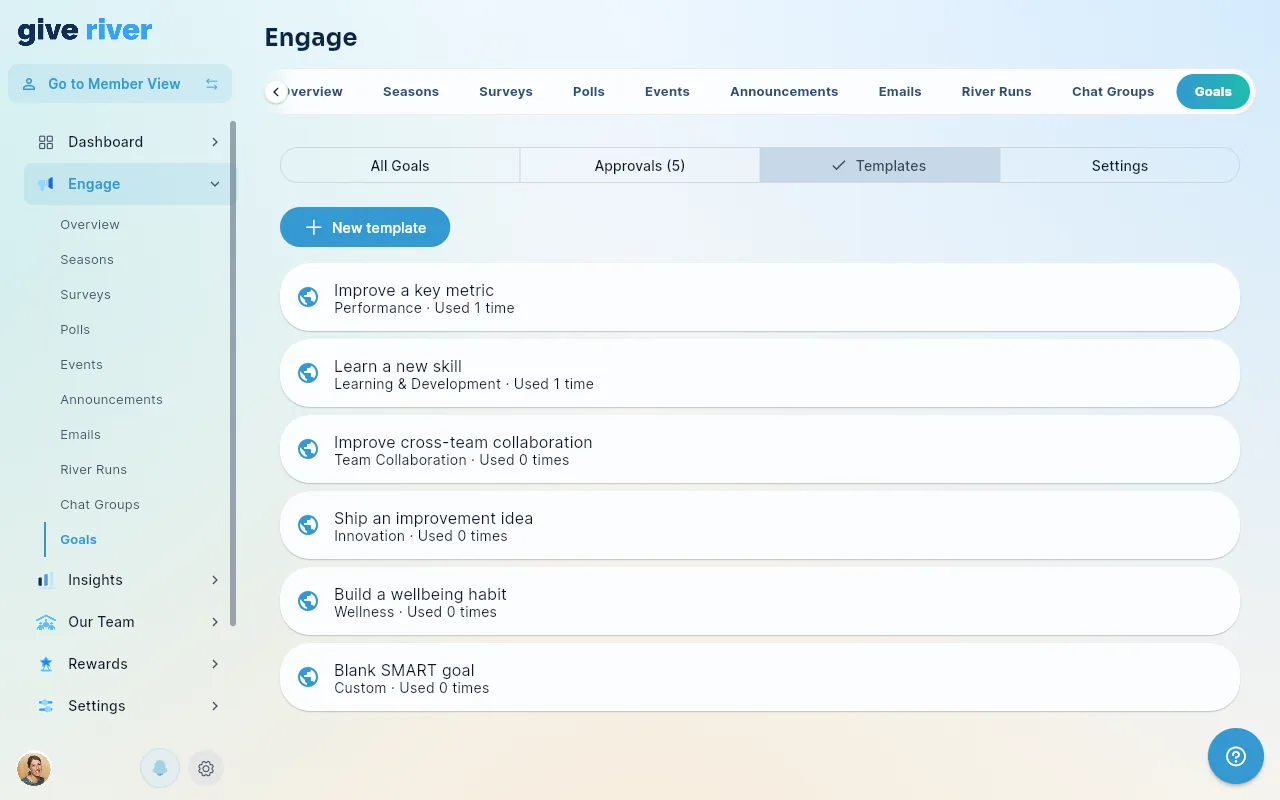
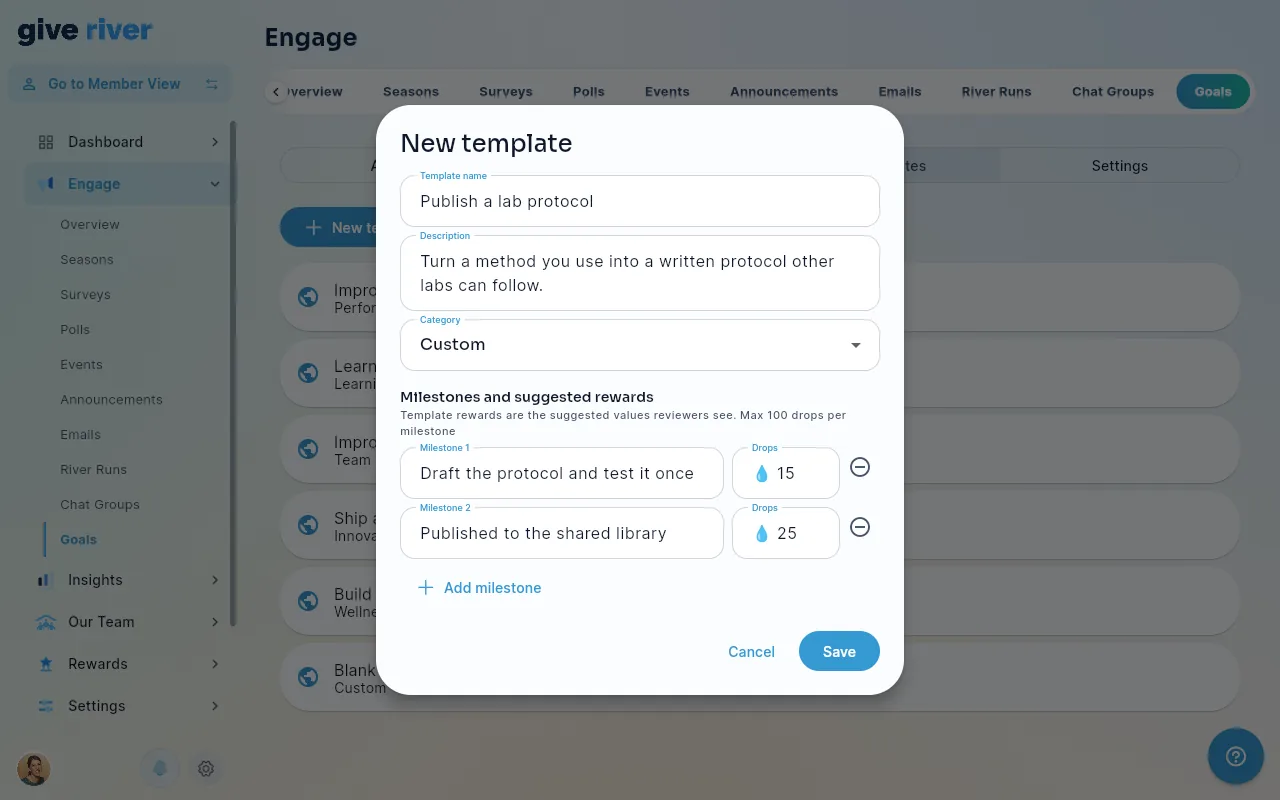
Give River ships six global templates (one per category). You can add your own for organization-specific goals — a template prefills the SMART fields and a milestone scaffold, but members can edit everything before saving, so templates guide rather than constrain.
- New template — name, description, category, and the milestones with their rewards. Template rewards become the suggested values reviewers see, so they can't exceed your per-milestone maximum. Global templates can't be edited or removed; your own can (including milestone titles and rewards).
- Usage counts show which templates members actually reach for.
How Goal Drops Work
Milestone rewards are company-funded earned drops — they don't come from anyone's shareable budget. The reward is locked when the goal is approved; approving a milestone pays exactly that amount (never more than the cap). On approval they:
- credit the member's balance immediately (the payout is transactional and can never double-pay, even if two reviewers act at once);
- appear in drop transaction history under the Goal Milestone source;
- count toward the season standings during a Performance season with Milestone drops count in the standings on, under Earned or Combined scoring (in the season that's running on the day the milestone is approved — see How Performance Seasons Work);
- accrue to the member's River Bank when the Goal Milestone source is enabled in your River Bank Drop Settings (Settings → Features → Drop Shop → Manage). It's on for every organization, including ones whose River Bank settings were saved before goals existed; turn it off there if goal drops shouldn't count toward Drop Shop balances.
The per-milestone cap in Settings is your budget control; reviewers setting the rewards is the quality gate.
Insights
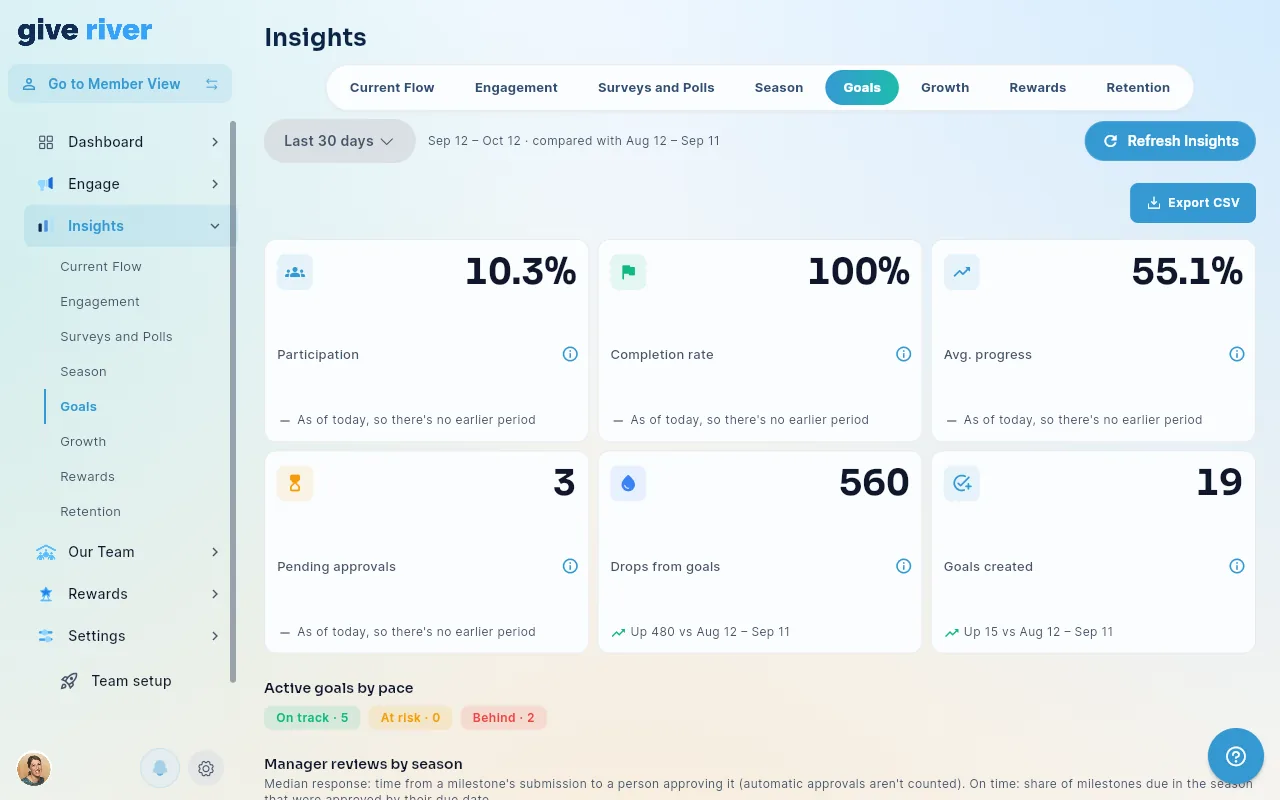
Insights → Goals shows, for the selected period:
- Participation — % of active members with at least one goal (the spec's north star is 70%+ during performance-focused seasons).
- Completion rate and average progress across active goals.
- Pending approvals — a rising number here usually means a manager bottleneck; consider auto-approve or a nudge.
- Drops from goals — what the programme is paying out.
- Active goals by pace (On track / At risk / Behind), a goals completed per week trend chart, and a category breakdown.
- Manager reviews by season — the median time from a milestone's submission to its approval, and the share of milestones approved by their due date (see Admin Insights and Analytics).
Seasons Tie-In
The season wizard's Set Goal step is saved as the season's focus. Choosing Boost Performance & Productivity makes it a Performance season, the natural moment to launch or spotlight the goals programme. For that season you can switch on goals on Home, goal reminders, milestone drops in the standings, team goals with contributor bonuses, and a season-end carry-over card. See How Performance Seasons Work and Season Creation and Management. Announce the season, point members at templates, and watch the participation metric in Insights.
New goals automatically link to your team's current season, so each season's detail page (Insights → Season) shows a SMART Goals wrap-up block: goals created, completed, completion rate, participants, and drops paid during that season.
Approval Emails
When a member submits a goal or milestone for review, the reviewer also gets an email: the member's manager receives it directly, and members without a manager fall back to the admin approval-notification list. Goal emails work like every other approval email: requests are grouped into one Needs your approval email per person, an item still waiting gets a first reminder and a final one at day 7, and then it stays in the weekly briefing's Needs you. They respect the Goal and milestone approvals toggle in your approval notification settings.
The email's Review goals button (on an email that holds only goal approvals) — and tapping the in-app notification — opens My River → My Goals on its Approvals view, the review queue that works for both managers (their reports' submissions) and admins (everything waiting in the team). Admins can also review from Engage → Goals → Approvals.
Housekeeping Notes
- Offboarding is automatic: when a member leaves, their active goals are closed out and their pending submissions leave the approval queues. Drops already earned stay earned.
- Weekly nudges go out automatically — members whose goals haven't had a check-in for a week get a "Your goals could use an update" email. Reviewers hear about their queue through the approval emails above, not a separate weekly summary.
- Naming — the Rewards Dashboard's Milestones tab (birthdays, anniversaries, thresholds) is a separate, older feature from the milestone steps inside a SMART goal.
Did this article help?
Related articles.
See the platform in action.
Free for up to 25 members, or try Core or Growth free for 30 days. A card is required; Free is never charged, and a trial bills when it ends unless you cancel.