Weekly Briefing
Your Weekly briefing is the first thing you see in Admin view (Dashboard → Overview). Instead of a menu of places to go, it tells you what needs you this week, how your program is doing, what's at risk, and the one thing most worth doing next. Every Monday the same briefing can arrive by email.
What Managers see
Admins, the Workspace Owner and River Guides see the whole company. A Manager sees a briefing about their own people: themselves and everyone who reports to them, directly or through their managers. A Location Manager sees themselves and everyone at their location. Every number, list and suggestion on the page is worked out for those people only, and a note at the top says so, for example Showing your team (8 people).
A Manager with nobody reporting to them sees No one reports to you yet instead of the briefing. Once an Admin sets them as someone's manager (on that member's Manager field, or through your HR system), their people show up here. See Roles and Permissions.
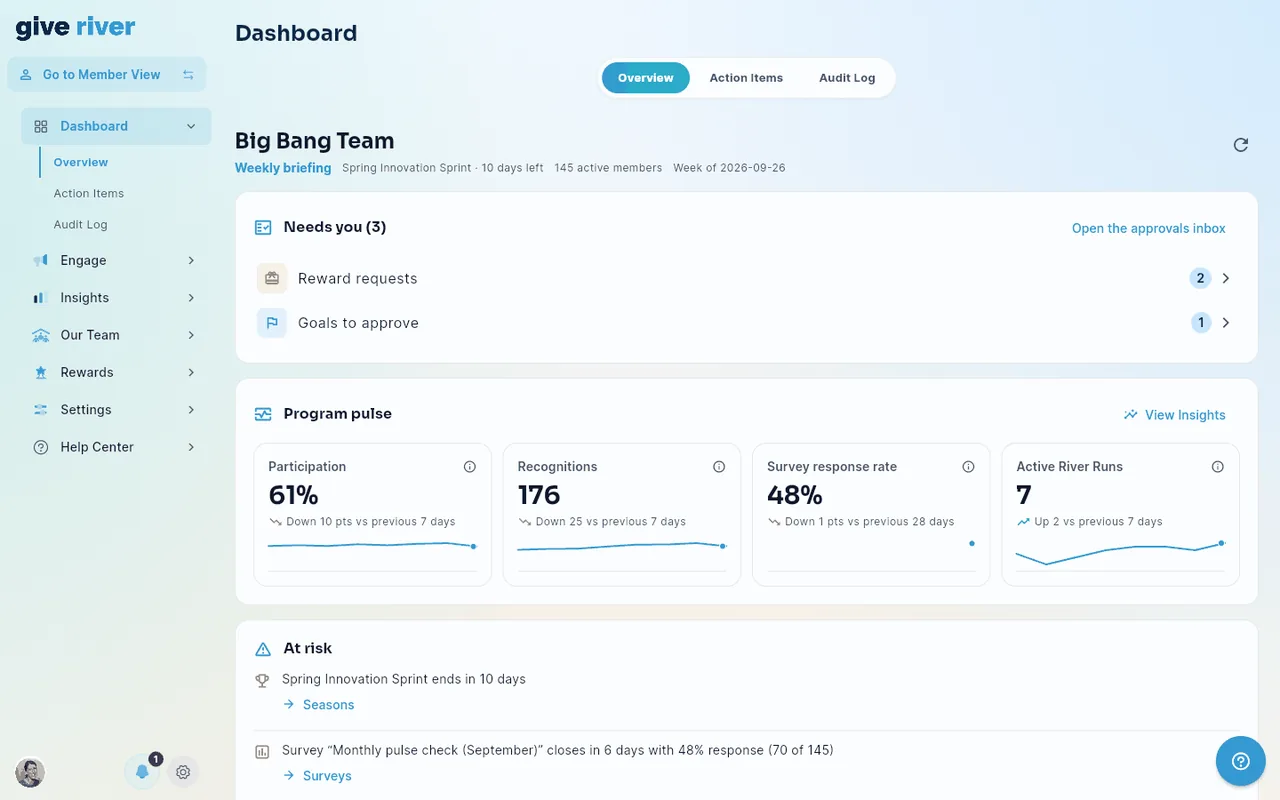
Needs you
Approvals waiting on you, counted by type (for a Manager, only their own people's requests; join and removal requests are left to admins):
- Reward requests and Birthday & anniversary rewards — open Rewards → Pending Rewards.
- Goals to approve — open Engage → Goals on its Approvals view.
- Health challenge claims — open Rewards → Health Challenges.
- Join requests and River Run requests — open the Action Items tab, where you can accept or handle them in the row.
- Removal requests (members who asked to leave) — open the Action Items tab filtered to them, where you approve or reject each one in the row.
This is also where requests end up once their approval emails stop: an item still waiting after its final reminder (day 7 by default) gets no more email, but stays here until someone acts on it. See Admin Approval Notifications.
The counts come from the same inbox as the Action Items tab, so they always match. When nothing is waiting, you'll see "Nothing is waiting on you".
Program pulse
Four numbers, each with the change since the previous period (an arrow and a sentence, for example "Up 5 pts vs previous 7 days") and a small trend line for the last 8 weeks. A change smaller than one whole point or count shows as No change, with a flat arrow:
| Number | What it counts |
|---|---|
| Participation | The share of active members who opened the app in the last 7 days |
| Recognitions | Peer recognitions given in the last 7 days (a recognition to three people counts three times, once per person) |
| Survey response rate | The average response to surveys sent in the last 28 days, compared with the 28 days before. Weeks with no survey leave a gap in the trend line |
| Active River Runs | River Runs that members made progress in during the last 7 days |
Percentages change in points ("pts"). Hover or long-press the i next to a number for its definition. View Insights opens the full analytics.
Program pulse is part of Insights, so on the Free plan it shows the plan lock with Upgrade to unlock instead of the numbers. See Plans and the Free plan.
Days and weeks follow your company's time zone, so "the last 7 days" ends at midnight where your team is. Companies without a time zone on file use UTC; ask Give River support to set yours.
At risk
Things that will go wrong if nobody acts:
- Season ending — your current season ends within 14 days.
- Survey closing with a low response — an open survey closes within 7 days and fewer than half of your members have answered.
- Not recognized in 30+ days — members who joined at least 30 days ago and haven't received a recognition from a teammate in the last 30 days. People who were never recognized are listed first.
- Overdue required training — members past the due date of a required River Run, by assignment.
Every name is a link: click it to open that person's 360 view. When nothing is at risk, you'll see "Nothing at risk this week".
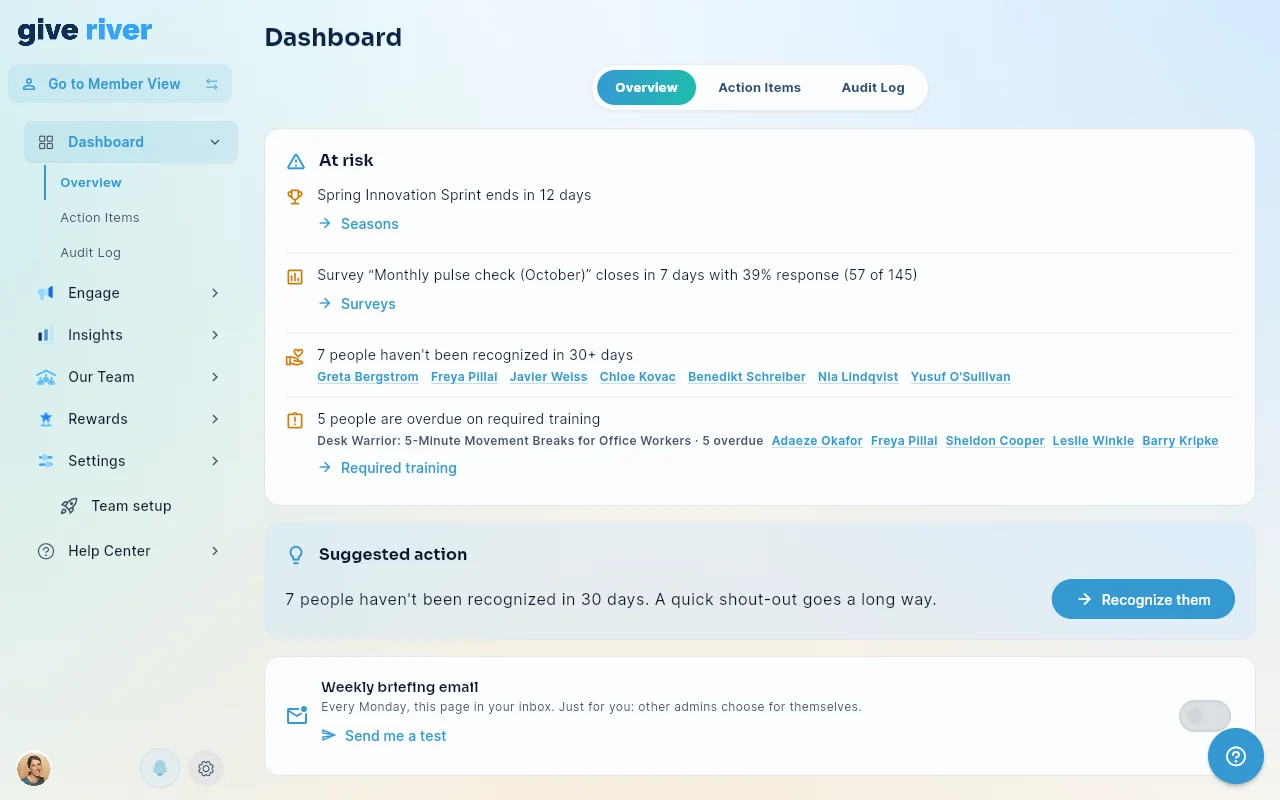
Suggested action
One suggestion, chosen by a fixed set of rules. The first rule that applies wins:
- A survey closes within 3 days with a low response → Open surveys.
- Three or more people haven't been recognized in 30 days → Recognize them opens Recognize with up to 10 of them already picked.
- Someone is overdue on required training → Review required training.
- The season ends within 7 days → Plan the next season.
- Participation fell by 10 points or more since last week → Post an announcement.
- One or two people haven't been recognized in 30 days → Recognize them.
- A survey closes within 4–7 days with a low response → Open surveys.
- No survey has gone out in 30 days (teams of 5 or more) → Send a pulse survey.
If none applies, the card says your program is in good shape. A team with no activity yet (fewer than three members and no recognitions) sees Not enough activity yet instead.
The Monday email
Every Monday, admins who switch it on get the same briefing by email (in the Americas it arrives late on Sunday evening, covering the Monday-to-Sunday week just ended): what needs you, the program pulse, what's at risk and the suggested action, with links back into the app. It goes to admins only, never to members, and isn't sent for a team where nothing happened that week. A Manager's email covers their own people, just like their page, and a Manager with nobody reporting to them doesn't get one.
The email is off by default. To turn it on (or off again), use the Weekly briefing email switch at the bottom of the briefing, or in Settings → Notifications → Weekly briefing. The switch is just for you: each admin chooses for themselves.
To see what it looks like first, tap Send me a test under the switch. This week's briefing goes to your own email address only, and it doesn't change your setting.
Did this article help?
Related articles.
See the platform in action.
Free for up to 25 members, or try Core or Growth free for 30 days. A card is required; Free is never charged, and a trial bills when it ends unless you cancel.