Team Games (Admin Setup & Rewards)
Team Games are Give River's host-run activities: Company Trivia, Would You Rather, Predict the Co-worker and Caption This. This guide is for admins and hosts: the game types, how a game runs, and how to control the drops (and real dollars) a game pays out.
Setting up a game
Games are set up in the game builder. Go to Engage › Games & Events and tap a game card under Create a game or event (Team Trivia, Would You Rather, Caption This or Predict the Co-worker), or click Start a game at the top of the page. The builder opens with that game type picked; the chips at the top switch between game types or show All games.
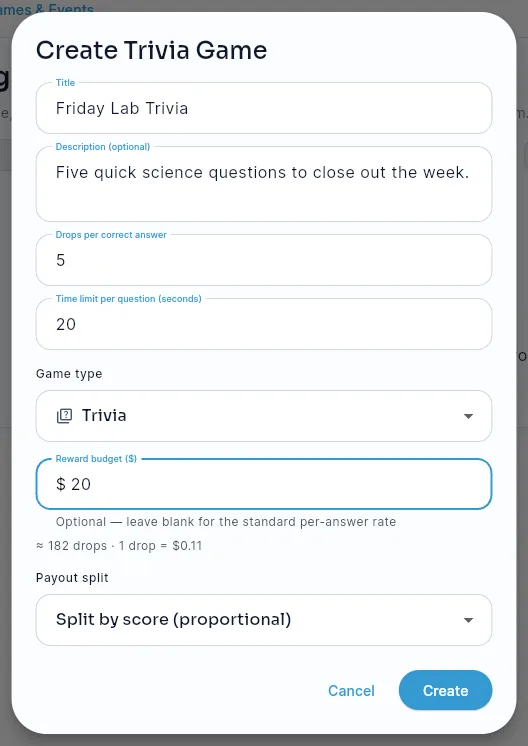
Click Create Game (or Create Team Trivia, and so on) and fill in the title, an optional description, the drops per correct answer, the time per question and, if you want one, a reward budget (see Rewards below).
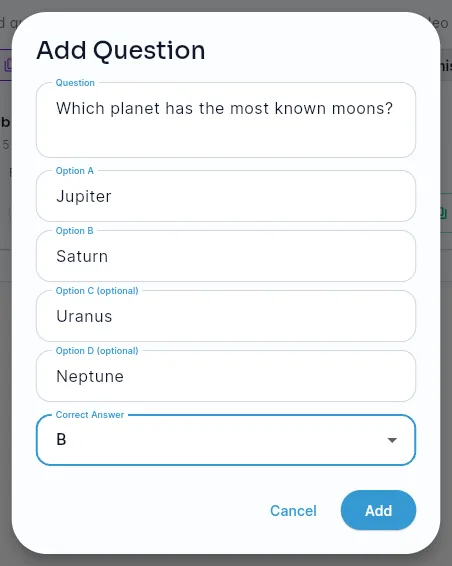
On the game's card, click Add Questions to add a question or prompt. Caption This prompts take an image. Questions go into your company's question bank, so every game of the same type can use them.
Click New Round to add a round. Each round is one playable unit with its own open window. Give the round a title if you like, then tick the questions it plays: the list shows the questions in your bank that fit this game, the ones this game hasn't used yet are already ticked, and a question that's already in a round says which one (for example Already in round 1). Players get the questions in the order shown. If there are no questions for this game yet, the window says so: click Add Questions, then New Round again.
To run a round outside a call, click its play button to open it and its stop button to close it. A round with no questions can't be started.
To remove a round nobody played, such as one with no questions, click its delete button and confirm with Delete round. The button shows on rounds that aren't open and that no one has answered; a round members have played stays, with their scores and Drops. The round's questions stay in your question bank, and the other rounds keep their numbers.
Leaderboard shows the standings, and Complete & pay out finishes the game (see below).
Playing a game in an event
When you create or edit an event, turn on Add video to this event, then pick the game under Add a game (or click Create a game to make one with a title and a type, and add its questions in the builder later). Saving the event adds the game to the event's video room; the game's card in the builder shows Played in with the event's name, and the event's card shows the game. A room plays one game at a time: picking another game replaces it, and No game takes it off. See Events.
Bonus tiers
Trivia and Predict the Co-worker games without a reward budget can pay bonus tiers: extra Drops for a strong round. On the game's card, click Bonus tiers and add up to five tiers, each a share of right answers and a number of bonus Drops (for example 80% right: +10 drops, 100% right: +20 drops). In each round, a player earns the highest tier they reach, on top of the drops per correct answer. Members see the tiers on their trivia Results screen.
Game types
| Game type | What players do | How it's scored |
|---|---|---|
| Trivia | Answer multiple-choice questions | Correct answers |
| Would You Rather | Pick a preference (no right answer) | Participation (everyone who plays) |
| Predict the Co-worker | Pick who the group will pick | Matching the group's most-popular choice |
| Caption This | Write a caption for an image, then vote | Votes each caption receives |
Each game has a title, an optional description and a time limit per question. Its questions are grouped into rounds; a round is one playable unit with its own open window, and a game can have several rounds.
- Trivia questions have 2–4 options and one correct answer.
- Would You Rather and Predict the Co-worker prompts list the options players choose between (for Predict the Co-worker, coworkers' names). There's no correct answer.
- Caption This prompts are an image players caption, with optional prompt text.
Running a game
- Company Trivia outside a call — when a round is open, members play it from the Trivia tile in Home's Happening now row, until the round closes.
- Live in a video event — the host drives the game from inside the call: start a round, watch answers come in, then close it to reveal the results. Caption This runs in host steps: start captions, then open voting, then close & reveal.
Only the host (the event's creator) can start, advance and close rounds in the room. The host or an admin can choose the event's game. Players can only answer while a round is open, late answers don't count, and nobody sees the correct answers before the reveal.
Rewards: Two Ways to Pay Out
Games can award Drops, and Drops have real monetary value (your team's drop-to-dollar ratio — see Drop Budget). You choose how a game pays, and you can cap the total spend.
1. Per-answer rate (simple)
With no reward budget, the game pays a flat drops-per-correct-answer rate each round. Good for low-stakes trivia. Note there's no overall cap with this method, so a large or long game can add up.
2. Fixed dollar budget (recommended for real spend control)
With a reward budget in dollars, the game has a fixed ceiling. Give River converts it to Drops using your team's drop-to-dollar ratio and shows you the equivalent (for example, $20 at $0.25/drop = 80 drops). That budget is a hard ceiling — the total payout can never exceed it, no matter how many people play or how the scoring lands.
When the game finishes, the budget is distributed by score using the distribution mode you pick:
- Split by score (proportional) — everyone who scored shares the pot in proportion to their score (votes, correct answers, or the group match). Inclusive; spreads the reward.
- Winner takes all — the whole budget goes to the top scorer (ties split it evenly).
The scoring rule and the payout are separate: scoring only decides each player's share of the budget, so a game can never cost more than the dollar amount you set.
Completing a Game & Paying Out
A budgeted game pays out once, at completion — not per round. Run all the rounds you want, then use Complete & pay out. Give River asks you to confirm first, because a payout can't be undone.
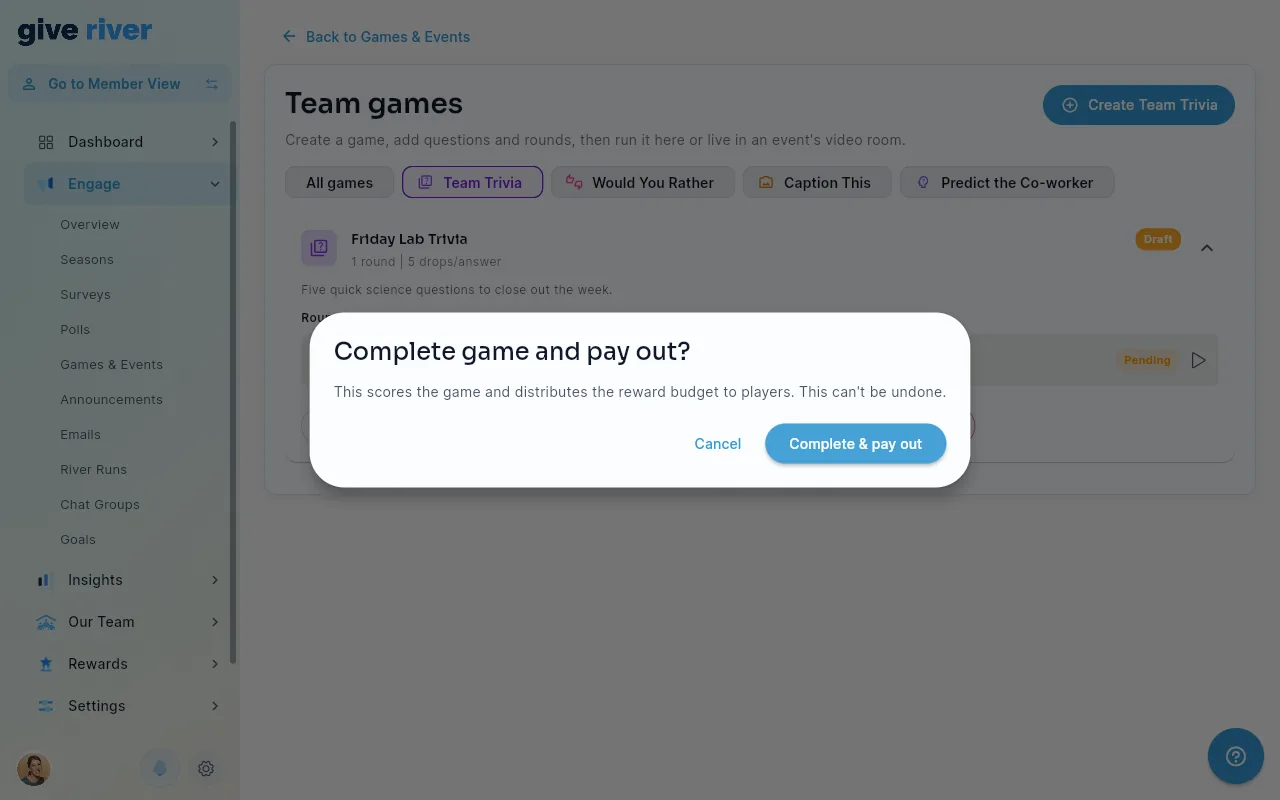
After you confirm, Give River distributes the budget by cumulative score and shows you the full breakdown: each recipient's Drops and dollar value, plus the budget totals. In a live video room, everyone sees the payout revealed on screen, in Drops only: members never see the dollar values.
- No budget? Those games pay their per-answer rate each round as rounds close, and completing the game just marks it finished.
- Nobody scored? (For example, no votes were cast.) The budget simply goes unspent — you're never charged for a game no one engaged with.
Understanding the Cost
Because drops convert to dollars, a budget is shown both ways (for example $20 at $0.25/drop = 80 drops). Your team's drop-to-dollar ratio is set in Rewards › Drop Defaults (Admin Drop Settings); it drives every reward calculation, including these games.
Tips
- Use a dollar budget for anything with real stakes. It's the only way to guarantee a game's total cost.
- Proportional for inclusion, winner-takes-all for competition. Match the mode to the vibe you want.
- Right-size the budget. A quick 20-person game with a $20 budget pays out modestly; check the drop equivalent before you launch.
Did this article help?
Related articles.
See the platform in action.
Free for up to 25 members, or try Core or Growth free for 30 days. A card is required; Free is never charged, and a trial bills when it ends unless you cancel.