Events (Team Events Management)
Team Events keep everyone informed about what's happening — virtual calls, in-person gatherings, or hybrid sessions. Events appear on the Home page as swipeable cards and can optionally include a dedicated chat room for attendees.
For Team Members: Viewing Events
- Open the Home page and scroll to the Events section.
- Swipe horizontally through event cards. Each card shows:
- Event title and optional cover image.
- Event type badge (Virtual, Hybrid, or In-Person).
- Start date and time, and end date and time.
- A link button to join the event (if an event link was added).
- Tap a card to open the full event details dialog, which includes the description, category tags, and a chat room button (if one was created for the event).
Upcoming and past events
The Events card shows upcoming and live events first. Once an event's end time has passed it moves under Past: when your team has past events, two chips appear at the top of the card — Upcoming and Past — each with a count. Past events keep their Event Ended label and you can still open them, but they're never shown as current: they don't appear in the Upcoming list or in Team Hub's Happening on your team tiles. If everything has ended, the card says there are no upcoming events and points you to Past.
For Admins: The Games & Events page
Events and team games are set up under Engage › Games & Events (Admin view). The page has three parts:
- The top of the page — Create new event opens a blank event, and Start a game opens the game builder (see Team Games). Watch how appears when a how-to video is available.
- Our events — a row of cards you can scroll sideways: upcoming events first, soonest at the front, then the most recent events that ended. Each card shows the picture, the status, the date and time, the type (Virtual, Hybrid or In-person) and the RSVPs (for an ended event, how many people joined), plus the game played in it, if any. Tap a card to edit the event. See all opens every event as a table (sort, edit, publish or unpublish) or as a gallery of Upcoming and Past events.
- Create a game or event — a grid of cards. The first card, Custom event, starts a blank event. Event template cards (blue) start from a ready-made plan, and game cards (violet, marked Game) open the game builder for Team Trivia, Would You Rather, Caption This or Predict the Co-worker. Use the All, Events and Games chips, the category chips and the search box to narrow the grid.
For Admins: Creating an Event
- Click Create new event (or the Custom event card) to open the event creation dialog.
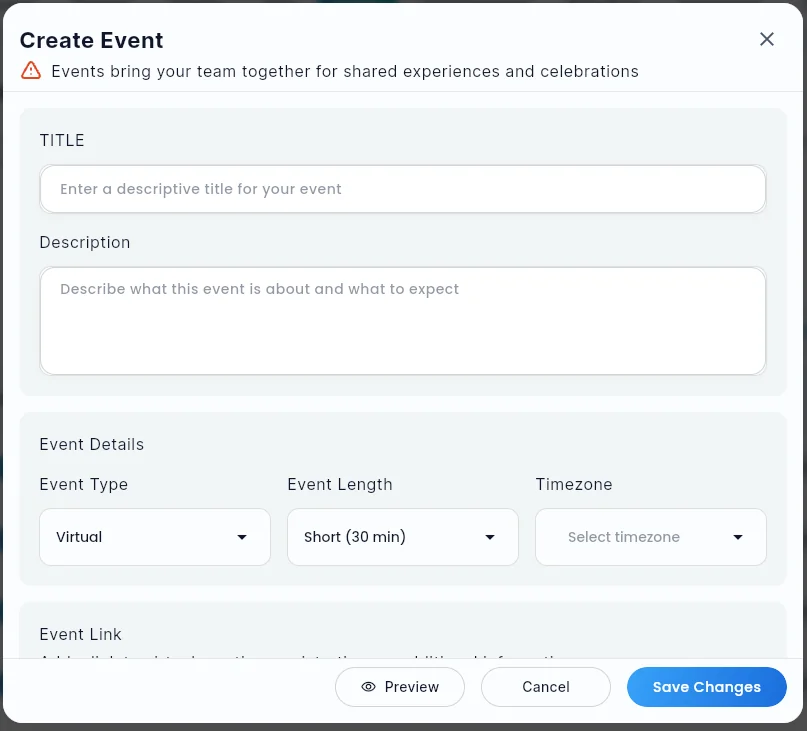
- Fill in the event details:
| Field | Description |
|---|---|
| Title | The event name displayed to members. |
| Description | Details about the event (supports multi-line text). |
| Event Type | Virtual, Hybrid or In-person. |
| Event Length | Short (30 min), Medium (1.5 hours), Long (3 hours), or Multi-day. Short, Medium and Long end that long after the start. When you edit an event whose start and end don't match any of these, it shows Custom. |
| Event Categories | One or more category tags (loaded from your team's category list). |
| Event Link | URL for joining the event (e.g., a video call link). |
| Start Date & Time | When the event begins. |
| End Date & Time | When the event ends. It shows for Multi-day and Custom lengths. |
| Timezone | The timezone for the event's start and end times. |
| Cover Image | An optional image displayed at the top of the event card. |
| Create Chat Room | Toggle on to automatically create a dedicated chat room for this event. |
- Under Who is this for?, keep Everyone or narrow the event to part of your team (see below).
- Click Save Changes to publish the event. It appears immediately in the Events section of Home for the people it's for.
Targeting an event
Who is this for? uses the same audience picker as Announcements, Polls and Required Training. People, groups, locations, departments and roles combine as "anyone who matches at least one", and a saved segment reuses a rule you saved earlier (for example Engineering, joined in the last 90 days); see Audiences & Saved Segments.
Only the people in the audience see the event in their Events card, can RSVP, and can open its chat room or join its video room. The audience is checked every time, so it stays current: someone who joins Engineering later starts seeing the Engineering events. The organizer (whoever created the event) always sees it. You can change the audience later from Edit; people who RSVP'd but are no longer in the audience stop seeing the event and its chat.
Using Event Templates
Under Create a game or event, tap an event template card to preview it: a large picture, the description, its type, length and categories, and its video when it has one. Click Use this template to open the event form filled in from the template. Templates carry over the title, description, event type, length, categories, and link. Date and time fields are auto-populated based on the template's duration but can be adjusted before saving.
Adding a game to an event
To play a team game live during an event, turn on Add video to this event, then pick the game under Add a game (or click Create a game to make a new one with a title and a game type). When you save the event, the game is added to the event's video room, and its name shows on the event's card. The host starts the game's rounds from inside the room. Pick No game to take the game off the event. Add the questions and rounds in the game builder; see Team Games.
Managing Events (Admin)
On Games & Events, click See all next to Our events. The events table shows each event's Status, its dates and its RSVPs (how many people have said they're going).
- Status is a pill with one of four values, the same set used across Engage and Insights:
- Draft: not published, so members don't see it.
- Scheduled: published, starting later.
- Live: published and under way.
- Ended: its end time has passed. Members see an ended event only under the Past filter of their Events card.
- ⋮ (More actions) on each row holds:
- Edit: update any field, including who the event is for. Saving keeps the event's end date and time unless you change the start, the Event Length or the end. An event that runs for a custom length (for example, all week) opens with Event Length set to Custom and its End Date & Time filled in; moving its start moves its end by the same amount, so it keeps its length. Pick Short, Medium or Long to end it that long after the start instead.
- Unpublish…: hide the event from members. A confirmation explains what happens: the event disappears from everyone's Events card and its event chat is deleted with all its messages; RSVPs are kept. Use Publish… to show it again.
- Delete: Open an existing event and click Delete. Confirm the deletion when prompted. Deleting an event also removes the associated chat room if one was created.
Preview Mode
Before publishing, click Preview in the create / edit dialog to see exactly how the event card will appear on the Home page. Use this to confirm titles, dates, and link rendering before any member sees the event live.
Unsaved-Changes Guard
If you try to close the event modal with unsaved edits, a confirmation prompt appears so an accidental close doesn't lose your in-progress event.
Tips
- Add a clear Event Link for Virtual or Hybrid events so members can join directly from the event card.
- Enable Create Chat Room for events where you want ongoing conversation before, during, and after the event.
- Use Event Categories to help members understand the type of event at a glance (e.g., Team Building, All-Hands, Training).
Did this article help?
Related articles.
See the platform in action.
Free for up to 25 members, or try Core or Growth free for 30 days. A card is required; Free is never charged, and a trial bills when it ends unless you cancel.