River Run Library and Categories
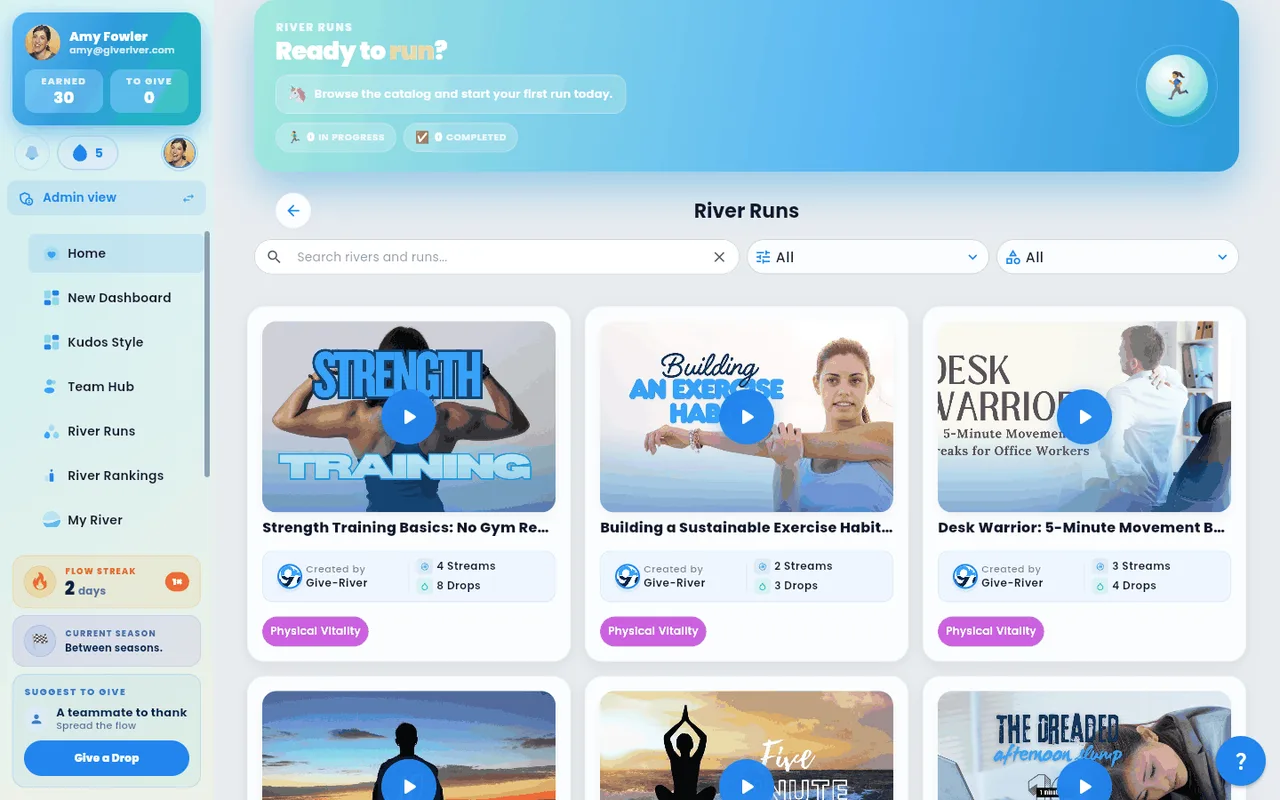
The River Runs home screen is your central hub for discovering and managing learning content. It organizes content into sections so you can quickly find what you need.
The River Runs Screen
The River Runs home screen is your central hub for discovering and managing learning content. It organizes content into sections so you can quickly find what you need.
| Section | What it shows |
|---|---|
| Required for you | Runs your admin assigned you that you haven't finished |
| Current Runs | Other River Runs you are actively enrolled in (not yet finished) |
| Popular runs | The most-joined runs you haven't started yet |
| Continue Learning | Individual Streams across your enrolled runs that are ready to play |
| Completed Runs | River Runs where you finished all Streams (100% complete). A run that gains new Streams after you finished it moves back to Current Runs until you finish those too |
| Discover All Runs | Runs in your organization's library that you haven't joined yet |
Tap See all on any section header to open the full list for that tab. On a tablet or computer the full list starts with the same banner and stat cards as the River Runs page, in the look your admin picked for your team, and they scroll away as you browse.
Discovering Runs
The Discover All Runs section at the bottom of the home screen shows the published River Runs your organization has made available that you haven't joined yet, so it's always about something new. Runs you've joined are in Current Runs and Completed Runs above it, and the runs on the Popular runs shelf aren't repeated below it (search, filter, or tap See all on Discover for the full library, joined runs included). On mobile, runs appear as a compact list. On tablet and web, they appear in a grid of up to four across.
Each run card shows:
- Thumbnail image
- Run title
- Number of Streams in the run
- Total Drops you can earn
Searching for a Run
Discover has one search box. It searches by keyword, or asks Ugo for picks when you turn on Ask Ugo.
By keyword
- In the Discover All Runs section, find the search box at the top of the list.
- Type a word or a few — for example "muscle building" or "sleep better". The search looks for each word in run titles, descriptions, categories and tags (it also finds close forms, so "building" finds "build", and related words, so "muscle" also finds strength and fitness runs). Runs that match more of your words, and match them in the title, come first. Small words like "I want to learn about" are skipped. The list updates as you type (pressing Enter applies it straight away).
- To clear the search and return to all runs, tap the X (clear) icon inside the search box.
If none of your words appear in any run, the list says so and suggests trying fewer or different words. On Discover All Runs you can also tap Ask Ugo instead to send the same words to Ugo, who reads a whole sentence.
Ask Ugo
- Tap the ✨ Ask Ugo pill inside the search box. The box turns blue and asks "What kind of Run are you looking for?".
- Describe what you'd like to learn and press Enter. Ugo picks matching runs; hover or long-press a picked card to see why Ugo chose it. Or tap Surprise me under the box for picks without typing anything.
- Tap Clear on the "Ugo's picks" banner to go back to the library (it also empties the search box), and tap Ask Ugo again to switch the box back to keyword search.
Filtering by Category
River Runs are organized into sub-categories (such as Leadership, Wellness, Culture, or Learning — set by your admin).
- Next to the search bar, tap the Category dropdown (shows a category icon and the current selection).
- Select a category from the list. The run list filters immediately to show only runs in that category.
- To remove the filter, open the dropdown again and select All.
You can combine a search keyword and a category filter at the same time. While any search, category or sort is applied, a Clear filters button appears under the filters: it empties the search box and puts the category and sort back, showing the full library again. On the See all list, Clear filters appears when a search or category finds no runs.
Run Cards: What the Information Means
| Item on card | What it means |
|---|---|
| Instructor avatar + name | The person or team who created the run |
| Stream count | How many individual lessons are in the run |
| Drops | Maximum Drops you can earn by completing all Streams |
| Category tags | Subject area labels assigned by your admin |
| "Enrolled" badge | You have already joined this run |
Tips
- Runs you've finished are under Completed Runs (and in the See all list of Discover). You can reopen them to review the content, but you won't earn more Drops.
- If no runs appear after applying a filter, try clearing the category or search to confirm runs exist in your library.
- Haven't joined a run yet? The Enrolled list on the full River Runs list says so and offers Find a River Run, which switches to all runs.
- If the River Runs section is not visible in your app, your organization may not have it enabled. Contact your admin.
Did this article help?
Related articles.
See the platform in action.
Free for up to 25 members, or try Core or Growth free for 30 days. A card is required; Free is never charged, and a trial bills when it ends unless you cancel.