River Run Quizzes: Rewards and Results
A quiz is a Stream inside a River Run that asks a few questions. Quizzes can pay Drops for finishing, set a pass mark with a bonus for reaching it, and give admins a clear view of how the team answered — or keep answers anonymous.
Taking a Quiz
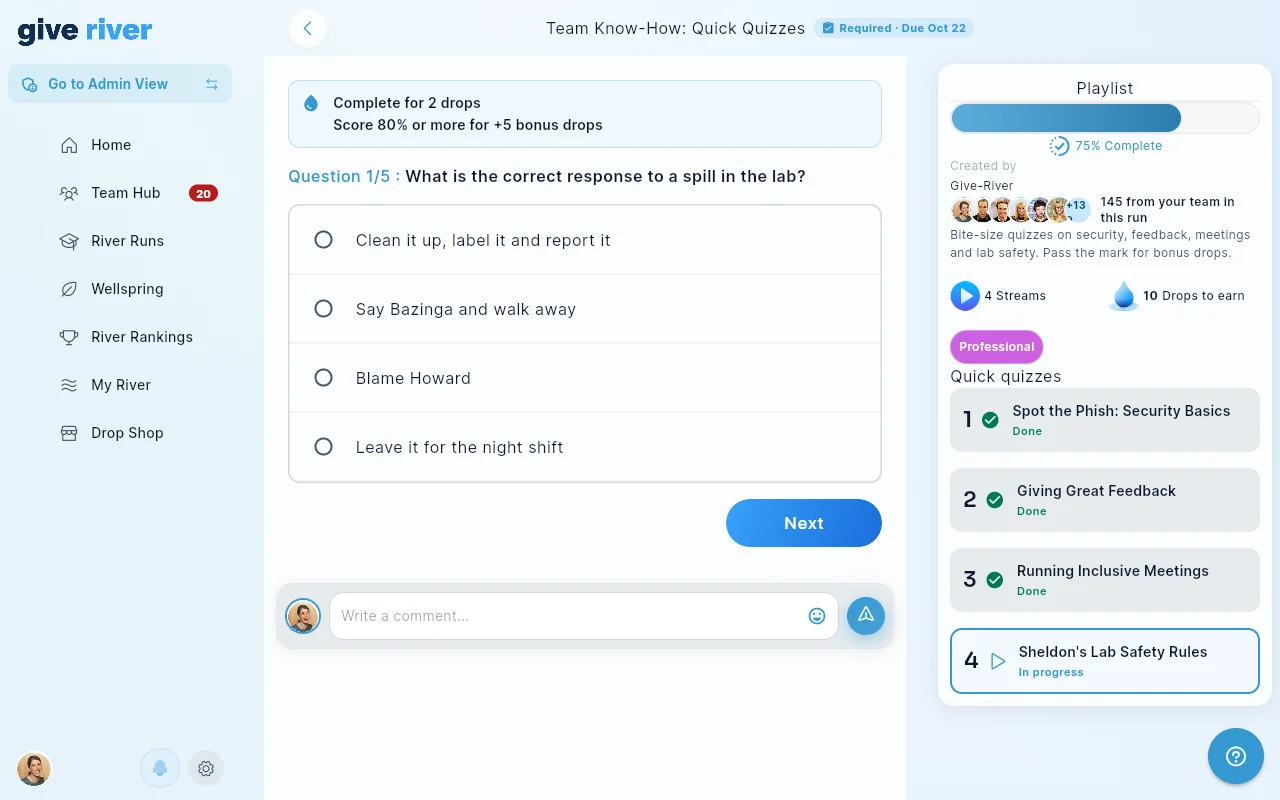
When you open a quiz Stream, a banner at the top tells you what's at stake before you answer:
- Complete for N drops — the Drops you earn for finishing the quiz.
- Score X% or more for +M bonus drops — shown when the quiz has a pass mark and a bonus. If it has a pass mark but no bonus, you see the pass mark alone.
Answer each question, then tap Complete and confirm.
Your result
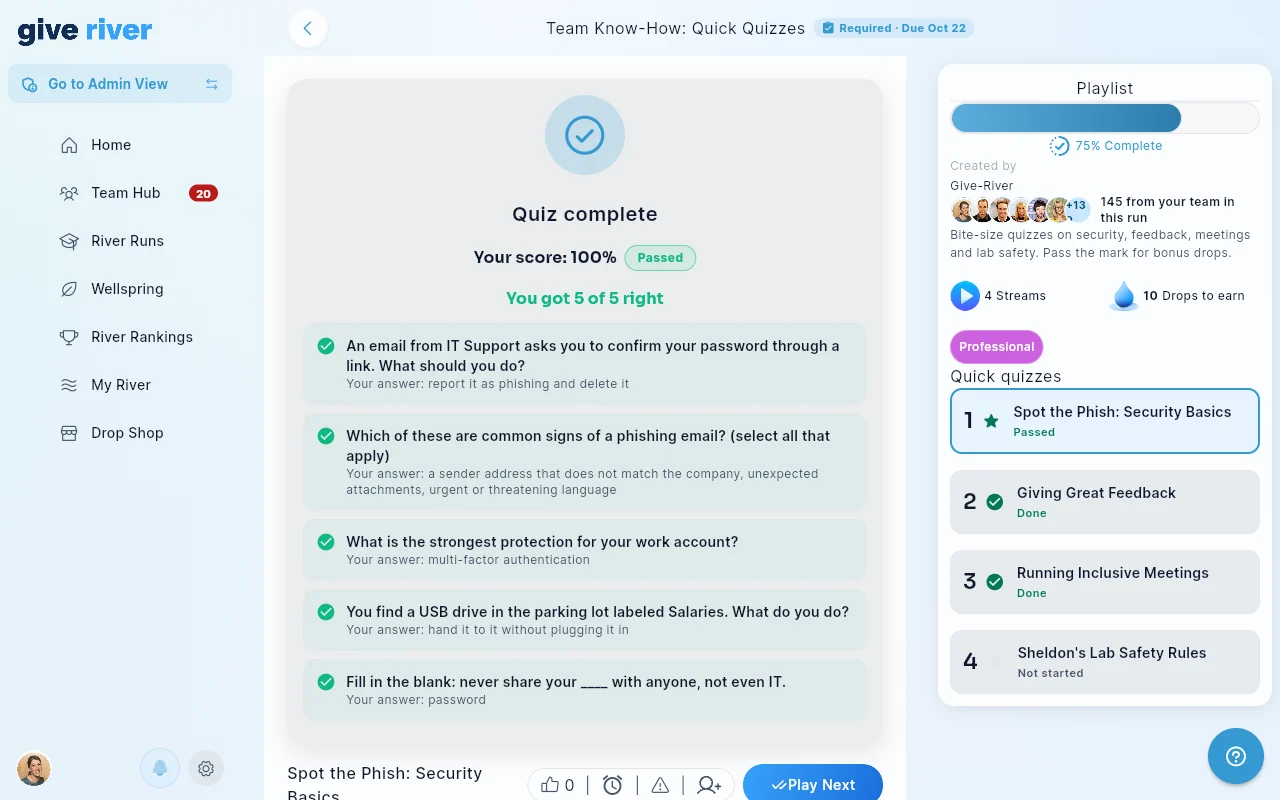
As soon as you submit, the quiz shows:
- Your score as a percentage.
- Passed — or Not passed with the pass mark — when the quiz has a pass mark.
- +M bonus drops when you reached the pass mark and the bonus was paid. The bonus is paid once and counts toward your normal Drop limits.
- A per-question review: your answer, and the correct one for anything you missed.
Reopen the Stream at any time to see the same result.
Retaking a quiz you didn't pass
If a quiz has a pass mark and your result says Not passed, tap Retry quiz under your score to answer the questions again. You can retry as many times as you need until you pass. Once you pass, the quiz is done and Retry quiz no longer appears. Quizzes without a pass mark can't be retaken.
- Your best score counts. Your result, your Journal and your admin's results show your best attempt. When you've taken a quiz more than once, you'll also see Best of N attempts.
- Drops are paid once per quiz. You get the Drops for completing the quiz the first time you finish it. Retakes don't pay them again. The bonus for passing is paid once, on whichever attempt first reaches the pass mark. A banner above the questions reminds you of this while you retake.
- If you leave in the middle of a retake, reopen the Stream and tap Retry quiz to carry on. Your earlier attempts are kept.
Question types
| Type | How you answer | Scored? |
|---|---|---|
| Multiple choice | Tick every correct option | Yes — all correct options, and nothing else |
| Single choice | Pick one option | Yes |
| Fill in the blank | Type the missing word or phrase | Yes — capitals don't matter, spelling does |
| Open ended | Write your own answer | No |
| Scale | Rate on a 1–3, 1–5, or 1–10 scale | No |
Open-ended and scale questions collect your thoughts but aren't marked correct, so a quiz that mixes them in can't reach 100%.
Quizzes in your Journal
Every quiz you finish is added to your Journal and to the activity timeline on My River, shown as Quiz · [quiz title] with the run name and your score (for example, "4 of 5 correct (80%)"). If you retook the quiz, it shows your best attempt and Best of N attempts. A Passed chip and any +N bonus drops appear alongside. Tap the entry to jump back into the run.
For Admins: Setting Up Rewards
Open Engage → River Runs, edit the run, and go to the Lessons tab. Add a quiz to a section (or tap the pencil on an existing quiz) and fill in the Rewards & results group:
| Field | What it does |
|---|---|
| Drops for completing | Drops paid when a member finishes the quiz (0–1,000). |
| Pass mark (%) | Optional. The score a member needs to pass (1–100). Leave empty for no pass mark. Members who don't reach it can retake the quiz until they pass. |
| Bonus drops for passing | Extra Drops (0–1,000) paid once when a member reaches the pass mark, on any attempt. Only available once a pass mark is set. |
| Anonymous results | When on, admins see totals only — not who answered what. |
Retakes can't be used to farm Drops. Each member is paid the completion Drops once per quiz, and the passing bonus once per quiz, however many attempts they make. There's no limit on the number of attempts.
The quiz editor also lets you change the quiz's Status (Active, Deactivated, or Draft) when editing.
Writing questions
Use the question button on the quiz card to add, edit, or delete questions. For each question pick a type:
- Multiple choice / Single choice — enter at least two options and mark the correct one(s) with the tick or radio next to each option. Options must all be different.
- Fill in the blank — enter the single accepted answer (no commas). Members' answers are matched without regard to capitals.
- Open ended — enter a sample answer for reference. Answers aren't scored.
- Scale — choose 1–3, 1–5, or 1–10 and optionally label the lowest and highest ends.
For Admins: Viewing Results
Open a quiz's results in either place:
- Insights → Growth → a River Run → the quiz Stream → View results, or
- Engage → River Runs → edit the run → Lessons tab → the chart icon on the quiz card.
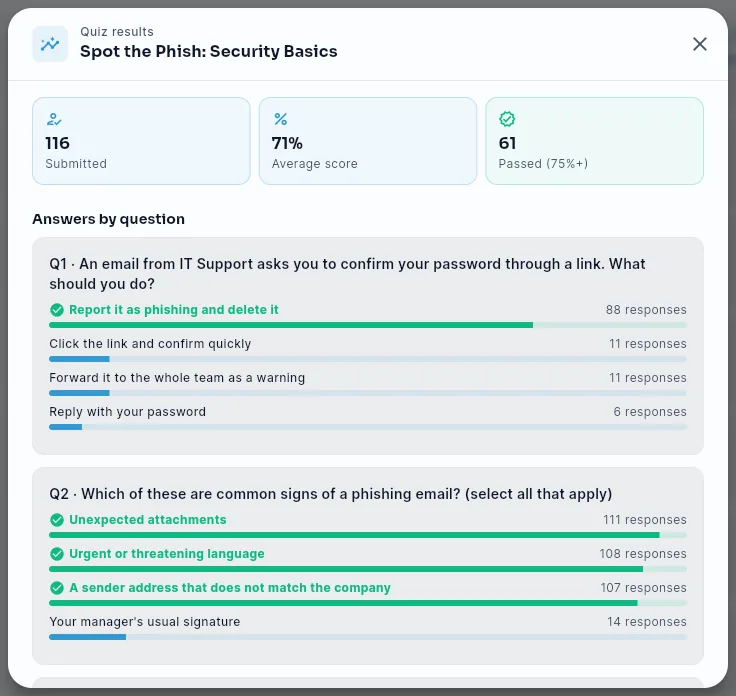
The results window shows:
Summary — how many members submitted, the average score, and how many passed (when there is a pass mark). If anyone retook the quiz, the total number of attempts is shown under it.
Answers by question — how many members chose each answer (from each member's best attempt), with the correct answer marked with a green check.
Members — each member's photo, name, score, Passed / Not passed, and submission date. Members who retook the quiz are counted once, by their best attempt, and show N attempts next to the date. Tap a member to expand their answers, each marked ✓ (correct) or ✗ (incorrect); open-ended and scale answers are shown as not scored.
If the quiz is anonymous, the window says "This quiz is anonymous — individual answers are hidden" and shows only the summary and answer counts.
Did this article help?
Related articles.
See the platform in action.
Free for up to 25 members, or try Core or Growth free for 30 days. A card is required; Free is never charged, and a trial bills when it ends unless you cancel.