River Run Progress Tracking
Give River tracks your learning progress at two levels: the individual Stream level (did you complete this lesson?) and the overall River Run level (what percentage of the run have you finished?). Progress is displayed throughout the app so you always know where you stand.
Overview
Give River tracks your learning progress at two levels: the individual Stream level (did you complete this lesson?) and the overall River Run level (what percentage of the run have you finished?). Progress is displayed throughout the app so you always know where you stand.
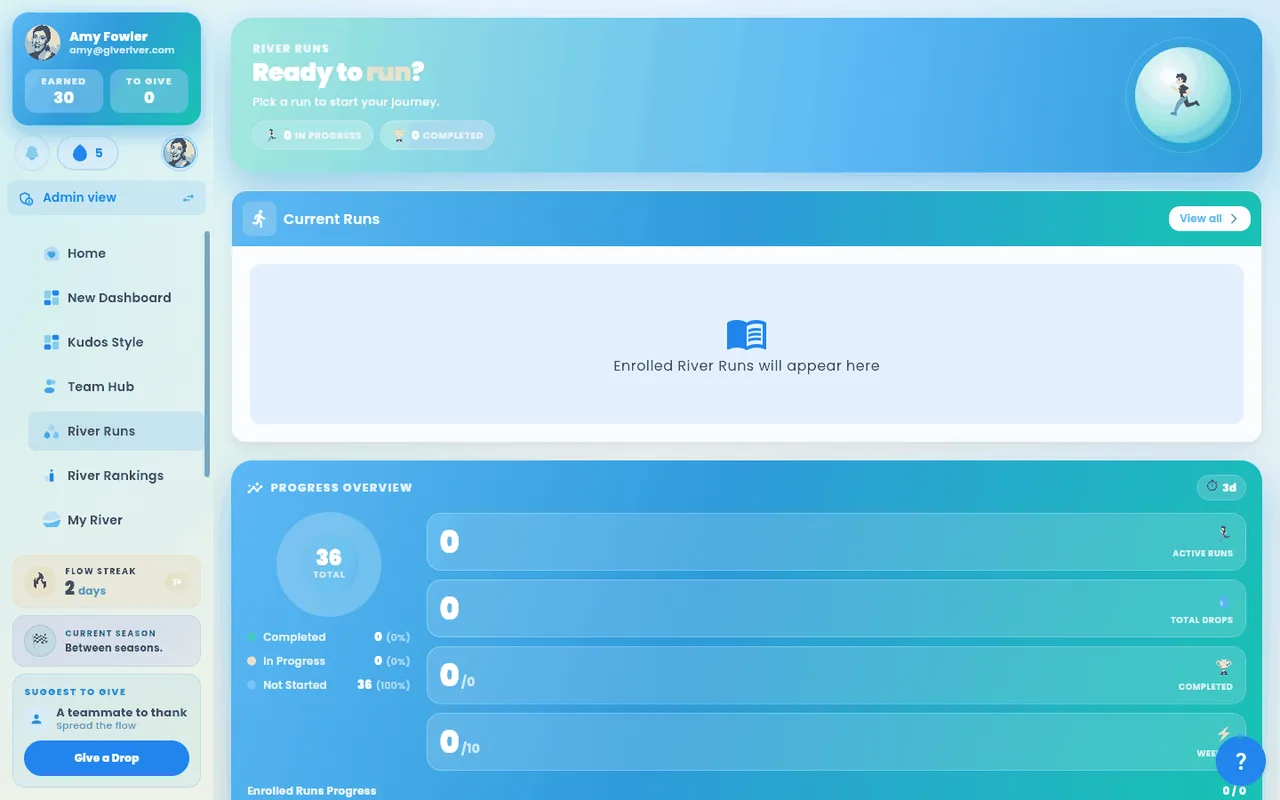
Progress on Run Cards (Current Runs)
In your Current Runs section, each enrolled run card shows:
- A progress bar that fills from left to right as you complete more Streams
- The percentage complete beside it (e.g., "45%")
- The number of Streams and the Drops you can earn
The banner at the top of the page features one run as Next up, with its own progress and Continue button, so Current Runs leaves it out. If you have a required run to finish, that's the one (the run due soonest, with overdue runs first; it shows its Required chip, and it's still listed in Required for you). Otherwise it's the run you joined most recently, even if you haven't started it yet. When one other run is left in Current Runs, it shows as a wide Continue where you left off card with a Start or Continue button.
Runs your admin made required show in Required for you instead, with the same progress bar (red while overdue).
Progress Inside an Enrolled Run
When you open a specific River Run (the enrolled course page), you can see:
A list of all Sections and their Streams, organized in the order set by the admin
Under each Stream's title, one plain status and its length — for example In progress · 5 min:
Status Meaning Not started You haven't opened this Stream yet In progress The Stream you have open now, or one you started and haven't finished (shown with a play icon when it's open) Done You finished this Stream (a check mark) Passed You finished this quiz at or above its pass mark (a star). A finished quiz shows Passed once you've opened its results in this session; otherwise it shows Done. Locked / Unlocks in … Not open yet: the run unlocks its Streams in order, set by the run's release rules (a lock icon). Tap it to see what opens it, usually "Finish the previous stream to unlock this one." Under Created by, the teammates from your company who are on this Run with you (their photos, plus a count)
On each Stream with an active discussion: the photos of the teammates talking there and a speech-bubble count of messages, so you can see where the conversation is before you open it
Locked Streams can't be opened yet. When you finish a Stream, the next one unlocks straight away and the run moves on to it. If the next Stream has a timed release, a dialog shows how long until it unlocks, for example "Your next stream unlocks in 4 h 5 min."
The Stats Strip
Four stat cards sit at the top of the River Runs home screen, under the River Runs banner (in a 2×2 grid on phones). Their look depends on the page style your admin picked for your team:
| Metric | What it means |
|---|---|
| River Runs streak | Consecutive days you have spent time in River Runs (watched or finished a Stream), with the days remaining before it resets |
| Runs completed | Number of River Runs you have fully finished |
| Drops earned | Total Drops accumulated from Stream completions in River Runs, with how many you can still earn this period (weekly or monthly, set by your org) |
| Minutes of streams left | An estimate of the Stream time remaining across your enrolled runs |
Run Completion Celebration
When you complete the final Stream in a River Run (course progress reaches 100%), a celebration dialog appears with:
- A congratulatory message
- An animated character (Ugo)
- The number of Drops you earned, shown as an animated count-up
- A message about your remaining earnable Drops for the period
- Confetti animation
After closing this dialog, the run moves from Current Runs to Completed Runs on your home screen.
Viewing Completed Runs
Scroll to the Completed Runs section on the River Runs home screen (it appears once you've finished your first run), or tap See all to see the full list. Completed run cards still show the thumbnail and run details, with a green Completed check where the progress bar was, so you can re-open them to review Stream content at any time.
Did this article help?
Related articles.
See the platform in action.
Free for up to 25 members, or try Core or Growth free for 30 days. A card is required; Free is never charged, and a trial bills when it ends unless you cancel.