Announcements and Pinned Posts
Announcements are admin-posted messages that appear at the top of the Home page, above surveys and events. They are designed for important team communications that need visibility — policy updates, company news, shout-outs, or anything the whole team should see. Announcements can include images, emoji reactions, and comments.
For Team Members: Reading Announcements
- Open the Home page. Announcements are pinned at the top of the feed, above the first post, in the same card style as posts and labelled Pinned announcement.
- If there are multiple announcements, swipe left and right (or tap the dots at the bottom of the card) to move between them.
- Each announcement card shows:
- The title (supports emoji and clickable @mentions and URLs).
- An optional attached image.
- Reactions (if enabled by the admin) — tap React to open your team's reaction picker and pick one, or tap an existing reaction to remove it. See Post Reactions and Comments.
- A comment button (if enabled by the admin) — tap to expand the comment field and type a reply.
- Announcements leave the Home page on their expiry date.
- An admin can target an announcement at part of the team (a location, a department, a group…). You only see the announcements meant for you.
For Admins: Creating an Announcement
Announcements are managed under Engage › Announcements (Admin view).
- Click Create Announcement to open the creation dialog.
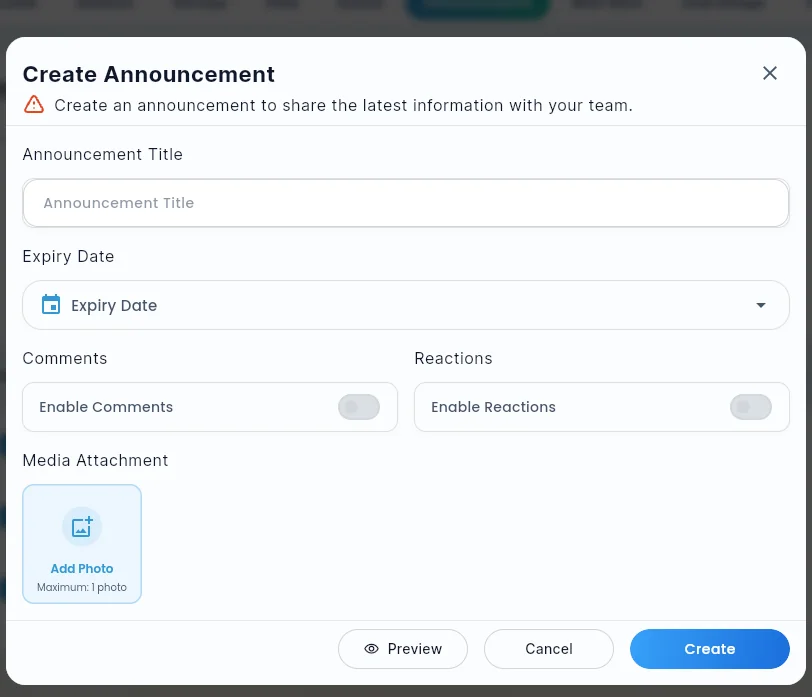
- Fill in the required fields:
| Field | Required | Description |
|---|---|---|
| Title | Yes | The announcement text shown to members. Supports emoji (e.g., :tada:) and @mentions. |
| Expiry Date | Yes | The date the announcement stops showing on the Home page. |
| Enable Comments | No | Toggle on to allow members to comment on this announcement. |
| Enable Reactions | No | Toggle on to allow members to react with emoji. |
| Who is this for? | No | Everyone (the default), or pick people, teams & groups, locations, departments, roles or a saved segment. The live count shows how many members will see it. |
| Media Attachment | No | Upload one image to display alongside the announcement text. |
- Click Create to publish. The announcement appears on the Home page immediately for the people it's for.
Targeting an announcement
Under Who is this for? you can narrow an announcement to part of your team. People, groups, locations, departments and roles combine as "anyone who matches at least one". A saved segment is a reusable rule (for example Boston, joined in the last 90 days); see Audiences & Saved Segments.
The audience is checked every time a member opens Home, so it stays current: someone who moves to Boston starts seeing the Boston announcements. People outside the audience can't see, comment on or react to the announcement. You can change the audience later from Edit.
Managing Announcements (Admin)
In the Announcements admin list, you can:
- Sort announcements by status, title or date using the column headers.
- Read the status pill: Live (members see it), Draft (unpublished, hidden from members) or Ended (past its expiry date). It's the same Draft · Scheduled · Live · Ended set used across Engage and Insights.
- Use ⋮ (More actions) on a row for everything else:
- Edit: update the title, expiry date, image, settings or audience.
- Unpublish…: hide the announcement without deleting it. The confirmation explains that it leaves Home and Team Hub for everyone it was for, and that comments and reactions are kept. Publish… shows it again (it asks you to confirm how many people it goes to). An ended announcement needs a new expiry date (Edit) before it can go live again.
- Delete: permanently remove the announcement after a confirmation that says what's lost.
The admin table shows up to 5 announcements inline. Click See All (when more than 5 exist) to open a full list dialog.
Preview Mode
Before publishing, click Preview in the create / edit dialog to see exactly how the announcement card will appear on the Home page — title, image, reactions, comments — without any member seeing it yet.
Unsaved-Changes Guard
If you try to close the announcement modal with unsaved edits, a confirmation prompt appears so you don't lose in-progress work to a misclick.
Tips
- Set an appropriate Expiry Date so outdated announcements do not clutter the Home page. Once expired, the announcement is hidden automatically.
- Enable Reactions on positive announcements (e.g., a team win) to encourage lightweight engagement without requiring a full comment.
- Enable Comments when you want two-way dialogue — for example, asking team members to confirm they have read a policy update.
- Keep titles concise — the announcement card has limited space and very long titles wrap to multiple lines.
Did this article help?
Related articles.
See the platform in action.
Free for up to 25 members, or try Core or Growth free for 30 days. A card is required; Free is never charged, and a trial bills when it ends unless you cancel.