Reflections (Guided Team Prompts)
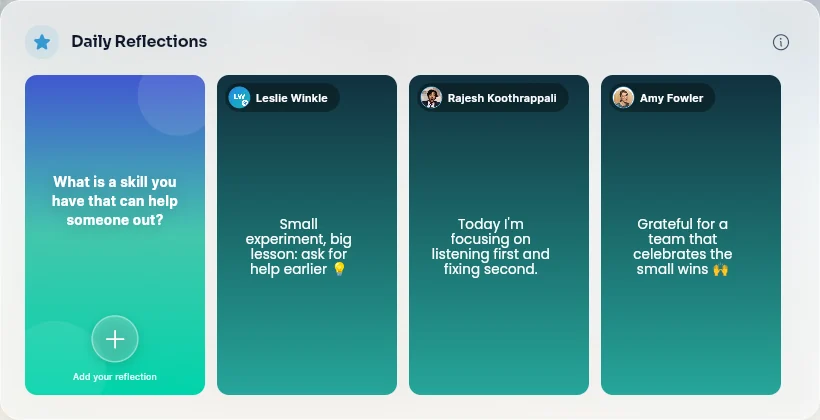
Reflections are short, visually designed prompts that guide team members to pause, think, and respond to a daily question or theme. They appear on the Wellspring page as portrait-format cards and are only available when your admin has enabled the Daily Reflections feature for your team.
What Reflections Look Like
Each reflection is displayed as a tall card (9:16 portrait ratio) with:
- A gradient background with customizable colors.
- Text content — the reflection prompt or theme.
- Optional stickers or decorative elements positioned over the background.
Reflections are shown in a horizontally scrollable row on Wellspring, with an Add Reflection card always appearing first.
For Team Members: Adding Your Reflection
- Open Wellspring from the navigation menu and scroll to the Daily Reflections section. This section only appears if your admin has enabled Daily Reflections for your team and at least one Daily Drop prompt exists.
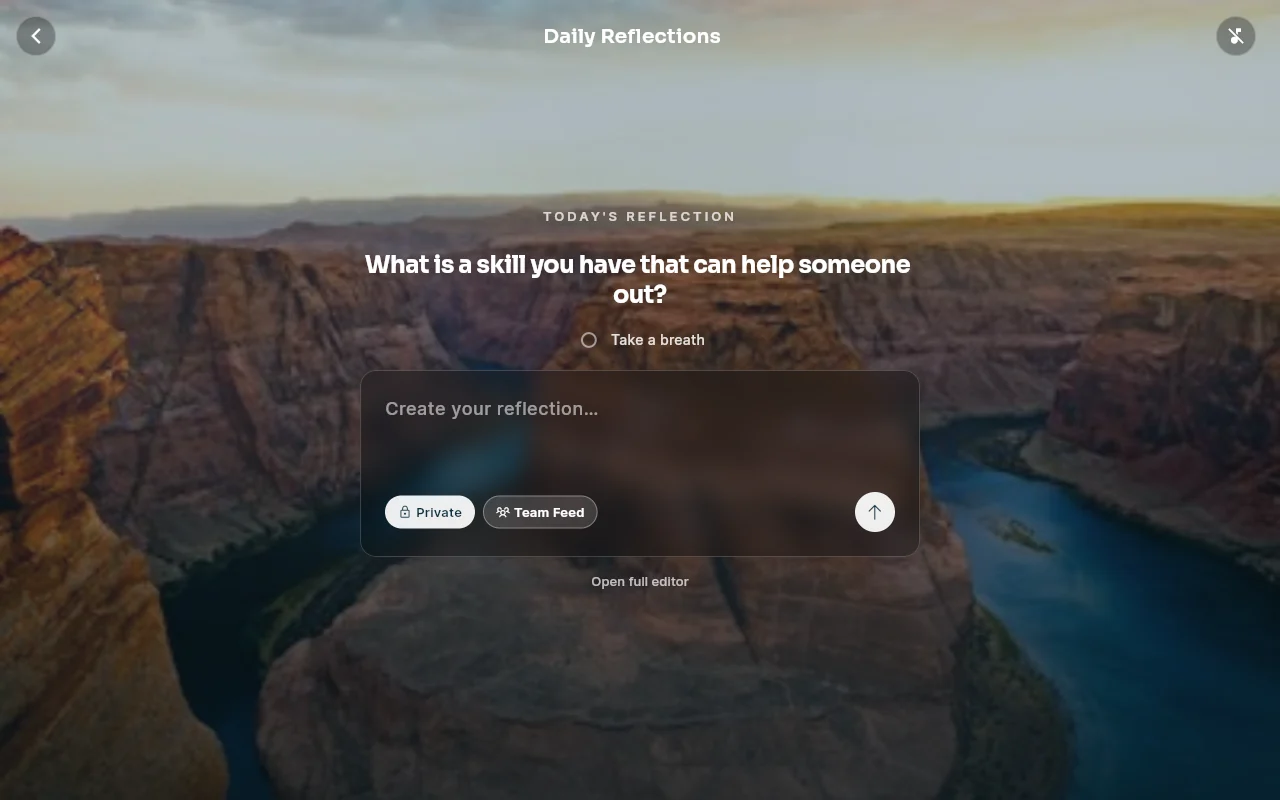
- If teammates have already shared reflections for the current prompt, you'll see a row of reflection cards — each showing its creator's photo and name — with an Add card first. If fewer than two have been shared yet, the section shows a single full-width bar with today's prompt and a Begin reflection button instead. Tap either to open the reflection screen — a calm, full-screen view of today's prompt with a gentle "take a breath" moment (and optional ambient music via the note icon).
- Tap Begin reflection (or Remind me to schedule a reminder for later). The scene becomes your composer: the prompt tucks toward the top and a softly frosted panel appears so you can type your reflection right on the scene. If the daily prompt awards drops, a small Earn X drops chip on the panel shows what completing it earns.
- If more than one reflection prompt is available today, a Try another prompt button under the prompt cycles to the next one.
- Pick Private (stays in your journal and the reflections section) or Team Feed (also appears in the main team feed) and tap the send arrow. In the team feed your post reads Your name answered "today's prompt", with your reflection centred on its gradient across the whole post. Prefer stickers, fonts, and gradient backgrounds? Tap Open full editor below the panel to compose in the full editor instead.
- Your completed reflection card will appear alongside others in the row on Wellspring.
Viewing Others' Reflections
Scroll through the reflection cards in the row to see completed reflections from your teammates for the current prompt period. Tap a card to view it in full.
How Reflections Are Set Up (Admin)
Reflections come from Daily Drop prompts, each with a prompt and a card design. Give River provides the prompts.
To turn Daily Reflections on for your team:
- In Admin view, go to Settings › Features.
- Turn on Daily Reflections.
The Daily Reflections section then appears on Wellspring for everyone on the team, as long as at least one Daily Drop prompt is active.
Notes
- If no Daily Drop prompts are active, the Daily Reflections section will not appear on Wellspring, even if the feature is enabled.
- Reflections support multiple font styles that can be selected when composing a response in the full editor; the in-scene composer uses the standard style automatically.
Did this article help?
Related articles.
See the platform in action.
Free for up to 25 members, or try Core or Growth free for 30 days. A card is required; Free is never charged, and a trial bills when it ends unless you cancel.