River Run: Share to Feed
When you complete a Stream, you have the option to Share your completion to the Give River recognition feed. Sharing is a way to celebrate your learning publicly with your team, and it earns you more Drops than completing a Stream quietly.
Overview
When you complete a Stream, you have the option to Share your completion to the Give River recognition feed. Sharing is a way to celebrate your learning publicly with your team, and it earns you more Drops than completing a Stream quietly.
How to Share After Completing a Stream
- Finish watching or engaging with a Stream's content.
- Tap the Complete button in the action bar at the bottom of the screen.
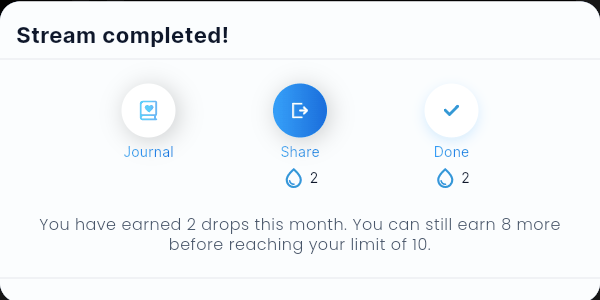
- A Stream completed! dialog appears with three options:
- Journal — log your completion privately (not visible to teammates)
- Share — post to the team recognition feed (earns the Drops value shown)
- Done — mark complete without posting
- Tap Share.
- The posting flow opens, pre-populated with context about the Stream you just completed (the Stream title and River Run name are included in the post text).
- Add any personal message, photo, or additional context you want to include with the post.
- Submit the post. Your completion is recorded and the share is published to the feed.
What Appears in the Feed
When you share a Stream completion, the feed post includes:
- A message noting which Stream you completed and from which River Run (e.g., "You completed the 'Introduction to Leadership' stream from the 'Leadership Fundamentals' River Run.")
- Any additional text, images, or content you added in the posting flow
- Your name and profile photo as the post author
The post is labelled River Run, and the Stream's name on it links to the run: tap it to open the run (or its overview, for teammates who haven't joined it yet).
Teammates can react to, comment on, and engage with your post in the feed.
Privacy Note
- Share posts to the public/team feed are visible to your organization members.
- Journal posts are private and only visible to you.
- You choose which option to use each time you complete a Stream — there is no permanent setting.
Tips
- Sharing is optional. Choosing Done still marks the Stream complete and awards the same Drops as sharing for that action.
- You can share completions from previously finished Streams by navigating back to the enrolled run and interacting with a completed Stream.
Did this article help?
Related articles.
See the platform in action.
Free for up to 25 members, or try Core or Growth free for 30 days. A card is required; Free is never charged, and a trial bills when it ends unless you cancel.