Post Reactions and Comments
Every post in the feed supports emoji reactions and a threaded comment section, so your team can acknowledge and amplify recognition moments beyond just sending drops.
Reacting to a post
You can react to any post with one of your team's reactions, such as Love, Fire or Applause. Where your team has the expanded reaction set, your admin can choose between 3 and 10 reactions (adding ones like Like, Celebrate or Thanks) and rename them. Reactions are tallied per reaction and shown beneath the post.
To add a reaction:
- Find the post you want to react to in the feed.
- Tap React (the smiley with a plus) on the post card. The reaction picker opens above it: up to five reactions per row, so a set of six or more shows two rows.
- Pick a reaction. To see a reaction's name first, hover over it on a computer, or press and hold on a phone — you can slide your finger across the picker and lift it on the one you want. Your current reaction is circled.
- Your reaction is recorded immediately and the count for that reaction increases by one.
Tap anywhere outside the picker (or press Esc) to close it without reacting. You can also open it with the keyboard: Tab to React, press Enter, then Tab to a reaction and press Enter.
To remove a reaction:
Tap your existing reaction again. The count decreases and your reaction is removed. If the count reaches zero, that reaction is removed from the display.
If your admin later removes a reaction from the set, it stays on the posts that already have it; it just can't be picked from React any more.
Announcements use the same picker — see Announcements and Pinned Posts.
Viewing and leaving comments
To open comments on a post:
- Tap the comment icon or comment count on a post card.
- The comments panel opens, showing all existing comments for that post.
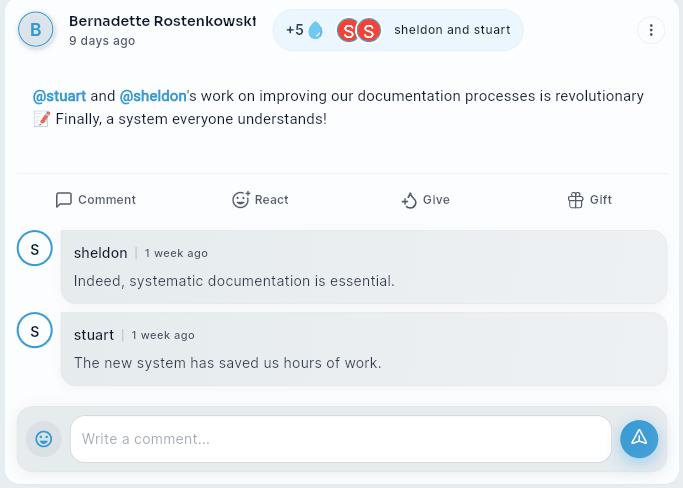
To leave a comment:
- The text input field is focused automatically when the comments panel opens.
- Type your message in the Write a comment field.
- Tap the send button (paper plane icon) or press the Return/Enter key on your keyboard to post.
- Your comment appears at the bottom of the list.
Emoji in comments:
Tap the smiley face icon to the left of the text field to open an emoji picker and insert an emoji into your comment.
Profanity filter:
Comments are checked automatically before posting. If your comment contains flagged language it will be blocked and you'll see a warning. Edit your comment and try again.
Drop comments
When drops are sent to a post's creator (via the Give Drops button on a post), a system comment is added automatically to the post's comment thread. For example: "Alex gave 3 drops to @Jamie." This gives the team visibility into recognition moments happening on each post.
Sticker comments
When someone sends a sticker to a post, it also shows in the post's comments. See GIF and Sticker Integration for how to send stickers.
Tips
- Comments are sorted chronologically, oldest first, with new comments appearing at the bottom.
- Scroll up within the comments panel to read older comments.
- Tap the X button or swipe the panel down to close comments without posting.
Did this article help?
Related articles.
See the platform in action.
Free for up to 25 members, or try Core or Growth free for 30 days. A card is required; Free is never charged, and a trial bills when it ends unless you cancel.