Journal
Your Give River Journal is a private, chronological record of what you have done on the platform, and of the moments that came your way: recognition from teammates, awards, and bonuses. It is visible only to you and fills in automatically — no manual writing required.
What the Journal Records
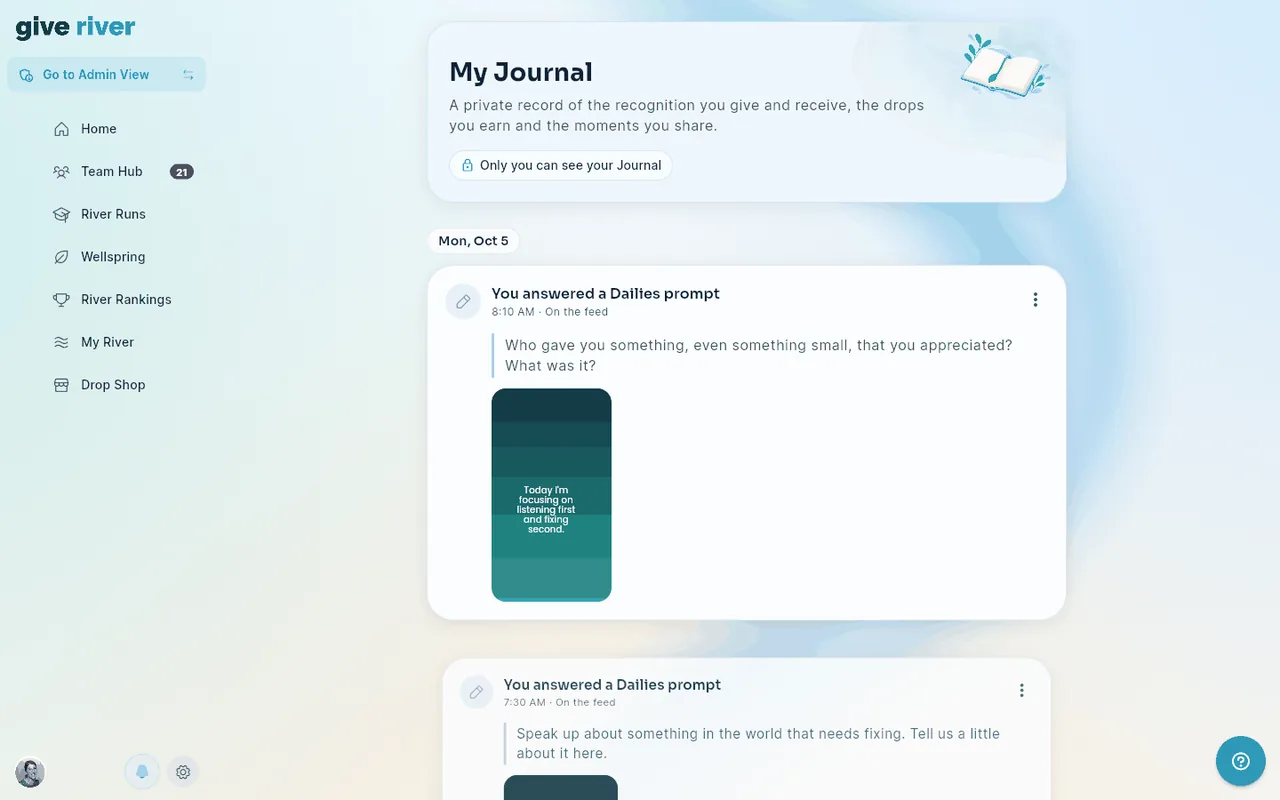
Every significant action you take, and every recognition, award, and bonus you receive, is logged as a journal entry. Each entry has a color-coded icon, a plain-English title that says what happened, when it happened, and the drops it brought you (+N), with the details underneath. Entry types include:
| Entry title | What it shows |
|---|---|
| You recognized @name | A recognition post you wrote (for more than one teammate: "@ana and 2 others"), with your message and any photo or video |
| You shared a post | A post that doesn't name anyone, with its words and any photo or video |
| You answered a Dailies prompt | The prompt you answered, and your answer: your words, photo, or the text card you designed |
| You posted in a challenge | The challenge's name and your post |
| You earned a badge | The badge picture and its name |
| You received a gift / You sent a gift | The gift and the teammate it came from or went to |
| You chose a cause / You chose a charity | Its name and cover picture |
| You joined a challenge | The challenge's name and cover picture |
| You completed a stream | The Stream's name each time you finish a Stream of a River Run, with the run's name (or the words you shared with it). Tap it to open the run |
| You joined a stream discussion | The Stream's name and what you wrote in its comments. Tap it to open the run |
| You completed a River Run | The run's name when you finish every Stream of it, with the drops its Streams earned you. Tap it to open the run |
| You met a goal milestone | The goal's name when your manager approves one of its milestones, with the milestone, how far along the goal is (for example "2 of 4"), and the drops it paid. Tap it to open the goal |
| You completed a goal | The goal's name and the drops its milestones paid. Tap it to open the goal |
| [Name] recognized you | A teammate's recognition post that sent you drops, with their message and the drops you received (one entry per post). Tap it to open the post |
| You received an award | The award's name when an admin gives you a custom award, with its drops. If the award was also shared to the feed, tap it to open that post |
| Your team bonus was paid out | Your team goal's name and the bonus drops, once the team goal is reached and the bonus is paid to you. Tap it to see your team goals |
| You finished a quiz | The quiz's name, the River Run and your score (e.g. "4 of 5 correct (80%)"; your best attempt, with Best of N attempts if you retook it), a Passed chip when you reached the pass mark, and any bonus drops. Tap it to open the run |
Photos, video covers and Dailies text cards appear as small previews so an entry never fills the screen. Tap a photo or video to see it full screen (videos play there), or a text card to see it full size. If a picture can't be loaded, a quiet placeholder takes its place.
How Entries Are Organized
The page opens with a short header: My Journal, one line about what it holds, and a reminder that only you can see it. Entries follow as cards along a soft river that flows down the page, newest first, under a heading for each day: Today, Yesterday, then the weekday and date (for example "Mon, Oct 5"; earlier years add the year). Today's entries show how long ago they happened ("3 hours ago"); older ones show the time of day. As you scroll, the entry you're reading is shown at full size and the ones above and below it are slightly smaller and lighter (with Reduce motion turned on in your device settings, every entry stays full size).
The journal loads 20 entries at a time. Tap Show older entries at the bottom to load the next ones.
If you haven't done anything yet, the page says so and offers Give a Drop to send your first recognition.
Accessing Your Journal
From My River:
- Scroll to your activity timeline (the section titled with your first name, for example "Amy's River").
- Tap See all to open the full My Journal page.
Managing Journal Entries
Your own posts (recognition you gave, posts, Dailies answers) show Private or On the feed next to their time, and a three-dot menu in the top-right corner of the entry with:
- Make public / Make private: show the post on the team feed, or keep it to your Journal only.
- Share Post: share a link to the post's photo or video (posts with a photo or video only).
- Delete Post: permanently remove the post. You're asked to confirm first, because this can't be undone.
Other entries (badges, gifts, causes, quizzes, runs, goals, recognition you received, awards and bonuses) have no menu because they are records of something that happened.
Bookmark It on the Web
On the web, My Journal has its own page address, so you can bookmark it to jump straight to your journal.
Privacy
Journal entries are private to you. Posts within the journal can be individually set to public or private (see Privacy Settings), but the journal view itself is never visible to other users.
Did this article help?
Related articles.
See the platform in action.
Free for up to 25 members, or try Core or Growth free for 30 days. A card is required; Free is never charged, and a trial bills when it ends unless you cancel.