Peer Recognition Feed (Home Feed)
The Home Feed is your central view of recognition activity across your team — a live, scrollable stream of posts where colleagues celebrate each other, share drops, and tag core values.
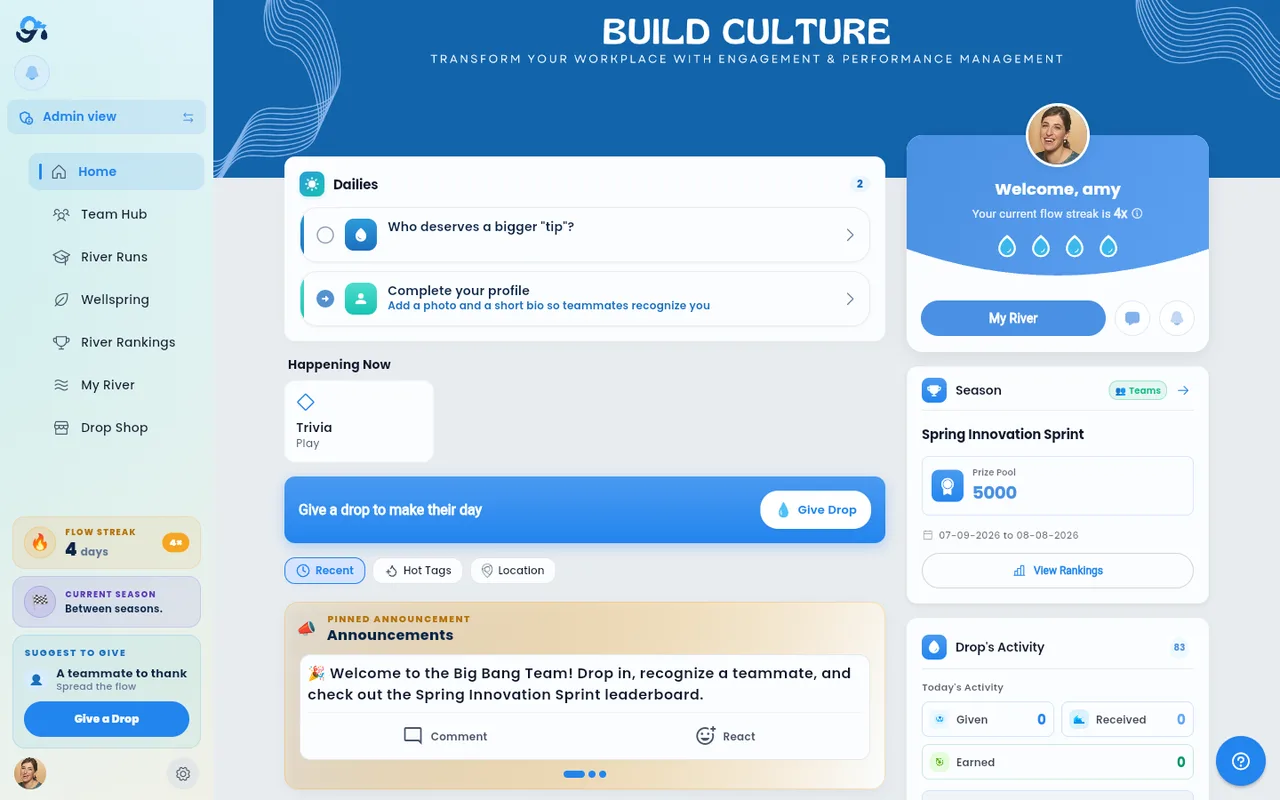
Your team's banner
Home opens with your team's banner across the top — the same banner, at the same size, as on the Team Hub. While it loads you may briefly see the Give River default banner, a soft blue wave; your team's banner fades in over it. If your admin has turned it on, your team logo sits in the banner's top-left corner. Admins see a small pencil in the banner's top-right corner, for changing the banner image or how it's framed (see Arranging Home and Team Hub).
Your drops, at the top of Home
The first card on Home is My Drops. It answers the three questions people ask most, side by side:
| Number | What it means |
|---|---|
| To give | The drops you can give teammates this cycle, and when they reset. Use them or lose them — they can't be spent on rewards. |
| Received | All the drops teammates have given you. |
| To spend | Your River Bank — drops you've received and earned, ready to redeem in the Drop Shop. Drops held by a redemption awaiting approval show as pending. |
Below the numbers are the two things you'll do most: Give a Drop (opens Recognize: pick who, say why, choose how many drops, preview, post) and Redeem (opens the Drop Shop). Your Flow level lives on the welcome card at the top of the side column.
What you'll see in the feed
Each post in the feed shows:
- The person who posted, their profile photo, and when they posted
- The recognition message, including any @mentions, #hashtags, and drop emoji
- Attached media (photos, videos, GIFs or stickers)
- Reaction counts and a comment count
- A "Give Drops" action button to recognize them directly from the post
On wider screens (tablet or desktop), a right-hand panel adds your welcome card, your season, upcoming events and celebrations. On a phone, the season, events, team charities and celebrations cards sit in a Today strip right under My Drops instead — swipe it sideways to see them all. Cards with nothing to show (no current season, no upcoming events) are left out. The pinned announcement at the top of the feed uses the same card style as the posts below it, marked Pinned announcement.
The feed is headed by your team's name — for example "Big Bang Team's River" — above the sort controls, in the same style as Dailies and Happening Now. Right under the heading, Share something with [your team]… opens the Create a post window, for anything that isn't a recognition — a milestone, a goal win, a GIF, or a full styled post.
How posts load
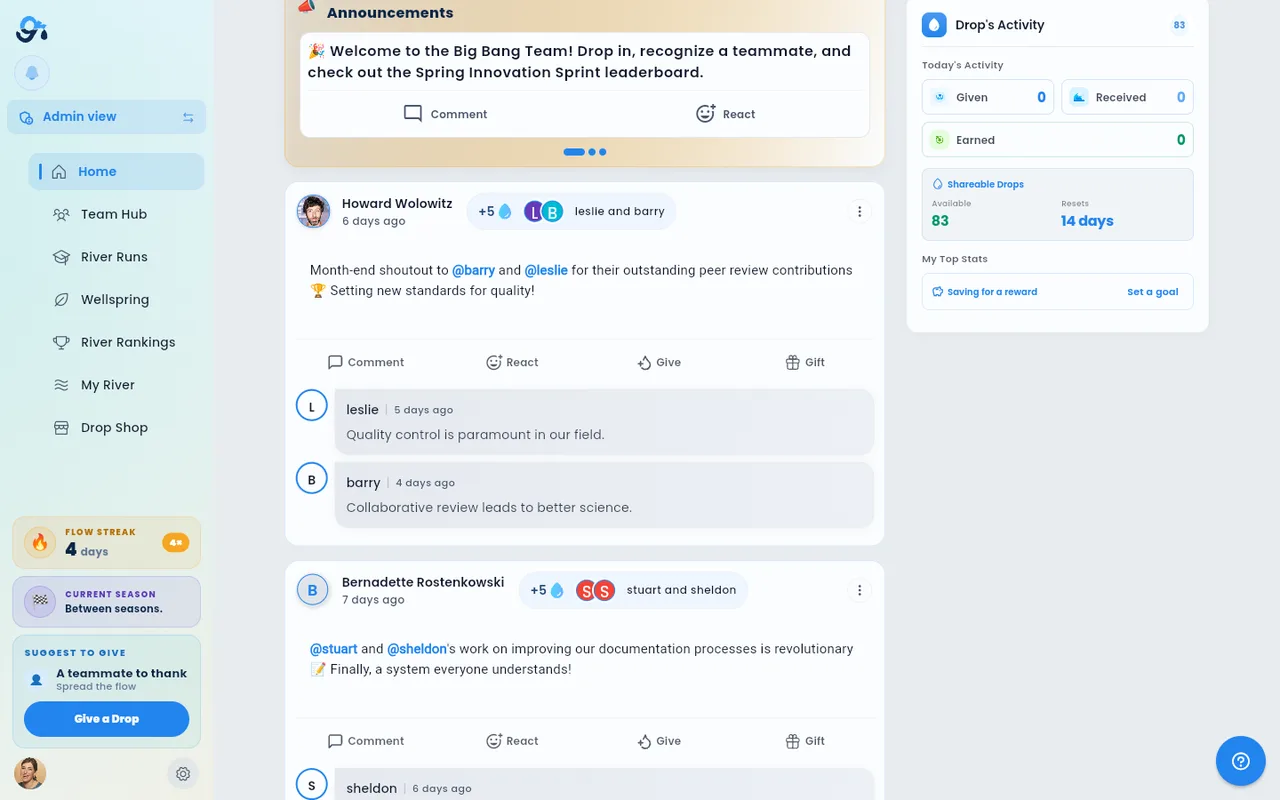
The feed loads the most recent posts first. As you near the bottom, older posts load automatically (infinite scroll), with a small spinner under the last post while they arrive. Once every post has loaded, the feed ends with You've reached the end of the river. If more posts can't load (for example, you're offline), the feed says so under the last post; tap Try Again. Pull down from the top of the list to refresh and fetch the latest posts.
A skeleton shimmer animation displays while the first page of posts is loading.
What a post looks like
Each post is a rounded card that says what kind of post it is, with the author and the time. Each kind has its own color:
| Color | Kind of post |
|---|---|
| Recognition (blue, the app's main color) | A post that mentions a teammate, or gives drops without a photo |
| Moment (apricot) | A photo or video post. A photo that doesn't tag anyone stays a Moment even after people give it drops |
| Gift (apricot) | A gift |
| Daily Drop / River Run (mint) | A post about a daily lesson, or a post shared from a River Run Stream (tap the Stream's name on it to open the run) |
| Reflection (lavender) | An answer to a daily reflection. Its header reads Name answered "the prompt", and the reflection fills the post on its gradient |
| Update (plain) | Any other post |
Your team's admin picks how the cards look for the whole team, under Team River in Settings > Layout:
| Style | What it looks like |
|---|---|
| Simple (the default) | A colored band across the top of the card with the kind of post, then the author and the post |
| Stream ribbon | A flowing stream across the top in the post's color, with the author's photo sitting on it |
| Recognition spotlight | A recognition shows the giver and the receiver facing each other, joined by a stream of drops, with the message as a quote. Other posts get a compact header |
| Scrapbook | A tape label, a drop stamp, core values as stickers, and big reaction buttons you tap directly |
| Bold editorial | Bigger text and tighter cards, with a slim colored rail down the side |
| Rising tide | The Comment, React and Give buttons float on water that rises as people react and comment |
In the styles with water (Stream ribbon, Recognition spotlight, Bold editorial and Rising tide), the water flows once as a post scrolls into view and then stays still. If you've turned off animations on your device, it never moves.
The same card is used wherever posts show: on Home, the Team Hub, profiles and the Recognize preview.
Sorting and filtering your feed
By default the feed shows Recent posts (newest first). Next to the feed's title you can switch to Following (posts only from people you follow) and narrow the feed to one or more locations. See Feed Sort and Filter.
To see every post with a core value, tap its #hashtag in any post.
Tapping a hashtag or @mention in a post
- Tapping a #hashtag in any post text opens a dedicated view showing all posts with that tag.
- Tapping an @mention in any post text navigates to that person's profile.
- Tapping a poster's profile photo opens a quick profile preview card (photo, name, and a short bio when available) with a View profile button and, for anyone but you, a Recognize button that starts a recognition addressed to them; tapping their name goes straight to the full profile.
Creating a post from the feed
Tap Give a Drop on the My Drops card to open Recognize, four short steps: Who (pick one or more teammates — suggestions first, or search), Why (your message, optional company-value tags, and a + for a photo, GIF or sticker), How much (1–5 drops each, with a live line like "Noah gets 5 drops · you have 20 left") and Preview (the post exactly as the feed will show it), then Post. On a phone it slides up from the bottom; on a computer it opens in a window. For any other kind of post (Milestone, Goal win, GIF, or the full editor), use Share something with [your team]… above the feed. Goal-win posts start with the #goals hashtag so goal celebrations (including the automatic ones posted when someone completes a SMART goal) group together in the feed's tag filters. See the individual articles on Send a Drop, GIF/Sticker Integration, and Core Values Hashtags for details on the full set of post options.
Around the feed on Home
A few cards live alongside the feed on Home. Your team's administrator can turn most of them off, change their order (so yours may not match the order below), or switch on Essentials mode, which shows only the My Drops card, the feed and the Drop Shop. So you may not see all of them:
- Dailies — today's quick, drop-earning actions (like the daily reflection, labelled Daily Reflection). By default they're a single row of square cards you can swipe sideways, each with a large icon and a soft color wash; a check mark appears on a card once it's done for the day. The list/grid icon in the card's header switches to a list instead — each daily as a row with a checkbox, the drops you'll earn, and a rough one-minute time estimate, up to three rows at a time (tap +N more to expand). The app remembers which view you chose on that device. A badge on the card shows how many drops are still up for grabs. Alongside the drop-earning dailies, the card can add shortcuts (shown with an arrow instead of a checkbox in the list — they're jump-off points, not to-dos with completion state): Continue your run appears when you're enrolled in a River Run you haven't finished (showing the run's title, your progress, and photos of teammates on the same run, and opening the run when tapped), and Complete your profile appears until your profile has both a photo and a bio (tapping it opens your profile). During a Performance season, goal reminders (a milestone or goal due soon, or a goal slipping behind pace — tap to check in) and a Set a goal for this season card can lead the shortcuts, and when a season ends a card named after it (for example Q3 has ended) asks what should happen to your unfinished goals; see SMART Goals and How Performance Seasons Work. The whole card hides itself when there's nothing to show.
- My goals this season — only during a Performance season. It leads with one goal: its next milestone in large type, a progress ring, the drops the milestone pays and when it's due, and one button (Check in, or Finish draft for a draft). Your other goals are one tap away under Show N more goals. The arrow in the header opens your full goals list, and the ⓘ explains how goals count toward the season standings. With no goal yet, it invites you to Set a goal for this season. See SMART Goals.
- Season card (side column) — during an active season it shows the season's name, type (Individual or Teams), what earns points, the Prizes (the drops each winning place gets, for example 1st 100 · 2nd 50 drops, or "Not set yet"), your current rank (your team's rank in a Teams season), and the season's dates with the days left (12 days left, Last day on the end date, Season ended once it's over; the same count as River Rankings), with a View Rankings button to the full leaderboard.
- Team Charities (side column, below the Season card) — up to three of the charities your team supports, each with its image and name, and a See all link into the Charity Channel. The card only appears when the Charity Channel is enabled for your organization and your team has charities selected.
- Your teammates (side column) — a short list of your teammates, each with a Recognize button that opens Recognize with them already picked. Tap a teammate's name or photo to open their profile. See all goes to Team Hub.
- Flow level — "Your Flow level is 2×": it goes up by one on each new day you open Give River (up to 4×) and slips after 3 days away. On wider screens it shows on the welcome card at the top of the side column (on Home and Team Hub). Tap the small ⓘ for an explanation, or see How Drops Work. Today's visit always counts, so it shows at least 1× while you're using the app.
- Recognize your team (managers only) — if you manage people, Home shows the teammates you haven't recognized in a while, least-recently first, each with a Recognize button that opens Recognize with them already picked. Managers also get a weekly email nudge listing anyone not recognized in over two weeks.
- Spread the flow nearby (members) — if you don't manage anyone, Home shows this card instead: people at your location (or across your whole team when you have no location set) who haven't been recognized by anyone in a while — never-recognized first, then least-recently. Each person has a Recognize button that opens Recognize with them already picked. Only one of the two recognition cards ever shows at a time.
- Row or list: both recognition cards start as a single scrolling row of people (photo, name, and the date they were last recognized, for example Last recognized Sep 12). The view icon next to the card's chevron switches to a list, one person per line; past five people the list scrolls inside the card. Your choice applies to both cards and is saved to your account.
- Happening now — surveys, polls, trivia and challenges waiting for you, as a row of tiles; tap one to open it. The card hides when nothing is live.
- Celebrations — at the top of the feed (unless your admin moved it higher on Home), birthdays, anniversaries and awards, Upcoming (today and the next 30 days) or from the Past week (switch with the button at the card's top right), each with a 🎉 Congratulate shortcut that opens Recognize with that person picked and a congratulations message started. If your admin turned on Also post to the team feed (River) for a birthday or work-anniversary milestone, a celebration post ("🎉 Happy birthday, @Name!") also appears in the feed on the day — see Automated Milestones.
Folding Home's cards
My goals this season, the recognition card, Dailies, Celebrations and Happening now each have a chevron (⌄) at the end of their header. Tap it to fold the card down to its title and a one-line summary, for example "Next: Draft the plan · 60%", "5 people to recognize", "2 dailies to do · earn 10 💧" or "2 things waiting: Surveys · Polls". Tap it again to open the card. On a phone, an open card's buttons and chevron sit at the top of the card, under its title.
Folded cards are saved to your account, so they stay folded on your other devices and the next time you sign in.
Did this article help?
Related articles.
See the platform in action.
Free for up to 25 members, or try Core or Growth free for 30 days. A card is required; Free is never charged, and a trial bills when it ends unless you cancel.